Manual Number 9019161 Revision C, August 18, 2023 31
PREPARATION
1. Download the approved software and/or CID file to the root directory of a USB flash
drive. The drive must be formatted as FAT or FAT32, up to a maximum size of 32GB.
The downloaded filename may be changed, but must retain the original extension (for
example “.muf” or “.cid”).
2. Ensure that the unit is powered off.
3. Remove the unit from the instrument panel.
a. Remove the four mounting screws attaching the bezel of the unit to the panel.
b. Position the unit such that the rear face is accessible.
NOTE: This can be done without removing the electrical connector or pneumatic
connections if the proper service lengths were applied during installation.
4. Loosen the screw of the USB access cover on the rear of the unit until the USB port is
accessible.
LOAD SOFTWARE
1. Insert the USB flash drive with the approved file(s) into the USB port.
2. Enter the Configuration Mode by press and holding the Control Knob on the faceplate
while applying external power to the unit.
3. Turn the Control Knob to highlight the UPDATE option.
4. Press the Control Knob to initiate the software load.
If the update is unsuccessful, an error message will display. Should this occur, remove
the USB flash drive, power down the unit and try again. If error recurs, put the files on a
different USB flash drive and try again. If the error message persists, contact Mid-
Continent Instruments and Avionics.
5. When the software load is complete, the unit will automatically reboot.
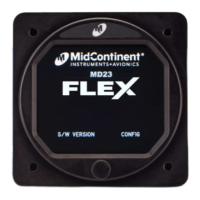
6. When the unit reboots into Pre-Flight Mode, verify the correct software and CID version
on the introduction screen.
a. The software and CID versions can also be verified on the Info screen within the
Options Menu.
RETURN TO SERVICE
1. Remove the USB flash drive.
2. Close the USB Access Cover and tighten the screw in place.
3. Re-install the unit into the instrument panel in reverse order as described in
PREPARATION Step 3 (above).


 To Next Page