24
25
10 SMART APP INSTRUCTIONS
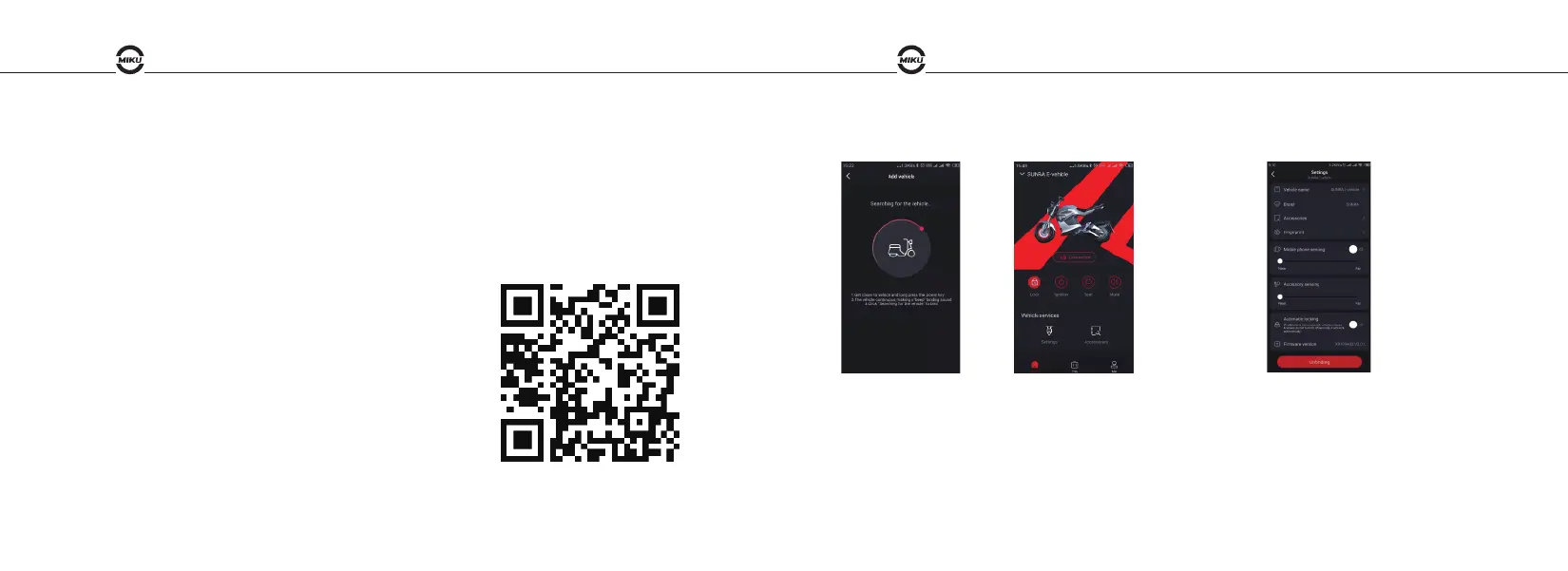
Step 1:
Download Smart Vehicle APP Client Software
Please scan QR code to download App.Also can
download from APP Store or Play Store. (System
requirements: iOS 9.0 / Android 6.0 or above)
Step 2:
Binding smart vehicles
Open the APP client and search for the vehicle
Search vehicle Vehicle Home
Note: Can't find or bind failed, please switch on/off phone's
Bluetooth and try again.
After registration and
login, long press the
power key to add vehicle
Enter the Home page to
explore how the smart
Miku Super is used
Step 3:
Fingerprint function description
1. Fingerprint entry: After the vehicle is successfully
bound, please touch the fingerprint sensor to see if
there is a beep (that means fingerprint connection is
working correctly). And just do as the system prompts.
DESIGNED BY MIKU TEAM DESIGNED BY MIKU TEAM


 To Next Page