12
In this example, the position was previously rated as equal, but The King can now deliver checkmate in
two moves.
You may now press RED (or ) and take your move back, pressing on the squares as indicated by the
lights and prompts. Or if you want your move to stand, press GREEN (or ).
Note:
the ‘Tutor’ is not activated when The King is playing on its lowest level (‘Play & Win’).
5.4.7
Options: Timer
If the timer is ‘on’, the thinking time for each player counts down from 15 minutes. See Section 4.2.
5.4.8
Options: Contrast
For this option, the settings range from 0 (very weak contrast) to 9.
5.4.9
Options: Sound
There are six possible volume settings for the sound signals, labelled “Off” and 1-5.
5.5
Menu: Move
If you select this item when it is your turn to move, the computer will compute and play the next move itself,
and you can then take over the other colour.
If you want the computer to play White, select ‘Move’ to begin the game.
If you select ‘Move’ when it is the computer’s turn, it will cut short its calculations and play immediately.
5.6
Menu: Hint
Select ‘Hint’ if you want the computer to suggest a move for you. For about 2 seconds the move is indicated
by the lights on the chessboard and also appears in notation at the bottom left of the screen, e.g.:
You can now decide whether to follow the advice or play another move instead.
5.7
Menu: 2 Players
If this function is selected, the computer doesn’t play any moves of its own. It allows you to carry out moves
for both White and Black – so it can be used for a game between two humans. The computer merely checks
the legality of the moves, keeps a record of the game, and performs the functions of a chess clock.
To show that The King is in ‘2 player’ mode, a pair of ‘faces’ ( ) appears in the bottom line of the
screen. The computer exits from this mode if you select ‘2 Players’ again, give the ‘Move’ command (see 5.5),
or alter the ‘level’ (see 5.2-3).
5.8
Menu: Position setup
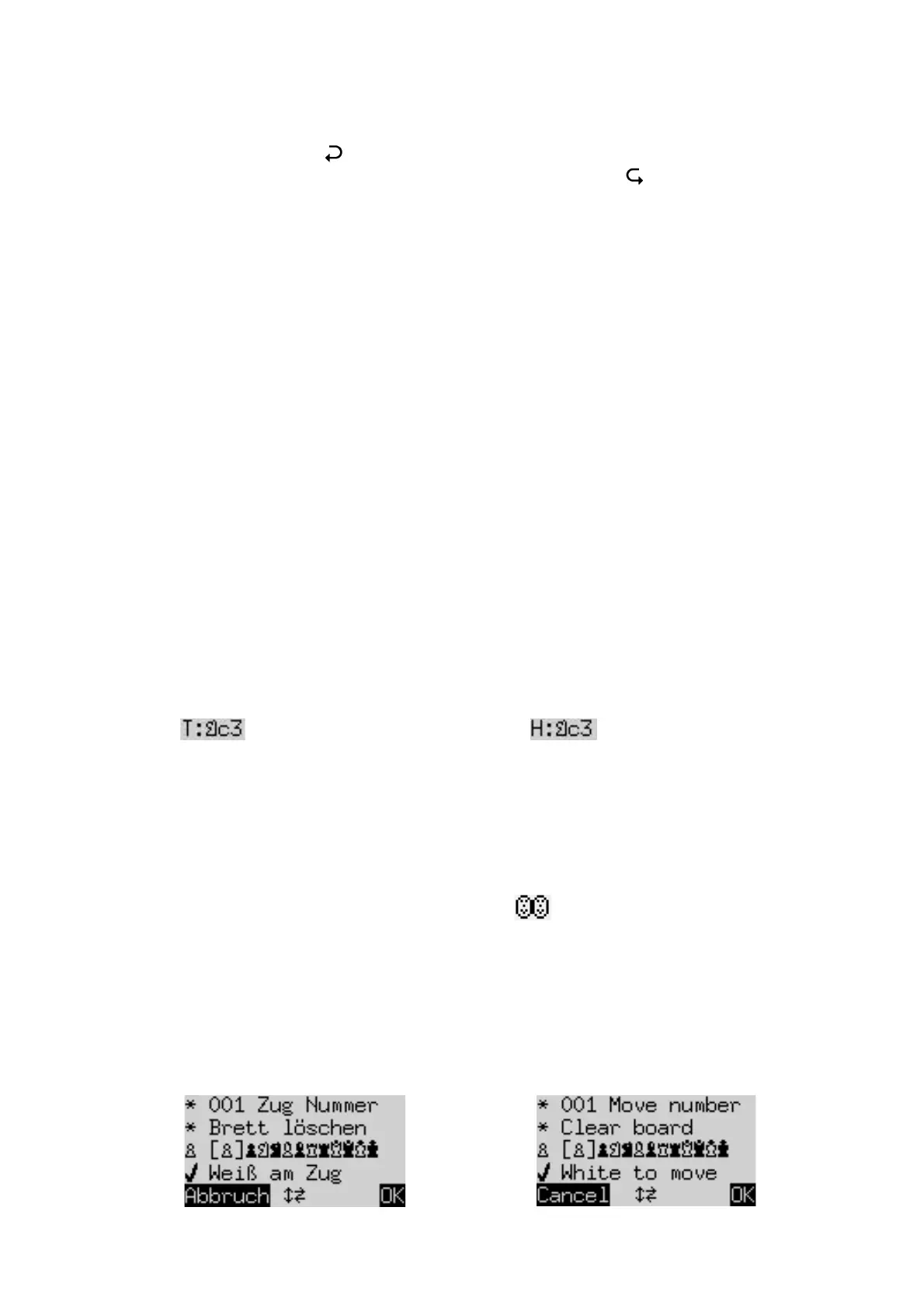
To construct a special position on the computer‘s chessboard, select ‘Position setup’ from the menu. The
screen then shows (e.g.):


 To Next Page
 Loading...