11
One line of the screen incorporates a ‘blinking’ character ( ▋). This is the
cursor
. By repeatedly
pressing ñ or ò, you can move the cursor up and down and view all 7 options in rotation.
5.4.2
Altering an option
To alter an option, bring the cursor to the appropriate row and use the ï / ð buttons.
Example:
you want to switch the ‘Tutor’ feature ‘on’, and adjust the contrast of the LCD display.
Bring the cursor to the ‘Tutor’ line. For the ‘Tutor’ option, there are just two ‘settings’, i.e. ‘Off’ ( X )
and ‘On’ (a ). Press ï or ð to switch between them.
Next, press ò twice to bring the cursor to the ‘Contrast’ line. This parameter has ten different settings.
By repeatedly pressing ï or ð, you can cycle through them until the desired degree of contrast is
obtained.
Having finished your alterations to the options, press GREEN to return to the menu or RED to return to
the info page.
5.4.3
Options: Menu
Using ï or ð you can choose between ‘Comfort’ and ‘Expert’. Choosing ‘Expert’ will display a menu of
12 functions and place The King in ‘Expert’ mode. For this, see the full-length instructions obtainable
from the Millennium website: http://www.computerchess.com/.
5.4.4
Options: Language
There is a choice of 7 different languages for the screen messages. They are listed in Section 2.2. Keep
pressing ï or ð until the desired language appears.
5.4.5
Options: Invert board
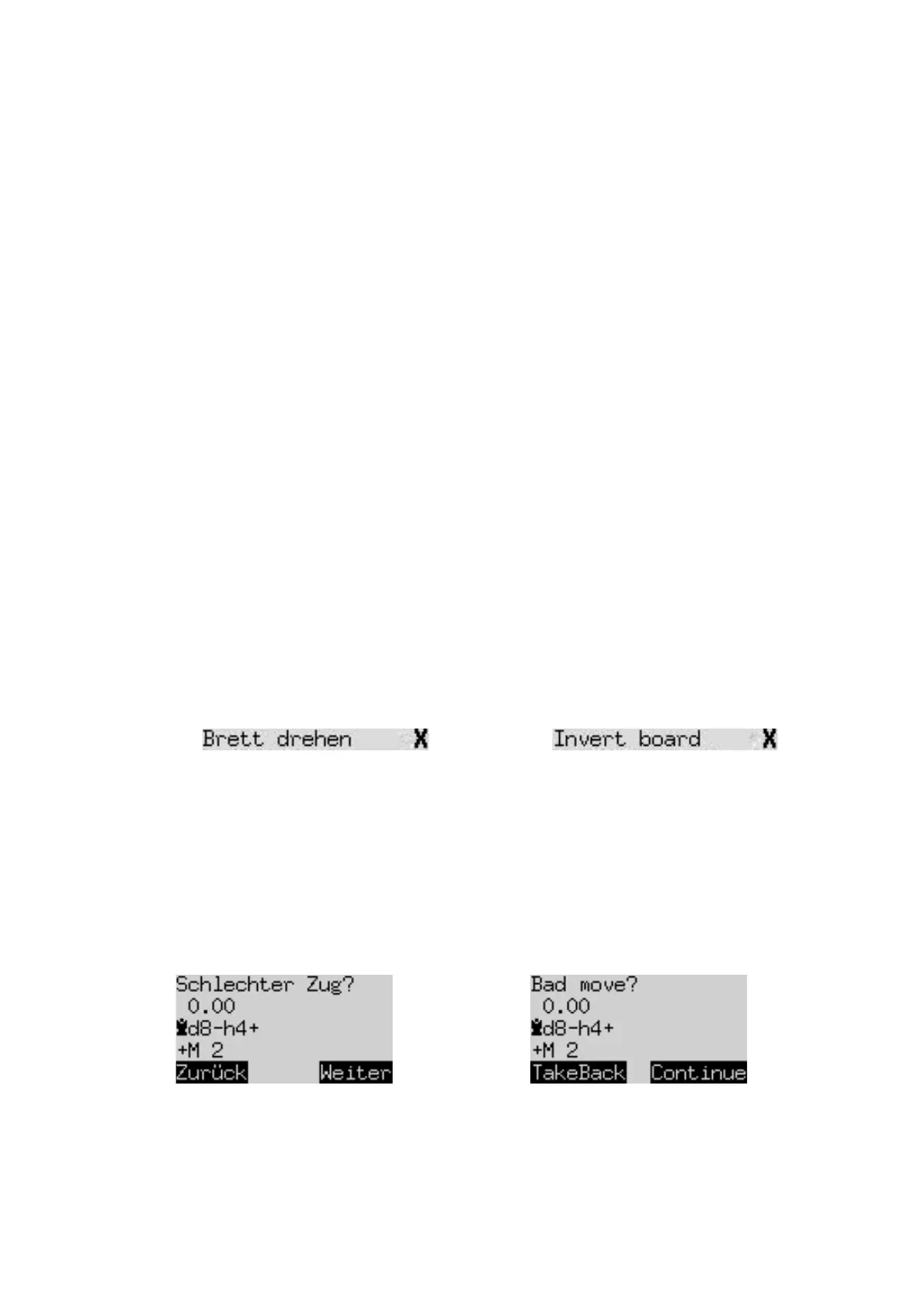
If White is playing ‘up the board’, the corresponding line on the Options screen shows:
If instead you want Black to play ‘up’, change the ‘X’ to ‘a’ and rearrange the pieces accordingly. The
‘Verify’ function (see 5.9) can help you with this.
5.4.6
Options: Tutor
Switch the Tutor function ‘on’ if you want the computer to point out your errors.
If the tutor is ‘on’ (a) and the computer thinks you have made a weak move, the display shows a
warning. For example:
The screen shows:
• the computer’s assessment of the position before your move (compare Section 4.3);
• its own possible reply;
• its assessment of the position following that reply.


 To Next Page
 Loading...