www.milorange.com
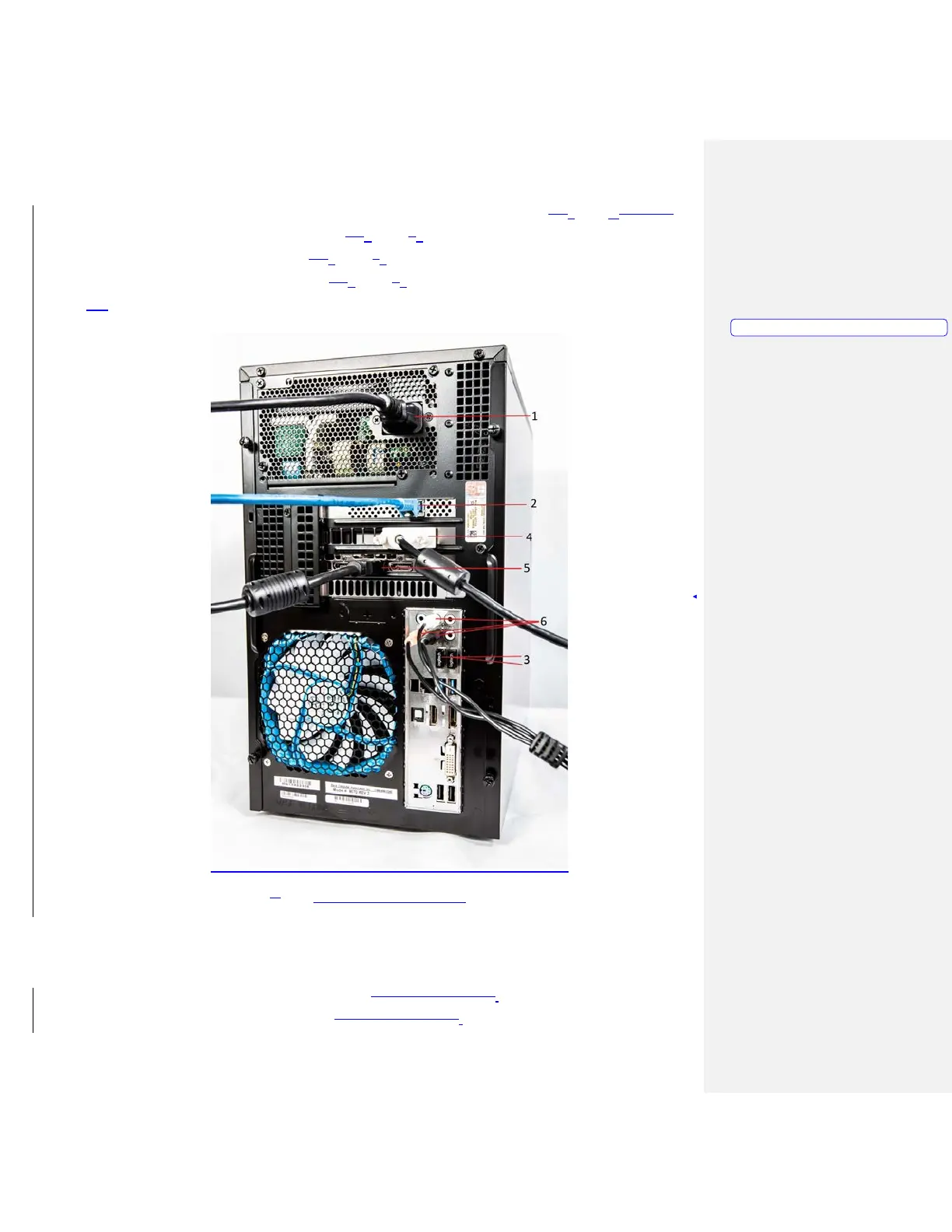
4. Connect the 2 USB Dongles that control the keyboard and mouse. (Figure 1-74, Item 3s 3 and 4)
5. Connect the monitor DVI cable. (Figure 1-74, Item 54)
6. Connect the HDMI cable. (Figure 1-74, Item 65)
7. Connect the speaker cables. (Figure 1-74, Item 76)
8. Plug computer power cable into surge protector
8. Figure 4 – Back of computer
Monitor Setup
1. Place monitor near MILO computer
2. On back of monitor, connect the power cable. (Figure 1-8, Item 1).
3. On back of monitor, connect DVI cable. (Figure 1-8, Item 2).
Formatted:
PICTURE



 To Next Page