Use the drop down list to select a display to be configured
Use the drop down list and user the slider to choose a
resulution
Sets the display to landscape mode
Sets the display to portrait mode
Sets the display to upside down landscape mode
Sets the display to upside down portrait mode
Reproduces the main display on the second display
Extends the main display on the second display
The desktop appears on the display marked,
The display marked 2 becomes blank
The desktop appears on the display marked 2,
The display marked 1 becomes blank
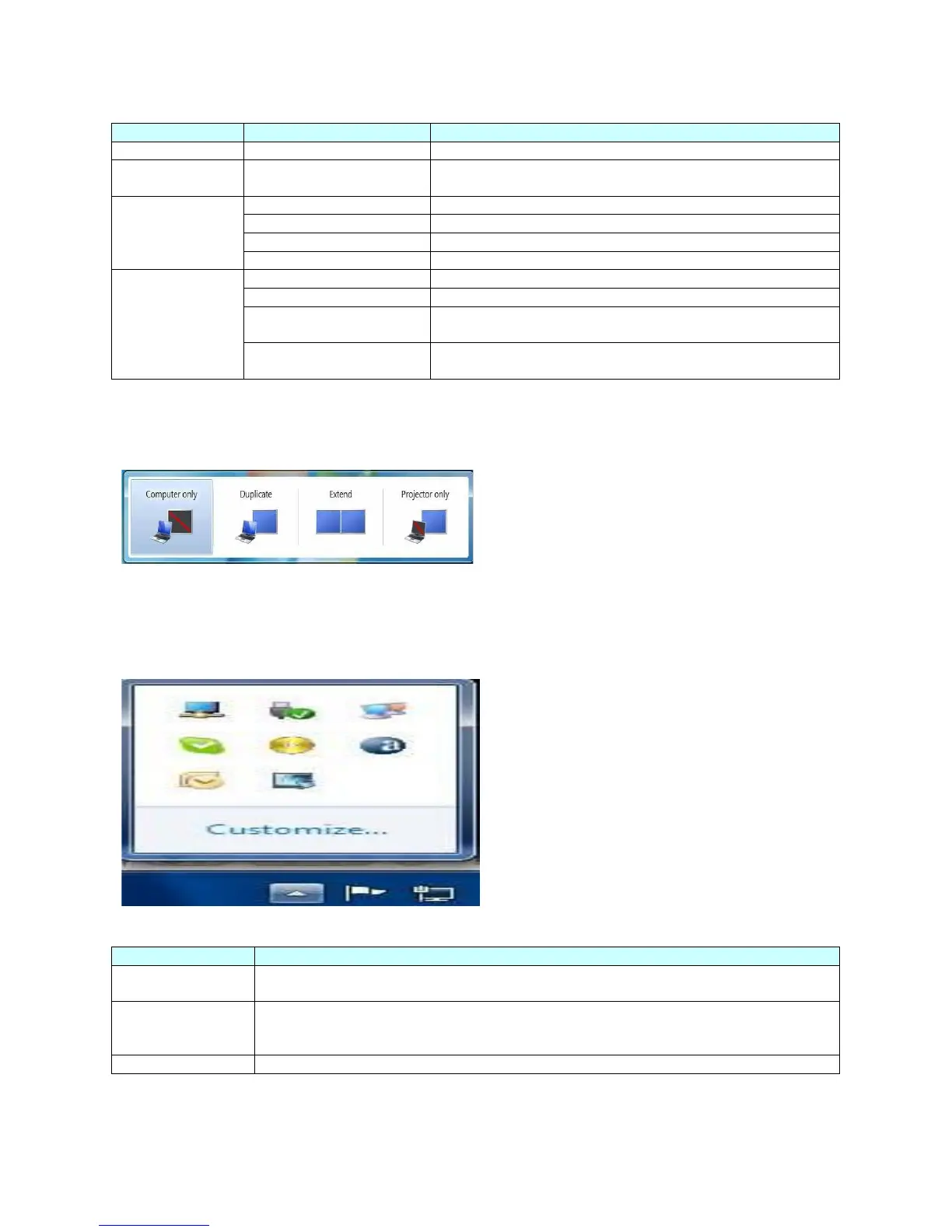
2. Windows Key + P for options of duplicating and extending screen
3. Using MIMO Manager Menu
Connects to the Windows Update and checks for newer versions and downloads them,
if available
Select this option for better movie playback performance, only select this option when
playing back video content
Note: Text may appear less clear when enabled
Opens the Windows Display Properties (WDP)
To control the behavior of an attached MIMO display,
it is also possible to use Windows Key + P to display
a menu(and cycle through it) to switch mode, which
provides a simple method to duplicate and extend
screen.
1. Select the Windows + P
2. Click on of the options, the display updates
to reflect your choice
To control the behavior of an attached MIMO display,
it is also possible to use Windows Key + P to display
a menu(and cycle through it) to switch mode, which
provides a simple method to duplicate and extend the
main display onto the secondary display.
1. Click the Show hidden icons arrow to show all
available icons from the taskbar
2. Click the MIMO Manager icon, A menu appears
with several options, as described in the following
table.


 To Next Page