PAGE 16 OF 21
▶ Calibration
The product is with factory default calibration value. If required user may execute Touch Screen Controller
Calibration as follow.
Calibration is very important procedure to align coordinates of the exact touch point on screen with Windows
cursor. With the calibration user may utilize Touch Screen Control without distortion.
The last calibration data will be saved in the Windows system so as not to be required after reboot the system
except the user rotate the screen.
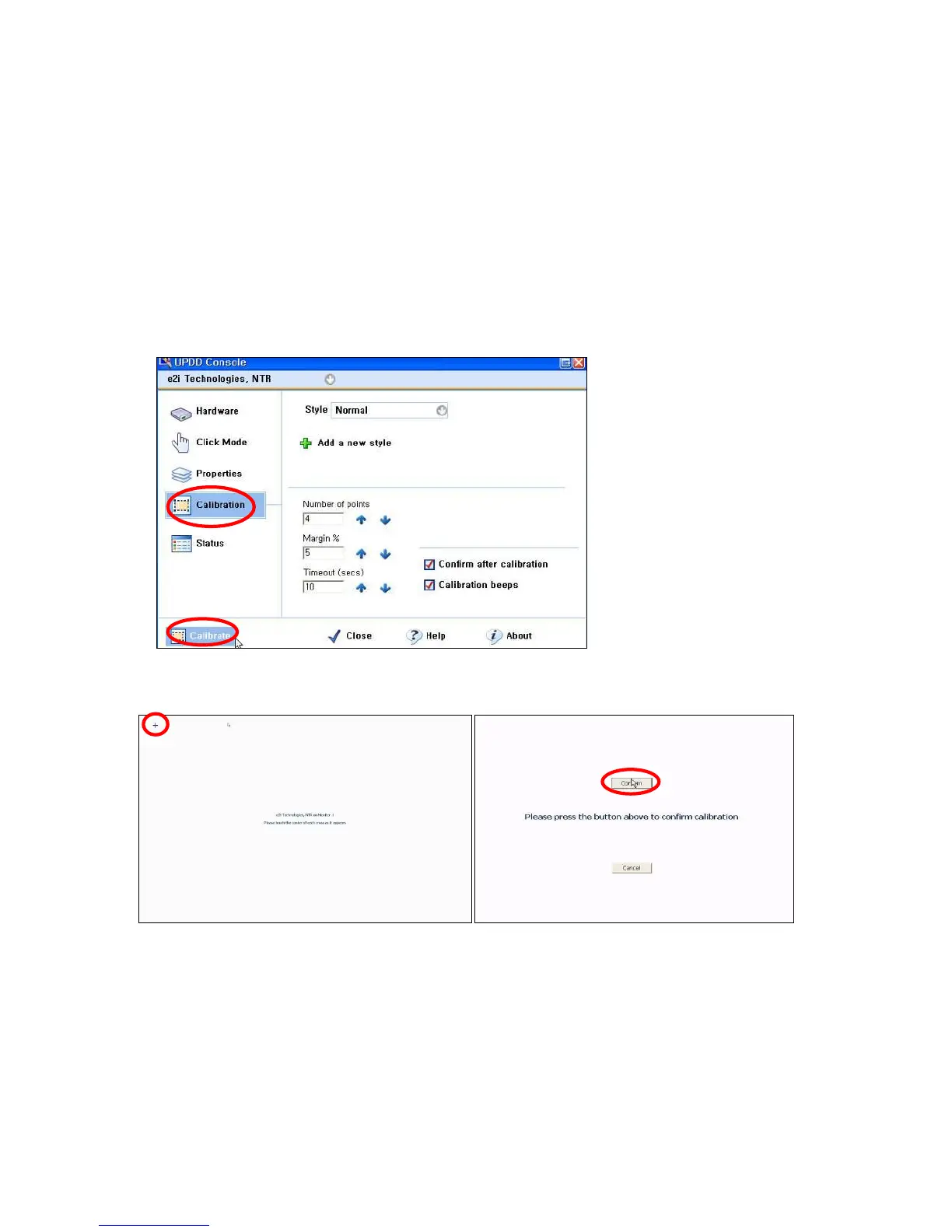
1.1 Click 「Start」->「Programs」->「UPDD」->「Setting」
1.2. Click UPDD Consol (Pointer Device Setting) icon on system tray ->「Calibration」
Touch + mark position in order then「Confirm」
If calibration point inputs are correct click 「Confirm」
In case any mistake in calibration points inputs click 「Cancel」or leave the screen untouched for about 10
seconds then the Calibration Data will be scrapped.
※ Calibrated Touch Screen coordinates may vary upon the lapse of usage time. Periodical
calibration is recommended.


 To Next Page