EasyManua.ls Logo

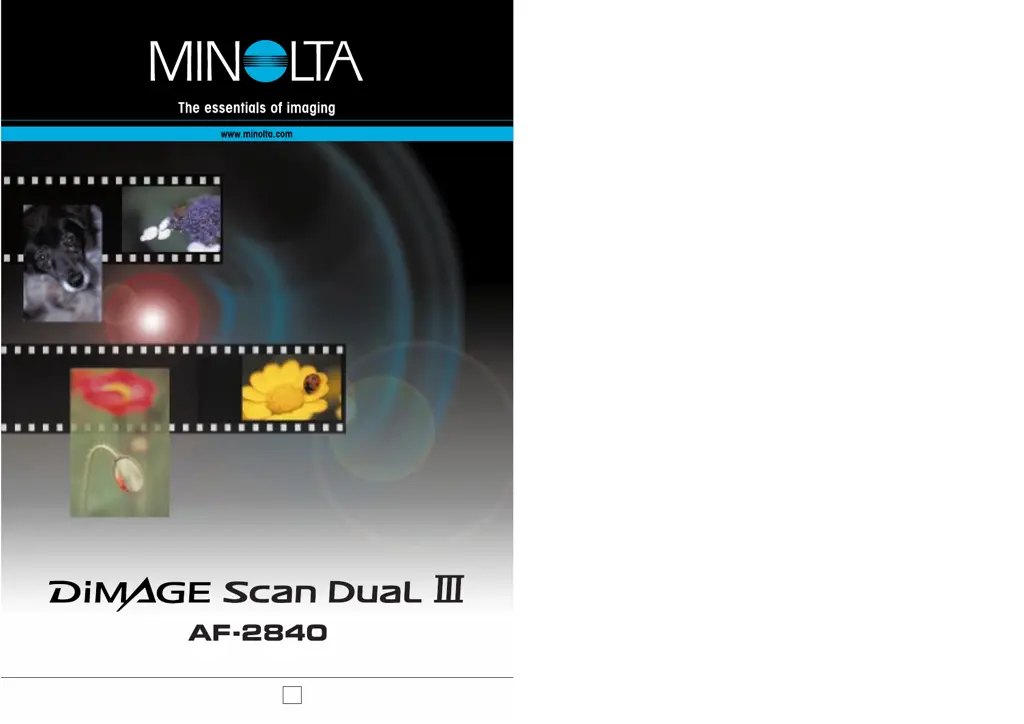
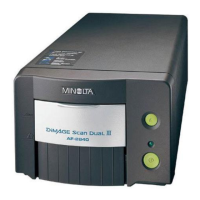
Minolta DIMAGE SCAN DUAL III - User Manual

Minolta DIMAGE SCAN DUAL III
47 pages
Print Icon
To Next Page IconTo Next Page
Loading...
INSTRUCTION MANUAL
E

Table of Contents

Questions and Answers

  • J
    josebutlerAug 17, 2025
    What to do if 'Error=4 - could-not-confirm-scanner-connection' message appears on Minolta DIMAGE SCAN DUAL III?
    • R
      rcoxAug 17, 2025
      If you receive an 'Error=4 - could-not-confirm-scanner-connection' message when starting the utility software, confirm the cable is securely connected between the computer and scanner. Turn the scanner off and on. Click OK to continue.
  • R
    ryantanyaAug 20, 2025
    Why does 'Cannot-verify-home-position' message appear during scanning with Minolta DIMAGE SCAN DUAL III?
    • M
      Mary WhiteAug 20, 2025
      The 'Cannot-verify-home-position' message appears during scanning because the film holder was hindered during the scan. To resolve this, turn off the scanner and restart the computer.
  • C
    cynthiamorrisAug 22, 2025
    What to do if the scanned image is not sharp with Minolta DIMAGE SCAN DUAL III?
    • L
      laura30Aug 22, 2025
      If your scanned image is not sharp, select an autofocus option in the preference window, or use point AF or manual focus.
  • T
    Tracey SmithAug 25, 2025
    How to fix unusual image color when scanning color negative film with Minolta Scanner?
    • B
      Briana RobinsonAug 26, 2025
      If you observe unusual image color when scanning color negative film, first, confirm that color negative film is selected in the main window, and rescan the image. Alternatively, color balance the image using the DiMAGE Scan Dual III Utility’s image-processing tools. If the problem persists, reinstall the scanner utility software.
  • P
    petersmithAug 28, 2025
    What to do if Minolta DIMAGE SCAN DUAL III utility software freezes or scanning time increases?
    • J
      Jorge MathewsAug 28, 2025
      If the utility software freezes or the scanning time increases, turn off the scanner. Then, shut down the image-processing application and increase its memory allocation. Finally, restart the computer and scanner.
  • N
    Nathan SchneiderAug 31, 2025
    What to do if Minolta Scanner shows 'holder-does-not-match-selected-film' message?
    • M
      Megan McbrideAug 31, 2025
      If the 'holder-does-not-match-selected-film' message appears, set the correct film format in the DiMAGE Scan Dual III Utility or insert the correct holder into the scanner.
  • H
    heather15Sep 2, 2025
    What to do if Minolta DIMAGE SCAN DUAL III shows 'film-not-found-in-APS-holder' message?
    • C
      Collin HunterSep 2, 2025
      If the 'film-not-found-in-APS-holder' message appears, insert an APS cassette into the APS adapter.
  • T
    Travis VaughanSep 5, 2025
    What to do if Minolta Scanner shows 'set-holder' message?
    • B
      Brian RodriguezSep 5, 2025
      If the 'set-holder' message appears, reload the holder into the scanner.
  • D
    Danny RossSep 7, 2025
    What to do if Minolta Scanner cannot scan APS film?
    • A
      Alvin HeathSep 8, 2025
      If you cannot scan APS film and an error message appears, press the eject button on the scanner, and remove the APS adapter after rewinding is completed. Reinsert the holder into the scanner. If the problem persists, remove the adapter and do not insert it again; it may damage the film or scanner.
  • W
    wmejiaSep 12, 2025
    How to fix unusual color reproduction in Minolta DIMAGE SCAN DUAL III Scanner preview image?
    • B
      Benjamin BellSep 12, 2025
      If the preview image displays unusual color reproduction, remove the film holder and close the scanner door. Press shift+control+I (Windows) or command+shift+I (Macintosh) to reinitialize the scanner.

Summary

Color Examples

Tone-Curve Corrections

Adjustments to image color using tone curves, focusing on blue curve for neutrality.

Selective-Color Palette

Modifying image colors by subtracting specific color channels for enhanced detail.

For Proper and Safe Use

Safety Warnings and Cautions

Critical safety precautions regarding electrical hazards, product handling, and environmental conditions.

Getting Started

Package Contents and System Requirements

Details on what's included in the package and the necessary system configurations for use.

Installing Utility Software (Windows)

Step-by-step guide for installing the scanner utility software on Windows systems.

Installing Utility Software (Macintosh)

Detailed instructions for installing the scanner utility software on Macintosh operating systems.

Photoshop Elements Integration

Installing the scanner plug-in for Photoshop Elements and launching the utility from it.

Scanner Parts Identification

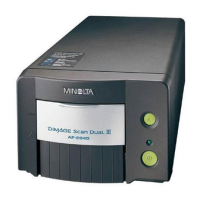
Identification and brief description of the main physical components of the scanner unit.

Scanner Setup and Connection

Procedures for connecting the scanner via USB/AC adapter and powering it on/off safely.

Loading the Film Holders

Film Handling and Formats

Guidelines for handling film, identifying emulsion, and overview of film formats and holders.

Loading 35 mm Strips and Mounted Slides

Detailed steps for loading 35mm film strips and mounted slides into their respective holders.

Inserting Holders and APS Adapter

Procedures for inserting film holders and the optional APS adapter into the scanner.

Ejecting Film Holders

Methods for safely removing film holders or APS adapters from the scanner.

Easy Scan Utility

Using the Easy Scan Utility

Step-by-step instructions for performing scans using the Easy Scan Utility wizard.

Launching the Easy Scan Utility

How to start the Easy Scan Utility program on Windows and Macintosh.

Scan Operations and Cancellation

Procedures for selecting thumbnails and canceling scan operations on Macintosh.

File Type Options

Explanation of available file formats (BMP, JPEG, TIFF, PICT) for saving scanned images.

DiMAGE Scan Dual III Utility

Basic Scanning Overview

Introduction to basic scanning features, launching the utility, and selecting film formats.

Index Scan Functions

Understanding and performing index scans, including making and canceling them.

Image Orientation and Display

Using flip and rotate buttons for image orientation and the fit-to-window function for display.

Prescan and Image Adjustment Tools

Using prescan, grab, magnifying, and auto-cropping tools for image optimization.

APS Framing and Dust Removal

Adjusting APS framing and using the Auto Dust Brush tool for dust removal.

Manual Cropping and Prescanning

Procedures for manual cropping and performing prescans on cropped areas.

Automatic Image Correction (Pixel Polish)

Applying automatic image corrections or custom settings using the Pixel Polish feature.

Finalizing Scans with Jobs

Saving scan settings as Jobs and quitting the utility software.

DiMAGE Scan Dual III Utility - Advanced Scanning

Setting Scanner Preferences

Customizing scanner operations by adjusting various preference settings.

Exposure Control and Settings Management

Adjusting exposure, saving, and loading exposure settings for optimal scans.

Advanced Index Scan Functions

Utilizing reverse frame order, saving, and loading index files for advanced index scanning.

Autoexposure Control and AE Lock

Using AE area selection and AE lock for precise autoexposure control.

Scanner Focusing Options

Utilizing autofocus, Point AF, and manual focus for sharp image results.

Manual Scan Settings and Resolution

Manually inputting scan settings and understanding resolution and output size concepts.

Scan Setting Examples and Job Management

Examples of scan settings, saving settings as Jobs, and deleting Jobs.

Custom Wizard for Scanning

Utilizing the automated Custom Wizard for a streamlined scanning routine.

Color Matching Configuration

Configuring color matching settings to ensure accurate color reproduction across devices.

Monitor and Scanner Color Profiles

Setting monitor ICC profiles and understanding scanner color profiles for color matching.

DiMAGE Scan Dual III Utility - Image Processing

Image Processing Tools Overview

Introduction to the image processing tools and navigation within the utility.

Undoing, Redoing, and Tracking Corrections

Managing image correction steps using undo, redo, and snapshot features.

Saving Image Corrections

Saving a sequence of image corrections as a "Job" for reuse.

Loading Image Correction Jobs and Variation Palette

Applying saved Jobs, using the variation palette, and understanding complementary colors.

Brightness, Contrast, and Color Balance

Adjusting brightness, contrast, and color balance using palettes and auto-settings.

Tone Curve Manipulation

Using tone curves for color balancing, contrast adjustments, and freehand drawing.

Tone Curve Correction Techniques

Basic techniques for improving images using tone curves: shadows, contrast, and color correction.

Histogram Corrections and Auto Settings

Adjusting histograms and using auto-settings for image contrast and color optimization.

White, Gray, Black Point, and Selective Color

Calibrating image points and refining specific colors using selective color adjustments.

Image Sharpening and Color Adjustments

Using unsharp mask for sharpening and hue, saturation, lightness for color modification.

DiMAGE Scan Dual III Utility - Advanced Scanning (Continued)

Making the Final Scan Using Jobs

Finalizing scans by saving settings and parameters as a "Job".

Installed Files and Folders

System File Structure

Lists files and folders installed for the scanner utility across different operating systems.

Troubleshooting and Technical Support

Pixel Polish and Scanner Installation Issues

Troubleshooting Pixel Polish on Mac and verifying scanner installation on Windows.

Driver Removal, Support, and Specifications

Procedures for driver removal, contacting support, and overview of technical specifications.

An Introduction to Color

Color Models and Corrections

Explains RGB/CMY models, complementary colors, and hue corrections for image editing.

Minolta DIMAGE SCAN DUAL III Specifications

General IconGeneral
TypeFilm scanner
Optical Resolution2820 dpi
InterfaceUSB 1.1
Weight1.5 kg
Weight (g)1500
Film Formats Supported35mm
Color Depth16-bit
Scanning SpeedApprox. 30 sec per frame (35mm film, 2820 dpi)
Scan SpeedApprox. 30 sec (35mm at 2820 dpi)
Dynamic Range3.6 Dmax

Related product manuals