EasyManua.ls Logo

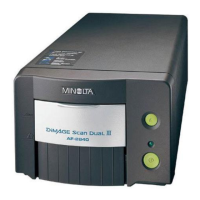
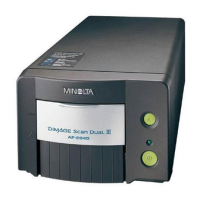
Minolta DiMAGE Scan Dual III AF-2840 - User Manual

Minolta DiMAGE Scan Dual III AF-2840
92 pages
Print Icon
To Next Page IconTo Next Page
Loading...
INSTRUCTION MANUAL
E
9222-2889-11 AV-A209

Table of Contents

Questions and Answers

  • L
    Lisa ThomasAug 16, 2025
    How to fix Error=4 on Minolta Scanner?
    • D
      David GonzalezAug 16, 2025
      If you receive an 'Error=4 – could-not-confirm-scanner-connection' message when starting the Minolta Scanner utility software, ensure the cable is securely connected between your computer and the scanner. Try turning the scanner off and then on again. After these steps, click OK to continue.
  • M
    Michael GrayAug 19, 2025
    How to improve image sharpness on Minolta Scanner?
    • A
      Amanda HernandezAug 19, 2025
      If your scanned image from the Minolta Scanner is not sharp, select an autofocus option in the preference window. Alternatively, use point AF or manual focus to improve the image clarity.
  • M
    Mitchell SanchezAug 22, 2025
    What to do if Minolta DiMAGE Scan Dual III AF-2840 software freezes?
    • T
      Timothy McleanAug 22, 2025
      If the Minolta Scanner utility software freezes or the scanning time increases, turn off the scanner. Shut down the image-processing application and increase its memory allocation. Restart both the computer and the scanner.
  • M
    Michelle JohnsonAug 26, 2025
    What to do if Minolta DiMAGE Scan Dual III AF-2840 shows an error message on startup?
    • W
      walter72Aug 26, 2025
      If an error message appears when starting the Minolta Scanner utility software, close the scanner door and click OK to continue.
  • S
    stephensonjessicaAug 28, 2025
    What to do if Minolta DiMAGE Scan Dual III AF-2840 Scanner shows 'Cannot-verify-home-position'?
    • T
      terri49Aug 28, 2025
      If the 'Cannot-verify-home-position' message appears during scanning with the Minolta Scanner, it may be because the film holder was hindered during the scan. Turn off the scanner and restart the computer.
  • G
    Greg WaltersAug 31, 2025
    Why is the Minolta DiMAGE Scan Dual III AF-2840 Scanner lamp blinking rapidly?
    • T
      Travis HoffmanAug 31, 2025
      If the indicator lamp on the Minolta Scanner blinks rapidly, close the door, and shut down and restart the scanner, utility, and application.
  • D
    Diana WilliamsonSep 3, 2025
    Why does Minolta DiMAGE Scan Dual III AF-2840 Scanner preview show wrong colors?
    • H
      housematthewSep 4, 2025
      If the preview image on your Minolta Scanner displays unusual color reproduction, remove the film holder and close the scanner door. Press shift+control+I (Windows) or command+shift+I (Macintosh) to reinitialize the scanner.
  • J
    Jaime SalazarSep 6, 2025
    How to fix 'set-holder' message on Minolta DiMAGE Scan Dual III AF-2840 Scanner?
    • A
      Amanda AllenSep 6, 2025
      If the 'set-holder' message appears on your Minolta Scanner, reload the holder into the scanner.
  • H
    halejacobSep 9, 2025
    How to resolve 'holder-does-not-match-selected-film' on Minolta DiMAGE Scan Dual III AF-2840?
    • M
      Matthew ArmstrongSep 9, 2025
      If the 'holder-does-not-match-selected-film' message appears on the Minolta Scanner, set the correct film format in the DiMAGE Scan Dual III Utility or insert the correct holder into the scanner.
  • A
    Alexa ThompsonSep 12, 2025
    How to fix 'film-not-found-in-APS-holder' message on Minolta Scanner?
    • J
      Jennifer StanleySep 12, 2025
      If the 'film-not-found-in-APS-holder' message appears on the Minolta Scanner, insert an APS cassette into the APS adapter.

Summary

Before You Begin and Safety Precautions

Essential Pre-Use Information

Introductory notes on reading the manual and product usage guidelines.

Proper and Safe Use Guidelines

Critical warnings and cautions for safe scanner operation and handling.

Getting Started with Minolta DiMAGE Scan Dual III

Package Contents and System Requirements

Lists included items and necessary computer hardware/software for setup.

Scanner Installation and Software Setup

Step-by-step guide for installing scanner software on Windows and Macintosh.

Connecting and Powering On the Scanner

Instructions for USB connection, AC adapter, and initial power-up sequence.

Scanner Parts and Film Loading Procedures

Identifying Scanner Unit Components

Identification and description of the scanner's physical parts and indicators.

Loading Film Holders and APS Adapters

Detailed instructions for loading 35mm film strips, slides, and APS cassettes.

Easy Scan Utility Guide

Launching and Using the Easy Scan Utility

How to start and operate the simple, automatic scanning application.

Easy Scan Utility Features and Controls

Explanation of film-type selection, thumbnail management, and scan cancellation.

DiMAGE Scan Dual III Utility: Basic Scanning

Launching Utility and Selecting Film Format

Steps to start the main utility and choose film format/type for scanning.

Index Scan and Thumbnail Operations

Performing index scans, managing thumbnails, and selecting images for processing.

Prescan and Image Adjustment Tools

Using prescan, grab, magnify, and cropping tools for image optimization.

DiMAGE Scan Dual III Utility: Advanced Scanning

Scanner Preferences and Exposure Control

Customizing scanner operations and adjusting exposure for specific films.

Focusing, Autoexposure, and AE Lock

Utilizing autofocus, AE area selection, and AE lock for precise scans.

Manual Settings, Jobs, and Custom Wizard

Inputting settings manually, saving jobs, and using the Custom Wizard.

DiMAGE Scan Dual III Utility: Image Processing Tools

Image Correction Workflow and Tools

Overview of image correction features like undo/redo and snapshots.

Tone Curve and Histogram Adjustments

Detailed guide on using tone curves and histograms for brightness and color.

Color Correction and Sharpening Techniques

Methods for correcting color casts, contrast, and using unsharp mask.

Job File Lists for Scanning Scenarios

35 mm Film Job Settings and Parameters

Parameters for various 35mm film scan jobs based on output use.

APS Film Job Settings and Parameters

Parameters for various APS film scan jobs based on output use.

Installed Files and Folders Overview

Windows Installation Directory Structure

Details of files and folders installed on Windows operating systems.

Macintosh Installation Directory Structure

Details of files and folders installed on Mac OS 8.6-9.2.2 and OS X.

Troubleshooting and Technical Support

Common Scanner Issues and Solutions

Troubleshooting guide for common scanner operational problems.

Scanner Installation Checks and Driver Management

Verifying scanner installation and managing drivers, plus Mac OS memory.

Contacting Support and Warranty Information

Information for obtaining technical assistance and product registration benefits.

Technical Specifications of the Scanner

Scanner Hardware, Performance, and System Requirements

Comprehensive list of scanner specifications, dimensions, and scan times.

Introduction to Color Concepts

RGB, CMY Color Models and Complementary Colors

Explanation of color models and the use of complementary colors for balancing.

Color Correction Examples and Techniques

Visual examples of color corrections using hue, saturation, and lightness.

Minolta DiMAGE Scan Dual III AF-2840 Specifications

General IconGeneral
TypeFilm scanner
Maximum Resolution2820 dpi
Bit Depth16-bit
InterfaceUSB 1.1
Film Sizes35mm
Optical Resolution2820 dpi
Film Formats Supported35mm
Software IncludedDiMAGE Scan Utility
Color Depth48-bit color (16 bits per channel)

Related product manuals