11
2.6
Switching Modes
Press the MODE/OK button to cycle between Photo and Video modes.
While in Photo or Video modes, press the RIGHT/PLAYBACK button to
enter playback mode.
2.7
Connecting to a Computer
Your camera can connect to a computer to transfer photo and video files for
viewing and editing or you can also use the camera as a webcam. Once
connected and powered on, the camera s screen will show MSDC , where
you can access the stored files on your computer, PC camera , where
you can use the camera as a web cam. Use the UP or DOWN buttons to
select your desired mode. Press the MODE/OK to select your desired mode.
2.8
Selfie Mirror
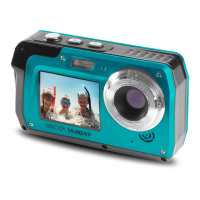
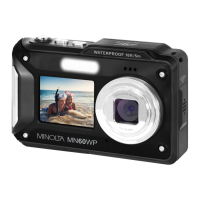
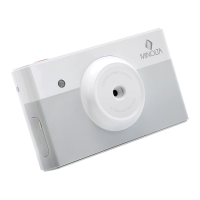
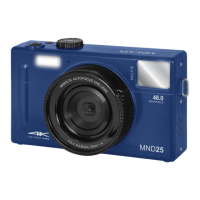
Your camera has a built-in selfie mirror that allows you to capture the perfect
selfie. To use the selfie mirror, simply turn the camera around so that the
lens is facing you. Then, while looking at the selfie mirror, move the camera
around until you are centered on the mirror. Then press the SHUTTER
button to capture a photo or start recording a video. If the mirror gets dirty,
wipe it with a soft non-abrasive dry cloth.
2.9
Flash
The LED flash is used to help brighten dark environments allowing you to
capture images with clarity. While in Photo mode, press the UP/FLASH
button to change the flash mode. The flash modes are, Off, Auto and On.
The flash icon on the LCD screen will show the active flash mode. Please
note: flash is only active in photo mode.
2.10
Using the Zoom Function
This camera has a digital zoom function. To operate the zoom function, press
the ZOOM IN button to zoom in closer to the subject, and press the ZOOM
OUT button to zoom away from the subject.


 To Next Page