Connect Your MacBook Pro
and MacBook Using USB-C
To connect your Macbook to a Miroir projector, you will need a
USB-C Video Cable (included in the box).
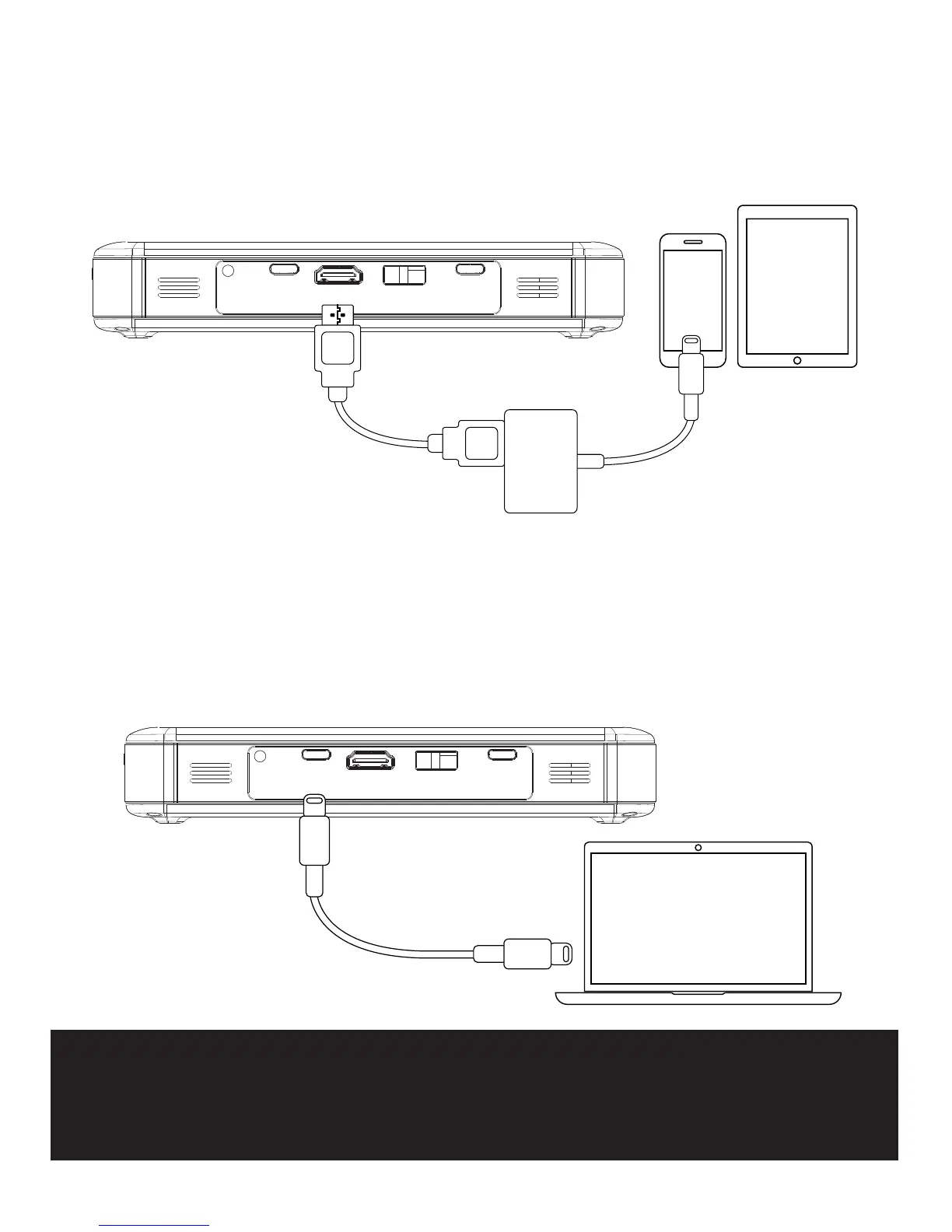
Connect Your Device Using HDMI
To connect your Apple device to a Miroir projector, you will need
an Apple Digital AV Adapter (sold separately) and an HDMI cable
(included in the box).
USBAUDIO
HDMI
USB-C ChargeUSB-C Video
USB-C Video Cable
(Included)
IMPORTANT! Not all USB – C cables will support video.
The USB-C cable that comes with the projector will support
video and charging.


 To Next Page