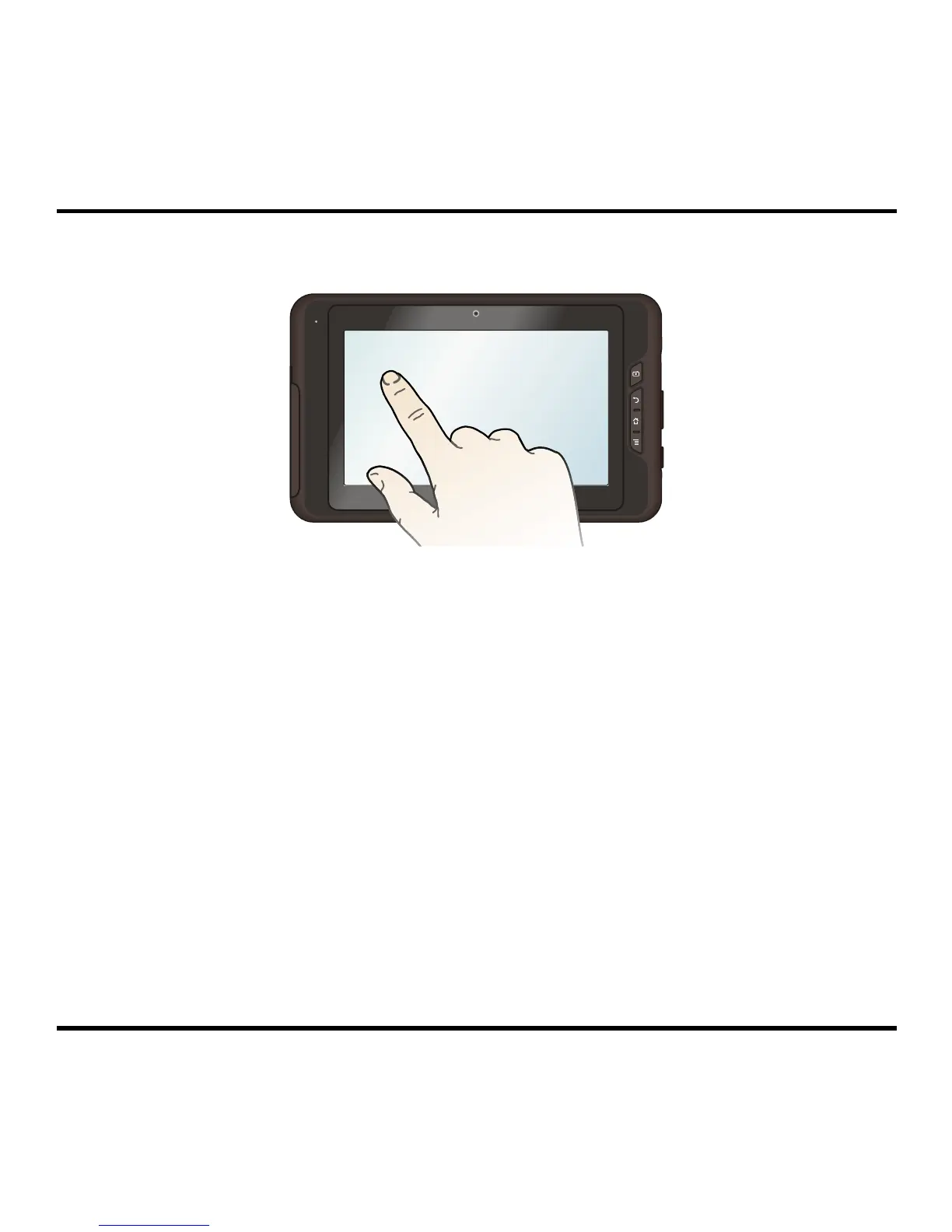
Navigating on the screen
To operate your device, touch the screen with your fingertip. You can perform the following
actions:
Tap: Touch the screen once with your fingertip to open items or select onscreen buttons
or options.
Tap and hold: Tap and hold on the desired item to open the pop-up menu that contains
the available options for the item.
Drag: Tap and hold on the item and then move it to the target position without releasing
your fingertip.
Slide:
Drag to the left or the top to switch to the next item on the list.
Drag to the right or the bottom to switch to the previous item on the list.
Multi-touch gestures: Move your fingertips apart or together on the screen to zoom in or
out while viewing a picture or a web page.
Rotating the screen: For most applications, you can automatically change the screen
orientation (from portrait to landscape, and vise versa) by turning the device sideways.
8



 To Next Page