Using the onscreen keyboard
When you use an application or select a field that requires text or numbers, the onscreen
keyboard will automatically display. You can use the onscreen keyboard to enter text,
numbers, symbols, etc.
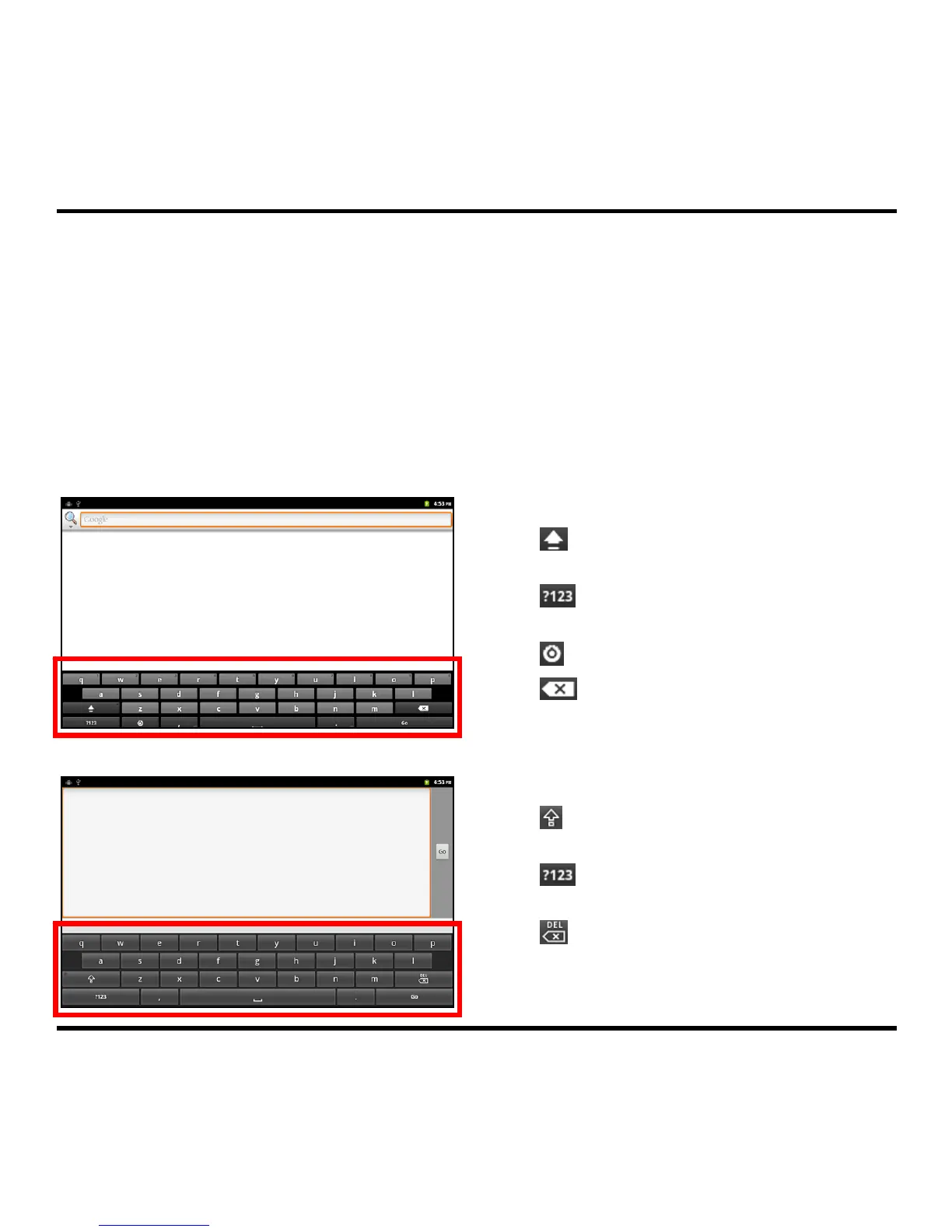
There are three types of keyboard available on your device: Android keyboard, Android
keyboard(L) and 谷歌拼音輸入法. Android keyboard emulates a standard QWERTY keyboard,
and Android keyboard(L) has a large-sized QWERTY layout to let you enter the words more easily.
Android keyboard
Tap the keyboard keys to enter letters or symbols.
Tap to enter an uppercase letter.
Tap twice to turn on Caps Lock.
Tap to switch to the numeric and symbol
keyboard.
Tap to open the pop-up menu.
Tap to delete a character.
Tap and hold to delete the entire text.
Android keyboard(L)
Tap the keyboard keys to enter letters or symbols.
Tap to enter an uppercase letter.
Tap twice to turn on Caps Lock.
Tap to switch to the numeric and symbol
keyboard.
Tap to delete a character.
Tap and hold to delete the entire text.
10



 To Next Page