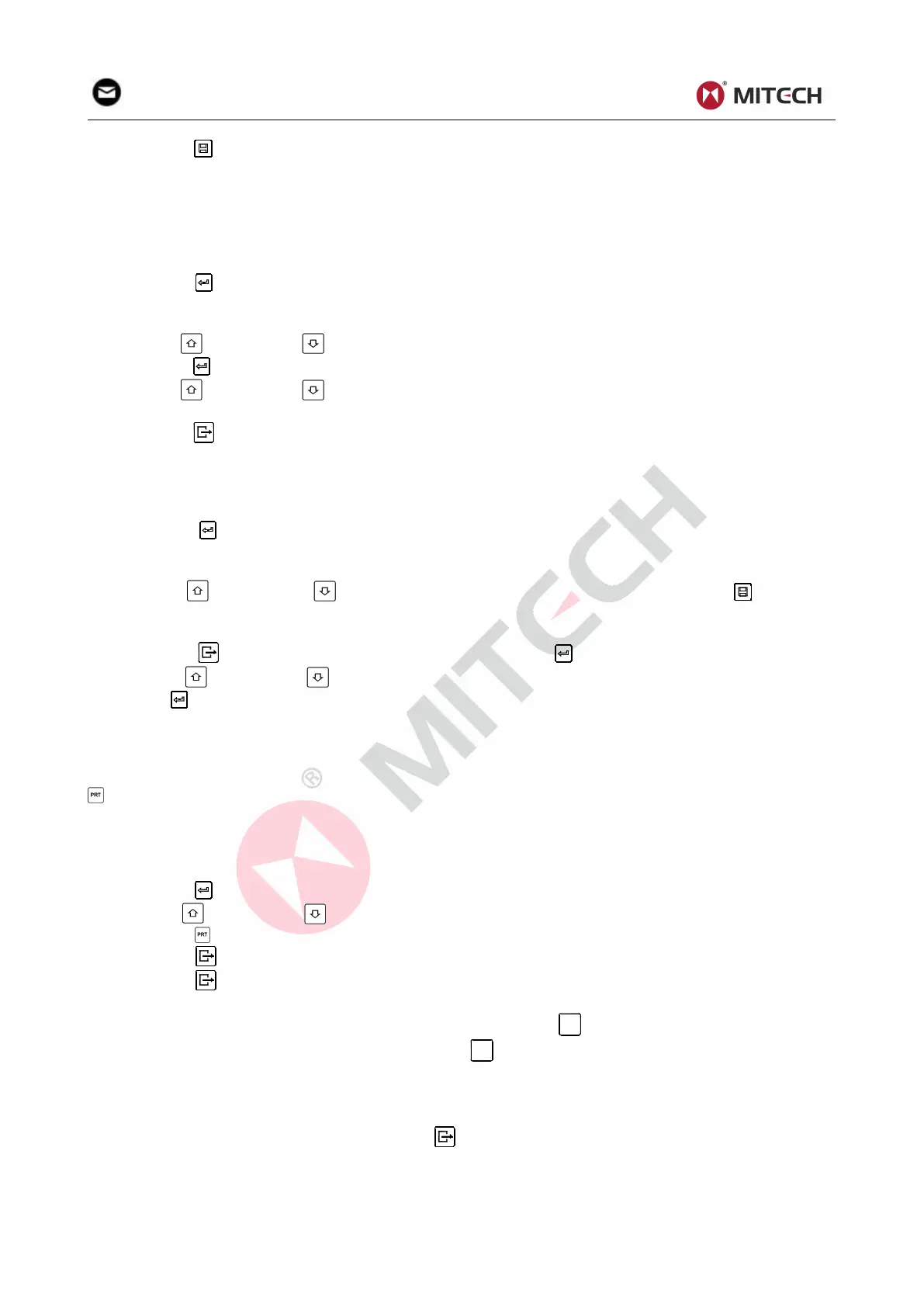
pressing the key after a new measurement finishes-the screen showing the “AVE” icon, the
measured hardness/strength group values will be saved to memory. The new saved file is appended as
the last file of the memory. This function provides the user with the ability to view/delete a file/group
previously saved in memory.
5.6.1 Viewing stored file/Group
To view the memory data, follow the steps:
1) Press the key to activate the data logging function. The memory icon will appear. It will display
the current file name, the test parameter of the group data and the mean value of the group. If there
is no data in the memory, it will display: <E04>, which means no memory data, and then return back.
2) Use the key and the key to select the desired file to view.
3) Press the key to see details of that group data.
4) Use the key and the key to view each single measured data in that group while viewing
details.
5) Press the key to return to previous screen at any time during data logging.
5.6.2 Deleting selected file/Group
The user may require deleting a file from the instrument memory. The procedure is outlined in the
following steps.
1) Press the key to activate the data logging function. The memory icon will appear. It will display
the current file name, the test parameter of the group data and the mean value of the group. If there
is no data in the memory, it will display: <E04>, which means no memory data, and then return back.
2) Use the key and the key to scroll to the file that will be deleted.Press the key on the
desired file. It will automatically delete the file, and display “-DEL”.After you delete,the data number
will list again which needs about 30 seconds,don’t turn off the machine to avoid data error.
3) Press the key to exit the data logging function or press to selected data group for details
4) Use the key and the key for single test in data groups.
5) Press to return step 3and return to measurement mode.
5.7 Print Function
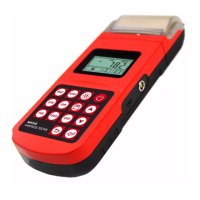
At the end of the inspection process, or end of the day, the user may require the readings be printed. You
can print out the measurement result immediately after each testing process, by easily pressing the
key.
5.7.2Print the stored data
If you want to print the data stored in the instrument memory, then following is the steps:
1. Power on the machine
2. Press the key to activate the data logging function. The memory icon will appear.
3. Use the key and the key to select the desired file.
4. Press the key to print the selected file. This operation will print out all the data in current file.
5. Press the key to exit the data logging functions and return to measurement mode.
6. Press the key to stop printing after current printing during the printing period.
5.7.3 Manually feeding paper
When the printer is powered on and ready for printing, press
key then the instrument will start
manual paper feeding. Press and keep holding the
key to start paper feeding, while releasing the
key to stop paper feeding.
Note:
Printing function is unavailable while charging.
Printing can be stopped by pressing the key.
Do not open the cover of the paper compartment during printing. Otherwise the
instrument may not print normally.
Over high ambient humidity (above 85% of relative humidity) or over low ambient
humidity (below 20% of relative humidity) may reduce the print quality.


 To Next Page