
 Need help?
Do you have a question about the Mitel MiVoice Office 5330e and is the answer not in the manual?
Instructions for answering incoming calls by lifting the handset or using the speaker button.
Guide on how to make calls to external numbers using the phone.
Steps to make calls to internal extensions on the phone system.
How to adjust the incoming audio level for handset or speakerphone during a call.
Procedure for increasing or decreasing the ringer volume when the phone is idle.
Instructions on selecting and setting a new ring tone for the phone.
Steps to place an active call on hold and how to retrieve it.
Guidance on transferring an active call to another extension.
Method for directly transferring an active call to a voicemail box.
How to program speed dial numbers for quick dialing.
Instructions for assigning features or numbers to one-touch programmable keys.
Information on applying standard, forced, or optional account codes for calls.
Steps to set up and manage conference calls with multiple parties.
How to activate and cancel call forwarding to another number or extension.
Using the assistant for DND options and call forwarding settings.
Guide for setting up your voicemail box, including password and name recording.
Instructions on how to access and navigate your voice mailbox.
The Mitel MiVoice Office 5330e is a sophisticated IP phone designed for business communication, offering a wide array of features to enhance productivity and streamline call management. This device integrates advanced telephony functions with a user-friendly interface, making it suitable for various professional environments.
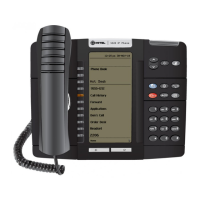
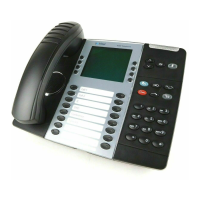
At its core, the MiVoice Office 5330e serves as a primary communication tool, facilitating both internal and external calls. It supports handsfree operation, allowing users to engage in conversations without holding the handset, which is particularly useful for multitasking. The phone is equipped with a high-resolution display that provides a clear viewing area for navigating features, identifying callers, and managing messages. A key feature is its programmability, offering 33 self-labeling buttons that can be customized for quick access to frequently used functions or contacts.
The device includes a ring/message indicator that visually alerts users to incoming calls, waiting messages, or active features through different flashing and solid light patterns. An external speaker is integrated for handsfree calls and background music, enhancing the user experience. The dialpad buttons are standard for dialing phone numbers and entering feature codes, but they also support text input for features requiring character entry. Navigation buttons allow users to scroll through display screens, ensuring easy access to all available options.
The MiVoice Office 5330e offers extensive call management capabilities. Answering a call is straightforward, either by lifting the handset or pressing the speaker button. For external calls, users can press an "Outgoing" button or dial a specific access code (e.g., 8) before dialing the number. Emergency calls (e.g., 911) can be placed directly without needing to grab a line. Internal calls, or intercom calls, can be made by simply dialing the extension number, with or without lifting the handset.
Audio volume can be adjusted during a call using the up and down arrows, controlling the incoming audio level for both the handset and speakerphone. When the phone is idle, these same arrows can be used to increase or decrease the ringer volume. Users can also change their ring tone by accessing a specific feature code (e.g., 398) and following the on-screen prompts.
Holding a call is managed by pressing a dedicated "Hold" key, and the held call can be retrieved by pressing a specific "Call Key." Call transferring is a versatile feature; while on a call, users can press a DSS (direct station selection) button or a "Transfer" button, dial the extension, and then either announce the call before hanging up or simply hang up to complete the transfer. Calls can also be transferred directly to voicemail by pressing the "Voicemail Transfer" button, then a DSS button or "Transfer" button, dialing a specific voicemail extension (e.g., 2500), then the desired extension, and finally hanging up.
The phone supports conference calls, allowing users to establish calls with up to three intercom and/or outside parties. This involves placing the initial call on hold, making a call to the next conference party, and then joining all calls together using a special function key or a "Conf" button.
Call forwarding can be activated by pressing a feature code (e.g., 355), entering the desired number (with an access code for outside numbers), and following the prompts. It can be canceled using a similar feature code.
For quick dialing, station speed dials can be programmed. With the handset on hook, users dial a specific code (e.g., 383), enter a bin number, and then input the contact's name and external number. One-touch keys can also be programmed by dialing a code (e.g., 397) and then pressing the desired button to assign an extension number for a DSS key or a speed dial bin number.
The MiVoice Office 5330e incorporates account codes, which are useful for tracking call costs or categorizing calls. There are standard account codes (automatically entered), forced account codes (entered before outside calls), and optional account codes (entered at any time during a call). Optional account codes are entered by pressing a special key, dialing a specific code (e.g., 390), entering the account code, and pressing #.
Voicemail setup and access are integral to the phone's functionality. Users can dial the voicemail extension number (e.g., 2501) to set up their mailbox, including creating a password and recording a directory name. Accessing voicemail involves dialing the voicemail extension (e.g., 2500 or 2501), identifying oneself as a subscriber, entering the mailbox number, and then the password.
While the manual primarily focuses on usage, certain aspects touch upon maintenance indirectly. The "Configuration Assistant" feature, accessed by pressing an "Assistant" button or dialing a specific code (e.g., 1000), allows users to manage phone settings, including options for Do Not Disturb (DND) and Call Forwarding. This self-service configuration reduces the need for external support for routine adjustments.
The "Clean Mode" feature, accessible through the "Applications" menu, suggests a function that might prepare the phone for cleaning by temporarily disabling certain inputs or functions, preventing accidental key presses during physical cleaning.
The device's robust design, including its hearing aid compatibility (HAC) handset, indicates a focus on durability and accessibility, minimizing the need for frequent repairs or replacements due to wear and tear. The self-labeling programmable buttons also contribute to ease of use and adaptability, as labels can be updated digitally without physical replacement, simplifying administrative tasks.
Overall, the MiVoice Office 5330e is designed for continuous operation in a professional setting, with features that empower users to manage their communication effectively and efficiently, while also providing tools for basic self-configuration and maintenance.
 General
| Navigation Keys | Yes |
|---|---|
| Message Waiting Indicator | Yes |
| Display | 160 x 320 pixel backlit LCD |
| Programmable Keys | 24 |
| Audio | Full-duplex speakerphone |
| Network Ports | Two 10/100 Ethernet ports |
| Power | IEEE 802.3af Power over Ethernet (PoE) or optional power adapter |
| Protocols | MiNet and SIP |
| Headset Port | Dedicated headset port |
| Dual Mode | MiNet and SIP |
| Weight | 2.2 lbs (1 kg) |






 To Next Page