www.mo-sys.com
16
Render nodes setup (nDisplay)
The tool was designed for rectangular
screen or a combination of rectangular
screens, however spawned corners can
facilitate placing a more complex mesh as
well.
The procedure of finding the corners and
generating a mesh is as follows:
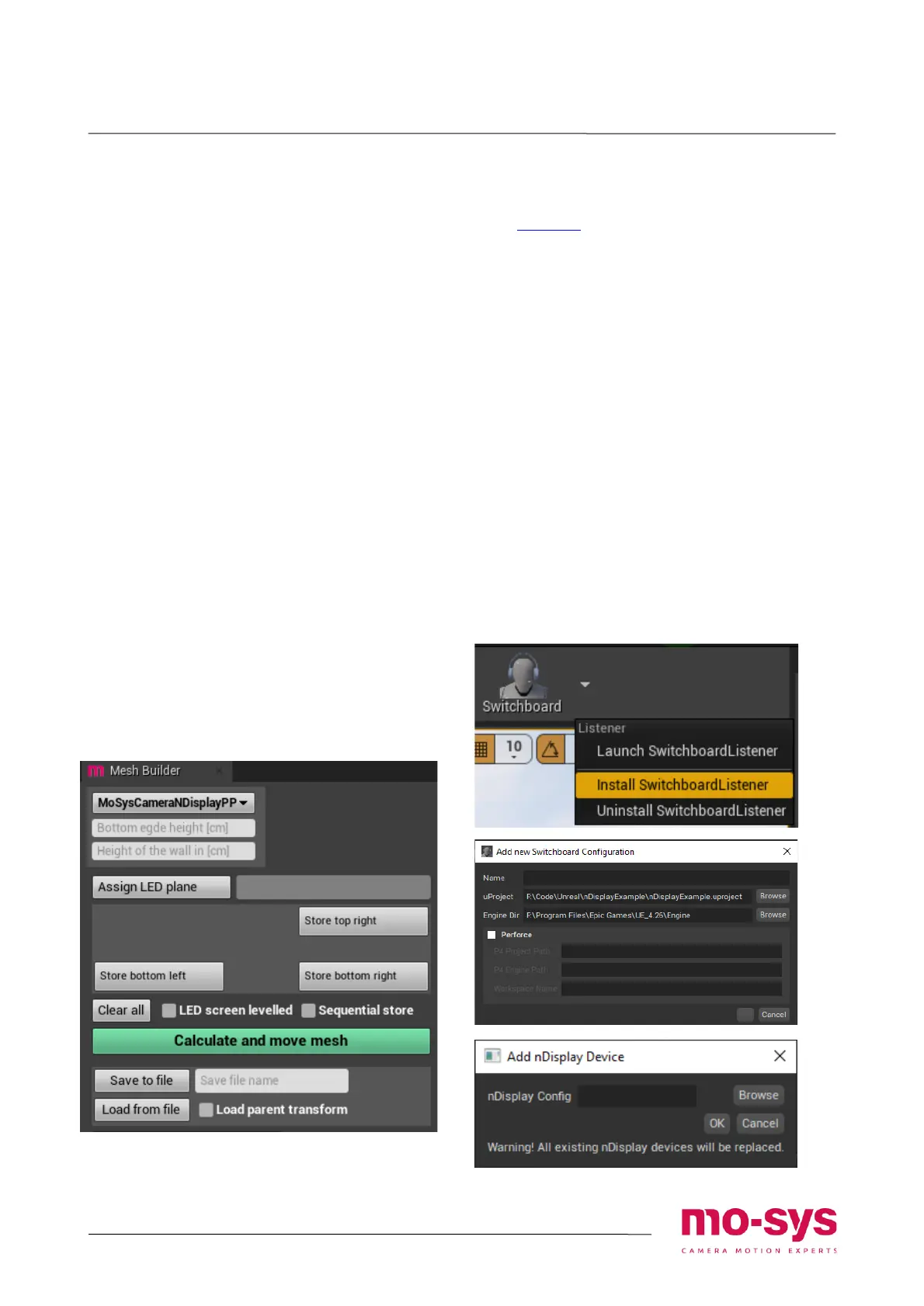
1. Select a tracked camera used for
observations
2. Enter height of the bottom edge of the
LED screen and the height of the screen
from the bottom to the upper edge.
3. Select a plane to fit as the LED screen
representation and click: Assign LED
plane. The plane has to be present in the
level, as it is not spawned.
4. Position the camera so it is looking
centrally at consecutive corners of the
screen (through crosshair) and click on
corresponding store buttons.
5. Click Calculate and move mesh to fit the
plane in place.
6. Optionally check LED screen levelled to
only use 2 bottom corners. The
calculation assumes the screen is
perfectly vertical.
Launching
See Step 4 - Launching Your Project with
nDisplay in In-Camera VFX Quick Start to
launch the project on the LED screens.
Use Switchboard plugin to launch:
1. Enable it in Edit -> Plugins.
2. Install SwitchboardListener on all the
rendering nodes and then start
Switchboard on Primary Node.
3. Configure the setup in Configs->New
config, by selecting the project and
Engine folder.
4. Add nDisplay device from Add device
dropdown and specify the config file.
5. Connect devices.
6. Start all connected devices.
After you launch in nDisplay launcher it
should appear on the primary screen.


 To Next Page