
 Need help?
Do you have a question about the MO-SYS VP Pro XR and is the answer not in the manual?
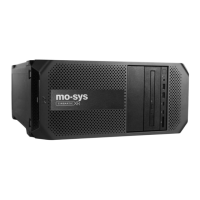
Mo-Sys VP Pro XR is a pre-configured, multi-node system combining Unreal Engine's nDisplay with Mo-Sys features.
Recommended steps to speed up installation: measure LED volume height, divide volume, prepare FBX model, ensure DP output compatibility.
Details XR Engine and Render Node requirements, including software versions and plugins.
Configuration for StarTracker to send data to XR Engine and Primary Render Node, including static IP addresses.
Steps to configure project settings in Unreal Editor, including Auto Configure Project and restarting the editor.
Diagram showing setup with Render Nodes (RN) corresponding to LED processors and notes on StarTracker data.
Render nodes mapped as network drives on XR Engine for easier project distribution and editing.
Install VP Free, Mo-Sys tracking plugin, and configure livelink preset for tracking data.
Assumes StarTracker is setup and calibrated. Crucial for finding LED screen transform for correct perspective.
Create a new empty UE project on XR Engine, verify settings like framerate, compositing mode, and video input.
Hide grid, show video. Use Alignment manager to check camera view. Mesh Builder for geometry and calibration.
Verify custom object channels (RefPlane, LED) in project settings. Fill in input fields for wall geometry.
Use Mesh builder to generate mesh for rectangular screens. Assign LED plane and repeat for multiple screens.
Use Timed Data Monitor to adjust delays for tracking. Watch Timing Diagram and ensure vertical bar is green.
Ensure spawned cones stay at LED screen corners during camera movement. Check for lens calibration or StarTracker alignment issues.
Model complex meshes in 3D software, import, scale, and define corners using Mesh Builder. Parent XRMaskBP for positioning.
Hide video, show grid. Move camera to check mask coverage and cone alignment. Save marker cone positions.
Copy screen geometry for nDisplay config. Move actors to sublevel and attach to StageShared, preserving parenthood.
Move to AligningNDisplay level, edit AlignmentRootActor, set static mesh and copy transforms for nDisplayScreen.
Refer to pages 20-23 for detailed XR Engine setup instructions.
Refer to pages 14-17 for detailed Primary Render Node setup instructions.
Flow chart illustrating the process of setting up nDisplay with set extensions, from ST Installed to running nDisplay.
Connect rendering nodes and XR Engine to a fast local network. Assign static IP addresses for maintenance.
Install latest drivers. Daisy chain sync using BNC/RJ45 cables. Connect one display per render node or use Nvidia Mosaic.
Crucial for seamless shoots. Achieved using Nvidia Quadro Sync Card II for synchronous rendering across nodes.
Configure Nvidia drivers using ConfigureDriver.exe to enable prePresentWait setting for performance.
Set nDisplay config actor to Nvidia (2) in Cluster > Render Sync Policy > Type. Ensure fullscreen foreground application.
Export current EDID and load it, or set via switcher. Incorrect EDIDs can halve performance; ensure PC resolution support.
Use bouncing ball test to validate synchronization. Check for tearing. Monitor Switchboard for 'Hardware Composed' status.
Prepare nDisplay level with ball between screens. Launch in Switchboard and observe bouncing for synchronization.
Describes setting up the nDisplay config actor, including Host IP, Window, Projection Policy, and GPU Index.
Set up livelink connection with StarTracker on Primary Render Node. Stop livelink in editor before launching.
Open 'nDisplayExample_4_27' level. Use MoSysCameraNDisplay for inner frustum and create dedicated levels for shoot content.
Every viewport is a mesh. Mesh Builder can generate this representation automatically for accurate geometry.
Procedure for finding corners and generating mesh using Mesh Builder: select camera, enter heights, assign LED plane, store corners, calculate mesh.
Launch project with nDisplay using Switchboard. Enable plugin, install listener, configure setup, add nDisplay device, connect, and start.
Copy the project to all Rendering Nodes identically to the Primary Render Node. Use version control like Perforce.
Load project from a Windows shared folder for testing. Not recommended for production due to stability and start time.
Alternative for quick distribution. Set up on XR Engine, sync project to network drive with 'update' option.
Seamless focus control with LED stages, using nDisplay geometry and StarTracker camera pose for virtual or real objects.
Preston FIZ system with MDR3 and Hand unit 3 or 4. Install FTDI drivers for USB Serial Port.
Connect serial cable from Preston MDR to Primary Render Node USB port. Configure COM port settings in Device Manager.
Enter COM port, check Emit Focus Event, specify distance from LED screen to mitigate Moire Effect. Set Manual Focus to true.
For multi-Render Nodes, add 'nDisplayFocusReceiver' component to the camera to receive focus updates.
XR engine uses camera feed with AR objects, virtually extending the set for talent visibility behind the screen.
Setup StarTracker data output to XR Engine IP. Connect camera feed via SDI inputs and configure in Video Controller.
Set project settings: Mode to Post-Process for XR, define framerate/resolution, uncheck Timecode Sync, insert Primary Render Node IP.
Verify Scalability settings (Epic). Custom stencil channel 253 for LED screen mapping. Avoid custom stencil on other objects.
Create a livelink subject for tracking, following the same procedure as Render Node livelink setup.
Start from XRsample level. Uses MoSysCameraXR for distortion and XRMaskBP for mapping LED screen space.
Copy transform from Render Node setup or use Mesh Builder. Scale mask down slightly for smooth blend with LED screen.
Tools to verify setup geometry and color correction. Ensure accurate representation of LED screens and continuous virtual objects.
Spawn TestPatternControl and PatternBoardBP under MoSys Stage. Select mode (color bars, geometry, gradient) and toggle visibility.
Use SDI monitor with vectorscope/waveform. Frame image, then adjust luminance, red, green, blue with lift, gain, and gamma.
Refer to page 10 in VPPro manual for SDI video output details.
Panel exposes settings for set extension: blend control, video input toggle, mask visibility, test patterns, PP materials, AR objects.
Nominate actors to be visible as AR (in front of LED screen) via XRController panel. Limited to opaque objects only.
Go to project settings -> Collision and verify custom Object Channel: RefPlane is present.
Go to project settings -> Collision and verify custom Object Channel: LED is present, or mesh is Static and has LED collision preset.
Enable file sharing, create shared folder on render nodes, grant privileges. Map network drive from XR Engine using credentials.
 General
| Category | Server |
|---|---|
| Form Factor | Rackmount |
| Processor | Intel Xeon |
| Storage | NVMe SSD |
| GPU | NVIDIA RTX |
| Operating System | Windows |
| Network | 10GbE |
| Power Supply | Redundant PSU (configurable) |

 To Next Page