EN
23
rinse cycle. This can be modied for a more
powerful or less powerful rinse.
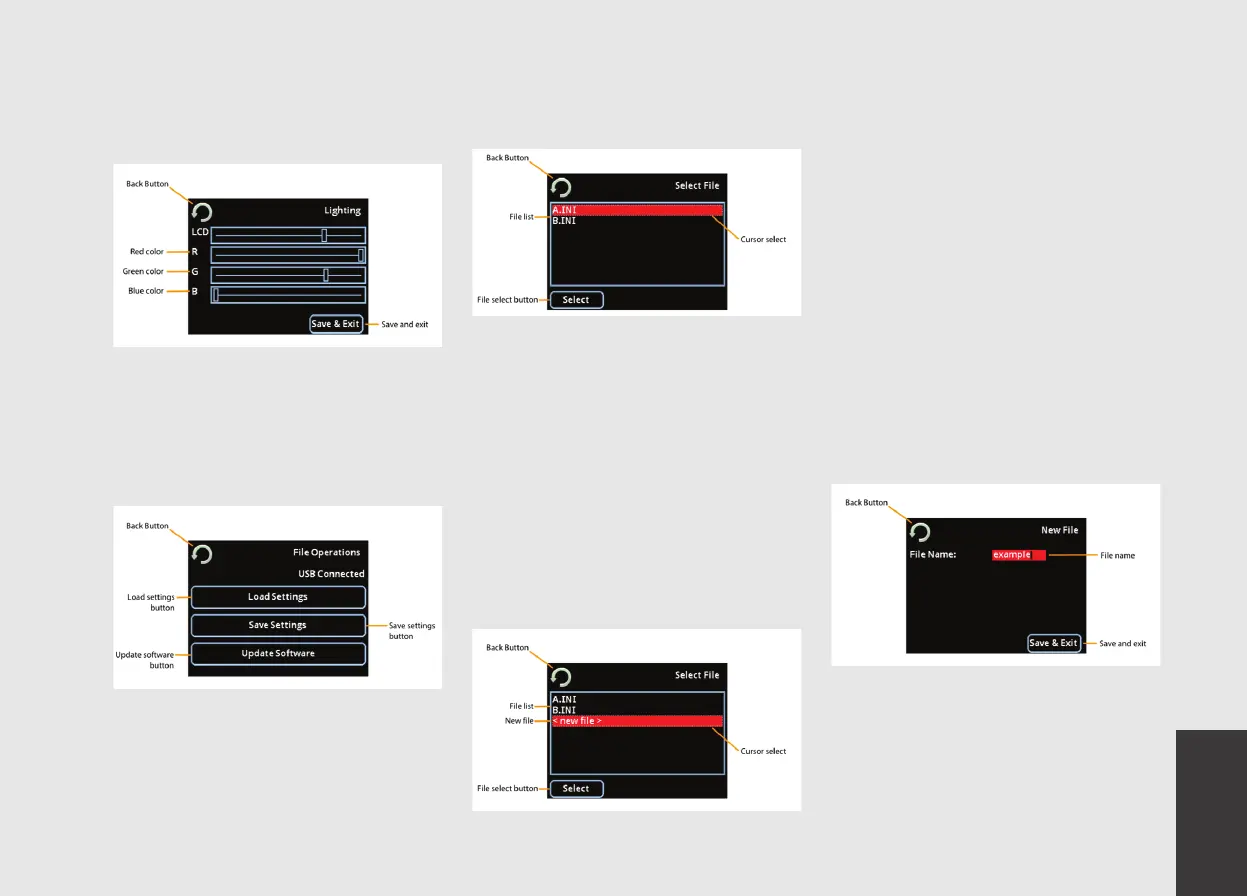
10) Lighting screen:
LCD backlight: Use this slider to control the
brightness of the touch screen display.
RGB: Using the RGB color sliders you can
create any color of the rainbow for the
module’s internal LED lighting.
11) File operations screen:
Load settings: This button will navigate to the
load settings screen.
Save settings: This button will navigate to the
save settings screen.
Update software: This button will navigate to
the update software screen.
12) Load settings screen:
File list: This area displays all of the settings
les that are currently saved to the USB
drive.
Cursor select: The dotted outline cursor select
indicates which le is selected on screen.
You may use the rotary encoder or up/
down function of the joystick to navigate
the le list.
File select button: Pressing select will load
the currently selected settings le. This
includes pressure proles and all other user
accessible settings and preferences. Note:
existing proles will be overwritten.
13) Save settings screen:
File list: This area displays all of the software
update les that are currently saved to the
USB drive.
New le: This option allows the creation of a
new settings le. To create a new settings
file, highlight the < new file > option,
and select it by either pressing the center
encoder button or the le select button on
the touch screen.
Cursor select: The dotted outline cursor select
indicates which le is selected on screen.
You may use the rotary encoder or up/
down function of the joystick to navigate
the le list.
File select button: PresPressing select will save
the current settings to the selected le.
This includes pressure proles and all other
user accessible settings and preferences.
14) New le screen:
File name: This is a descriptive name for the
settings le. Touch the name to highlight
the eld, use the encoder wheel and push-
button to rename the le if desired.


 To Next Page