3. It takes about a minute for router to boot up.
4. As a factory default router is configured as WiFi hotspot and is accessible at 192.168.10.1.
5. With correctly activated cell modem dongle no any changes in router configuration are required. Just power
system up and wait for router to boot up. The INTERNET LED on router will lit green when router has access to the
Internet.
Piksi Multi / Duro Basic Setup
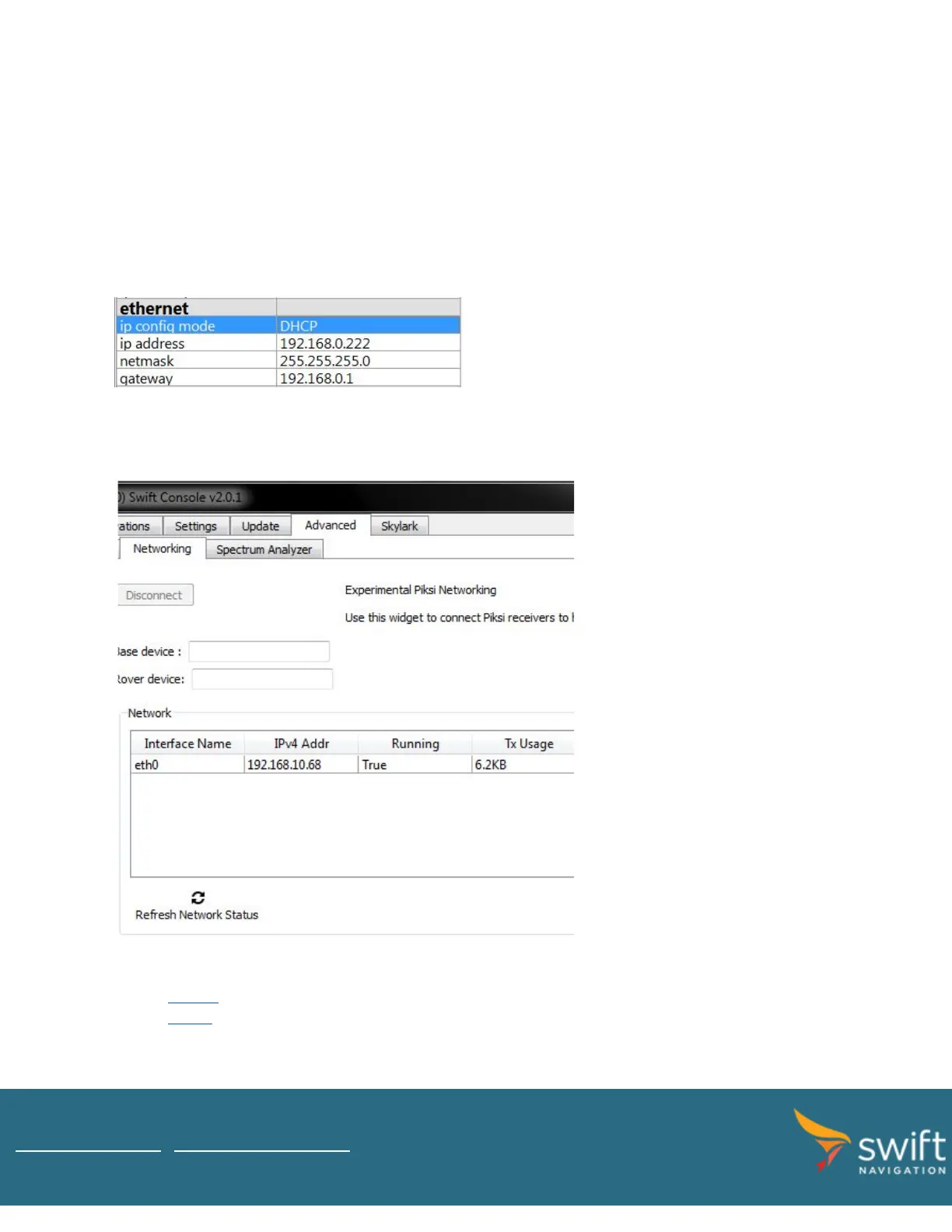
1. Connect to Piksi Multi / Duro over the serial interface using Swift Console and configure Ethernet with
dynamically assigned IP address:
2. Connect Piksi Multi / Duro Ethernet port to the MoFi router. After a couple of seconds Piksi / Duro red LED should
lit solid indicating active connection to the Internet.
3. Assigned IP address can be seen on Swift Console Advanced tab -> Networking sub-tab after pressing Refresh
Network Status button:
4. Alternatively, a static IP address in range 192.168.10.2 to 192.168.10.254 can be set on Piksi Multi / Duro.
5. Once Piksi Multi / Duro has Internet access you may proceed to setup Skylark or NTRIP corrections source:
a. Skylark
b. NTRIP
www.swiftnav.com | support@swiftnav.com
©2018 Swift Navigation, Inc. All rights reserved | Version 1.1 | Swift Navigation, Inc. Proprietary


 To Previous Page