THE APP MENU
.
Open the APP and logon as detailed on page 4.
•
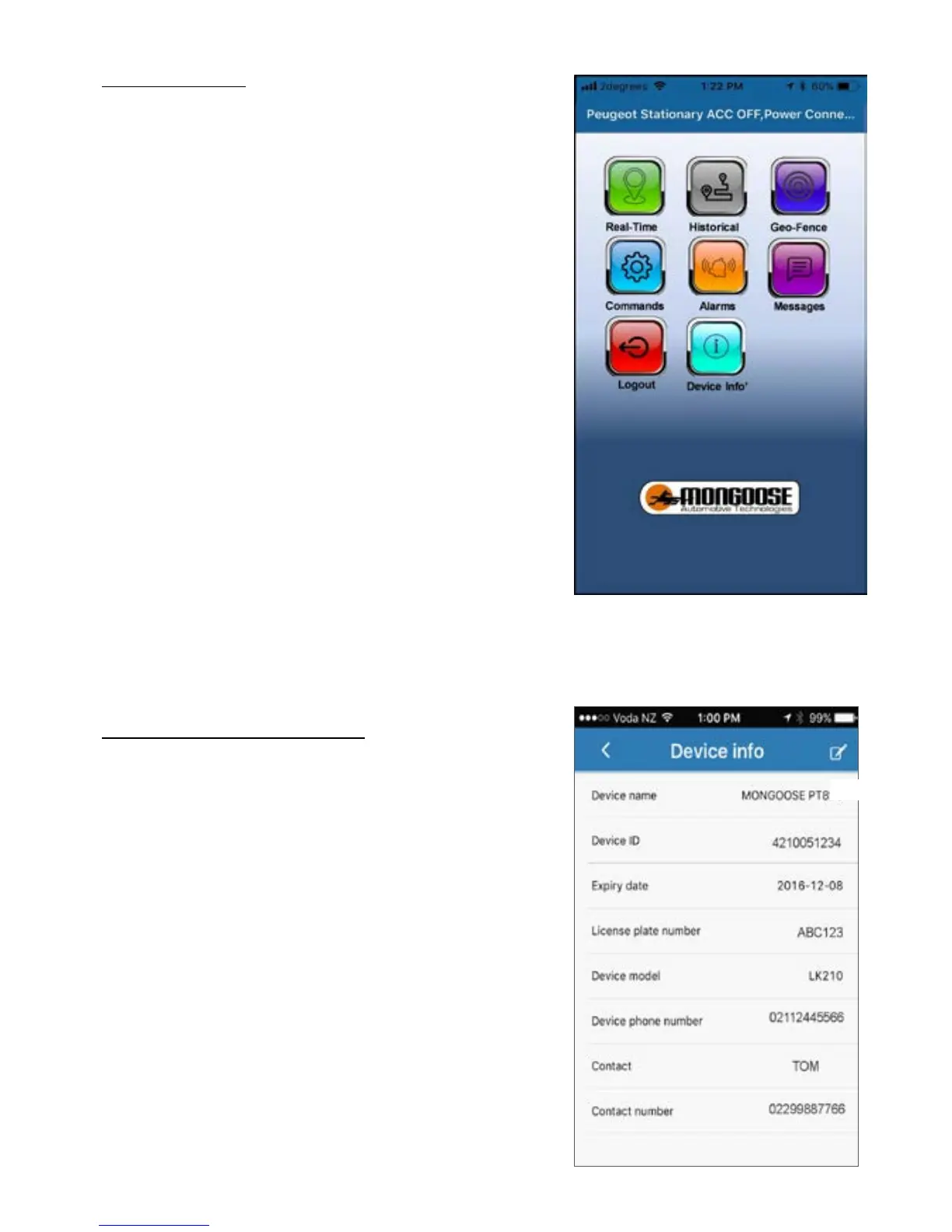
The top bar shows the trackers status
•
‘
real time
’ - shows the current or last reported
location
The blue dot is your mobile phone – the green
triangle is the tracker
•
‘
historical
’ to show where the tracker has been and
can play the route taken
•
‘
Geofence
’ sets a permitted radius of travel
•
‘
Commands
’ allows you to control the tracker
•
‘
Alarms
’ sets which alerts you wish to receive
•
‘
Messages
’ a record of alerts sent
•
‘
Device info
’ – fill in all details or the tracker may not operate correctly
•
‘
User info
’ - details of the owner/driver
DEVICE INFO’ - IMPORTANT
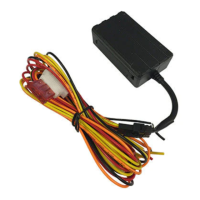
Select ‘
Device info
’.
1.
Edit the device name to one of your choice
2.
Enter the vehicles registration number
3.
Enter the phone number of the trackers SIM card
4.
Enter the name of the main driver
5.
Enter the paired mobile phone number – ‘contact number’
Important;
Item 5 is required. The tracker needs to know who to
send alerts to. If this is left blank, no alerts will be sent .



 To Next Page