09
EN
TIPS
With your Huma, you can connect to the Internet either via a Wi-Fi {wireless LAN) or
wired LAN network. Before connecting to the Internet, you need to select a connection service,
make a contract with an Internet service provider accordingly, and make the Internet
connection settings on the computer. For detailed information on the Internet connection
settings and required network devices, refer to the manual from your service provider and
the manual that came with your device. Establishing a successful connection to the Internet
completes Windows license authentication.
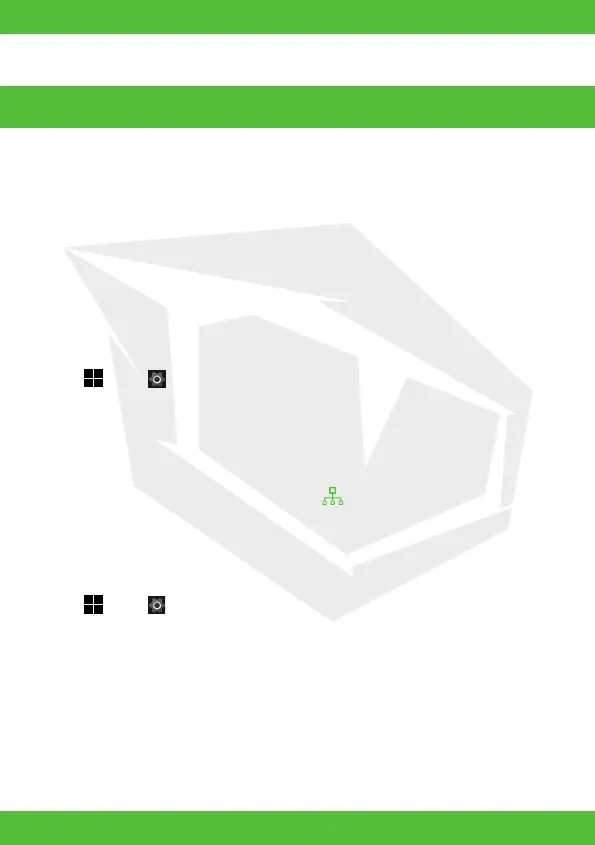
1. Select (start), (Settings), Network & Internet, and Wi-Fi, and then set Wi-Fi to On.
2. Select Show available networks.
3. Select the desired Wi-Fi access point, and then select Connect.
1. Plug one end of a LAN cable {not supplied) to the .
Ethernet port on your Huma and the other to your modem/router.
Connect to the Internet
Connecting via a Wi-Fi network
Connecting via a Wired LAN network
1. Select (start), (Settings), and Windows Update, and then follow the on-screen
instructions to update the Windows.
The USB drive included in the box contains all the drivers you need.
However, please visit https://www.monsternotebook.com.tr/suruculer/
for the latest versions of the drivers.
Running Windows Update
Updating Huma’s Software


 To Next Page