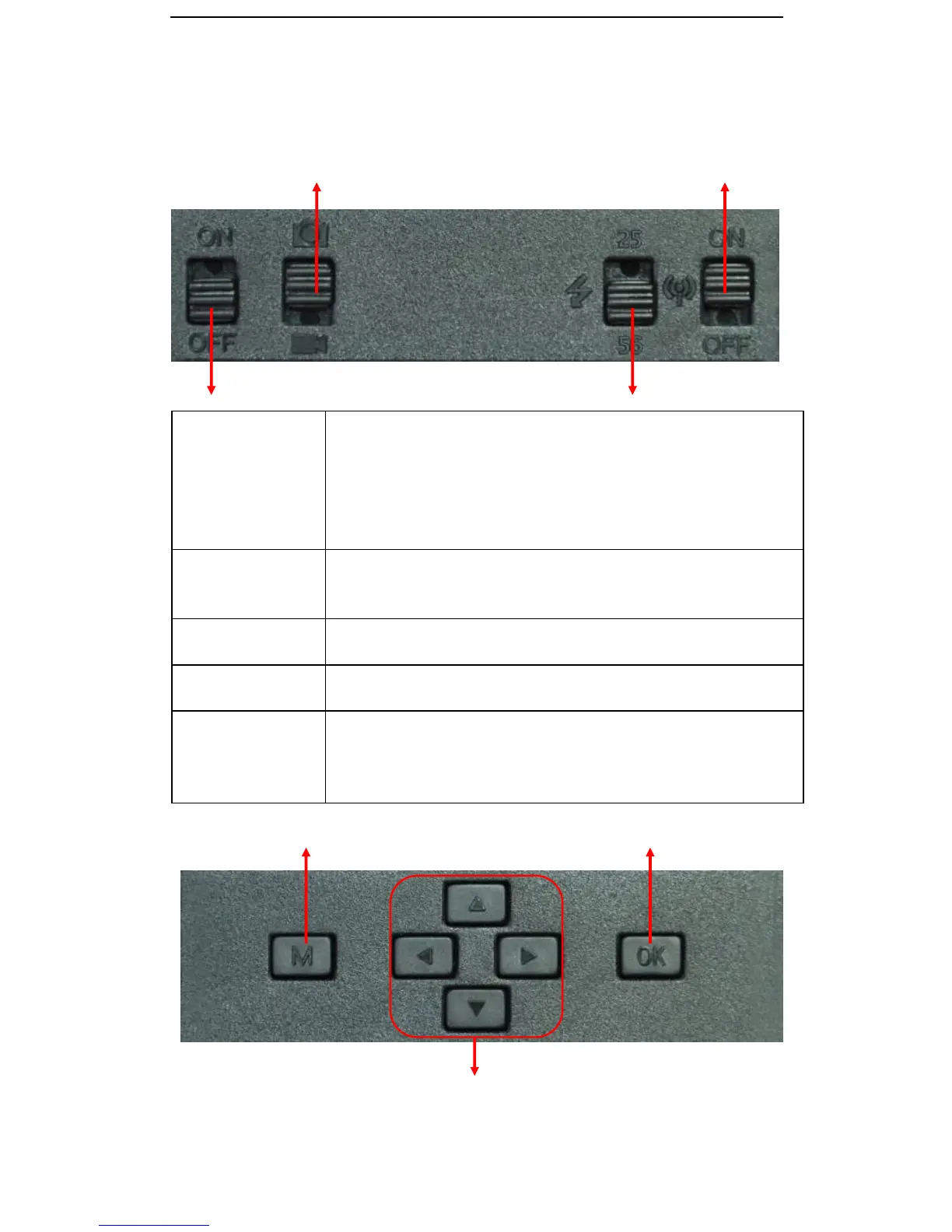
2.4 Function Keys & Other Details
A. Switch Buttons
Camera/Video Switch Cellular Switch
Power Switch IR LEDs Group Switch
Power Switch
Test and setup
mode
1) Switch ON, wait 2 seconds then press “OK” once to wake up camera
LCD screen and enter Test/Function Mode
2) After 60sec of no input, camera will automatically revert to PIR Auto
Mode or Press and hold “OK” button for 3 seconds to activate PIR
Auto Mode
3) Switch OFF—Camera turns off.
Switch ON to enable camera to work
Note: The indicator light flashes 5 times before camera starts to work on
PIR Auto Mode
Switch up to Camera icon for photo mode and photo + video mode
Switch Down to Video icon for video only recording mode
Switch up 25: For top 25 pcs IR LEDs
Switch down 56: For both top and bottom IR LEDs. Total 56 pcs
Switch up On: Cellular function enabled (Sim Card Required)
Switch down Off: Cellular function disabled.
Note: When configuring the camera settings we suggest disabling the
Cellular function to quick wake up the LCD screen.
B. Buttons
Menu OK/ Photo & Video Record/ TEST Mode
Navigation


 To Next Page