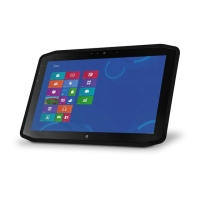
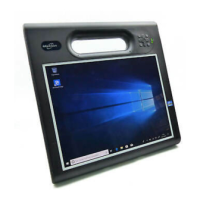
Need help?
Do you have a question about the Motion FWS-001 and is the answer not in the manual?
Lists the main features of the CL900 Tablet PC, including processor, memory, storage, and display.
Describes optional CL900 configurations like mobile broadband with GPS and Trusted Platform Module (TPM) security.
Details the productivity module with an integrated Magnetic Stripe Reader (MSR) and Barcode Scanner (BCS).
Provides essential steps for powering up, connecting to wireless networks, and getting familiar with the CL900.
Illustrates and describes the physical buttons, slots, and ports on the CL900 Tablet PC's exterior.
Covers post-setup tasks such as creating recovery images, inserting the pen battery, and connecting peripherals.
Directs users to additional resources like the website, support, and accessories for further assistance.
Shows the CL900 desktop environment and introduces key Motion Computing applications available.
Explains how to reposition the Windows taskbar on the touchscreen display for improved usability.
Details how to use the Motion Dashboard for customizing tablet settings, display, audio, and wireless.
Shows how to quickly access common Motion tools like Motion QuickNav via the Windows notification area icons.
Explains how to interact with the CL900's touchscreen using fingers or the digitizer pen.
Describes multi-touch gestures for manipulating items on the screen, such as scrolling and zooming.
Guides on changing folder behavior for single-tap selection and double-tap opening.
Explains how to set input modes for finger-only, pen-only, or both finger and pen input.
Provides steps to fine-tune touchscreen responsiveness and accuracy for optimal performance.
Details how to customize touch interpretation, pointer behavior, and gestures for user preference.
Explains how to adjust pen response, double-tap, press-and-hold actions, and pen button functions.
Covers changing hand orientation and assigning touch input to specific displays for multiple monitor setups.
Guides on using the on-screen keyboard, writing pad, and converting handwriting to digital text.
Instructions for managing the appearance and disappearance of the on-screen input panel.
How to dock the input panel to the screen edge or keep it floating for convenient use.
Utilizing the on-screen numbers pad for efficient entry of numerical data.
Accessing special keys like Home, End, and Insert on the expanded on-screen keyboard.
How to train the tablet to recognize your unique handwriting style for better accuracy.
Introduction to Motion QuickNav, a touch-based interface for accessing device features and applications.
Steps to launch the Motion QuickNav application from the taskbar.
Managing the visibility of the Motion QuickNav toolbar by hiding or showing it as needed.
Procedures for properly exiting the Motion QuickNav application.
Guidance on how to access help resources for using Motion QuickNav features.
Information on customizing Motion QuickNav settings via its options menu.
An overview of the various tools and functionalities available within the Motion QuickNav application.
Using the tablet's built-in front web camera and rear documentation camera with Motion QuickNav.
Detailed steps for utilizing the front-facing web camera for video calls or streaming.
Instructions for capturing photos using the rear documentation camera and saving them.
How to edit photos captured with Motion QuickNav, including adding notes and adjusting properties.
Changing between the front web camera and rear documentation camera within Motion QuickNav.
Customizing display settings like brightness, orientation, and automatic rotation for optimal viewing.
How to change the screen brightness for optimal viewing and power conservation.
Changing screen orientation between portrait and landscape modes to suit the current task.
Controlling whether the display auto-rotates based on the tablet's physical orientation.
Connecting and configuring external monitors or projectors, including mirror and extended modes.
Setting up and using voice commands and dictation for hands-free interaction with the tablet.
Instructions for using the integrated magnetic stripe reader (MSR) for card transactions.
Instructions for using the integrated barcode scanner (BCS) to scan various barcode types.
Information on checking battery status, understanding battery life, and optimizing usage.
Methods to check the current battery charge level using the gauge button, dashboard, or notification area.
Advice for maximizing battery life and managing power consumption through settings and usage habits.
How to select and change power plans for balancing performance and battery saving.
Customizing the behavior of the power button for sleep, hibernate, or shut down actions.
Creating and managing distinct user accounts on the tablet for personalized settings.
Methods to find the tablet's unique serial number, typically inside the SD card slot or in system properties.
Steps for scheduling and performing system backups to protect against data loss.
Procedures for restoring the system from a system image or original factory settings in case of failure.
How to create a system image, an exact copy of the drive, for backup and recovery purposes.
Restoring the system using a previously created image via the Windows Control Panel interface.
Restoring the system from BIOS when Windows 7 is inaccessible, using a system image.
Reinstalling the original factory image if no system image is available, without restoring personal files.
Information on finding additional software, accessories, and support for the tablet.
Basic guidelines for protecting the tablet from extreme temperatures, shock, liquids, and magnetic fields.
Tips for cleaning and maintaining the tablet's display screen, recommending specific cloths and cleaners.
Instructions for properly storing, using, and maintaining the digitizer pen to prevent damage.
Advice on conditioning the battery monthly to maximize its lifespan and performance.
Tips for transporting and using the tablet while traveling, including case usage and power settings.
A guide to identifying and resolving common issues and problems encountered with the tablet.
Addresses issues related to powering on, shutting down, sleep mode, and hibernation failures.
Discusses common battery issues such as short battery life and temperature effects.
Solutions for display-related issues including black screens, cursor placement, and dimness.
Troubleshooting steps for unresponsive touch input, pen issues, and calibration failures.
Answers to common user questions about battery life, display cleaning, and device compatibility.
Addresses issues with USB devices, docking stations, and external connections not being recognized.
Solutions for issues connecting to wired Ethernet and wireless Wi-Fi networks.
Troubleshooting steps for Bluetooth connectivity, device pairing, and interoperability issues.
Resolves issues related to mobile broadband network connection and GPS functionality.
Solutions for issues with the built-in speaker, external speakers, or audio component failures.
Troubleshooting specific problems encountered with the Motion QuickNav application, like unresponsiveness.

 To Next Page

 General