See Viewing and Changing the Priority Status on
page 64 for more information on how to add and/or
change the priority of the currently displayed channel
in the scan list.
Changing the Scan List Status
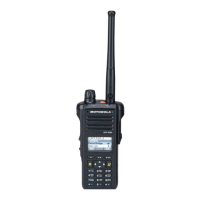
1 Long press the preprogrammed Scan List
Programming button (side button).
The display shows the programming mode icon
and the first list member.
2 or to the member you want to edit.
3 Perform one of the following actions:
• Press the Select button once to add the
currently displayed channel to the scan list.
• Press the Select button one or more times to
change the scan list status icon of the currently
displayed channel.
4 Perform one of the following actions:
• or to select more list members whose
scan status you want to change.
• Use the MFK knob to select another scan list
member.
5
Press to exit scan list programming and return
to the Home screen.
Viewing and Changing the Priority Status
Perform one of the following actions:
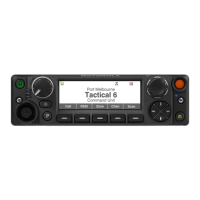
• Press the Menu Select button directly below
Sel one or more times to change the priority
status of the current displayed channel.
• Press the Select button one or more times to
toggle different status of the Scan List status
icon of the current displayed channel.
The radio shows one of following priority status
icons and scenarios:
• A Scan icon indicates that the current channel
is in the scan list as a non-priority channel. The
LED lights up solid green.
• A Priority-Two Channel Scan icon indicates
that the current channel is in the scan list as
the Priority-Two channel. The LED blinks
green.
• A Priority-One Channel Scan icon indicates
that the current channel is in the scan list as
the Priority-One channel. The LED rapidly
blinks green. You hear all traffic on the Priority-
64
English



 To Next Page
 Loading...