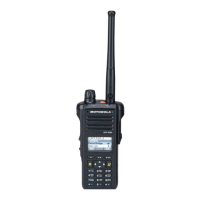
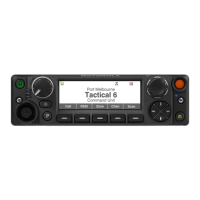
Accessing the Outdoor Location Feature
Note: An ON radio menu may be present on the
Location menu screen if it is preprogrammed by the
dealer or system administrator.
Press the preprogrammed GPS button to toggle the
Outdoor Location feature to on or follow the following
procedure to access this feature via the radio menu.
1
or to Loc.
2
Press the Menu Select button directly below Loc.
The display shows Location off.
3 Perform one of the following actions:
• To obtain a location fix, press the Menu Select
button directly below On .
• Press the Menu Select button directly below
Optn.
or to Turn On GPS and press the
Menu Select button directly below Sel.
The front display shows the MGRS or latitude/
longitude location, time, and date of the last
successful location fix.
4 To obtain a new location fix, press the Menu
Select button directly below Rfsh.
The top line temporarily displays
Please wait
while the new location is being determined. While
the new location is being determined, the location
signal can be a solid or blinking icon.
Once the location coordinates are fixed, the
display shows the current location along with the
UTC (Zulu) time and date that the location fix was
obtained.
The location coordinates are updated
automatically every 5 seconds while the location
signal is present.
If the radio fails to get a location fix, the display
shows No service and returns to the previous
display.
5
To return to the Home screen, press , the PTT
button, the preprogrammed GPS button or the
Menu Select button directly below Exit.
Saving a Waypoint
Ensure that your radio shows the current location on
the screen.
84
English



 To Next Page
 Loading...