EasyManua.ls Logo

Motorola MBP164 Connect - User Manual

Motorola MBP164 Connect
38 pages
Print Icon
To Next Page IconTo Next Page
Loading...
User’s Guide
All-in One Smart Monitor and Intercom
Models: MBP164CONNECT
The features described in this guide are subject to modifications without prior notice.

Questions and Answers

  • J
    Jacob TerryAug 14, 2025
    What to do if I can't find my Motorola MBP164 Connect Baby Monitor during setup?
    • M
      Michelle ThompsonAug 14, 2025
      Reset the Motorola Baby Monitor to setup mode and try again. Press and hold the PAIR button on the front of the device until you hear a beep. Wait a minute for the device to restart. When the Night Light is flashing, it indicates that it is in setup mode. Now restart the setup from your smartphone again.
  • H
    Hailey HardyAug 17, 2025
    What to do if I can't find a new Motorola MBP164 Connect device to add?
    • B
      Brittany LarsenAug 17, 2025
      If you cannot find a new Motorola Baby Monitor device to add to your account, and you are trying to add a device which has previously been added into your account or another account, you will first have to reset the device. Refer to Section 5.5.
  • J
    Jacob SmithAug 20, 2025
    What to do if I get a message that Motorola MBP164 Connect Baby Monitor device is inaccessible?
    • E
      Emily DelacruzAug 20, 2025
      This issue may arise due to problems with your internet connection. Here are some things to try: 1. Wait a few minutes and try again. 2. Restart your Motorola Baby Monitor device. 3. Restart your wireless router.
  • S
    Sandra PetersonAug 25, 2025
    How to hear sound on my Motorola MBP164 Connect?
    • D
      Dawn DeckerAug 25, 2025
      To hear audio when accessing your Motorola Baby Monitor, tap the speaker icon in the Audio Monitoring section.
  • A
    Alfred Medina MDAug 27, 2025
    What to do if I forgot my Motorola Baby Monitor password?
    • C
      cheryl20Aug 27, 2025
      If you've forgotten your password, click the "Forgot Password" link either at https://app.hubbleconnected.com/ #lostpassword or within your Android or iOS application. An email will then be sent to your registered email address.
  • L
    Lindsey FarmerAug 30, 2025
    Why is my Motorola MBP164 Connect showing as remote on the same Wi-Fi?
    • G
      gina98Aug 30, 2025
      If your Motorola Baby Monitor is showing as remote even when you're on the same Wi-Fi network, check your wireless router settings. For Buffalo routers, disable the 'Wireless Isolation' option.
  • B
    Bonnie HarrisonSep 3, 2025
    How to fix Motorola Baby Monitor when unable to login after registration?
    • L
      Lisa BrownSep 3, 2025
      If you are unable to login after registration, please check your username and password to make sure they are correct.
  • C
    Christina TownsendSep 6, 2025
    What to do if I get an "E-mail ID is not registered" error on my Motorola MBP164 Connect Baby Monitor?
    • F
      Frank SmithSep 6, 2025
      If you receive an error message saying "E-mail ID is not registered", ensure that you have registered. Tap Sign in to create an account.
  • B
    Brandon GonzalezSep 10, 2025
    Why am I not receiving my Motorola MBP164 Connect password reset email?
    • R
      Randy FitzgeraldSep 10, 2025
      If you have requested a new password but haven't received the email, here are a couple of things to check: 1. Check your Junk Mail folder, as the email may have been filtered there. 2. Allow a few minutes for the email to arrive, and then refresh your email account.

Summary

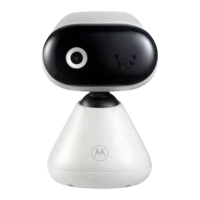
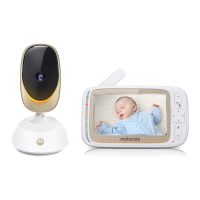
Overview of Baby Unit

Night Light

Controls the amber night light for local illumination.

Speaker

Outputs audio from the baby unit.

Power indicator

Shows device power status with an orange light.

Night Light button

Button to turn the nightlight on or off.

PAIR button

Enters pairing mode or resets to factory default.

Volume buttons

Adjusts the speaker volume up or down.

Antenna

For wireless signal transmission.

Power Plug

Connection point for the power adapter.

Overview of Parent Unit

Audio Level LED

Indicates audio detection with color changes.

Power Adapter; Battery LED

Shows power and low battery status.

Link Indicator

Confirms the parent unit is linked to the baby unit.

Power ON;OFF button

Button to turn the parent unit on or off.

Talk button

Enables speaking to the baby unit.

Volume buttons

Adjusts the parent unit's speaker volume.

Battery compartment cover

Cover for the parent unit's battery compartment.

Power Socket

Port for connecting the power adapter.

Safety Instructions

Getting Started

Power on the Baby Unit

Instructions for connecting and powering the baby unit.

Installing the battery pack for the Parent Unit

Steps to install the rechargeable battery pack.

Connecting power supply for the Parent Unit

How to connect the parent unit to power.

Desktop Mount of Parent Unit

Instructions for using the parent unit's stand.

Using the Baby Monitor

Set nightlight

How to activate or deactivate the nightlight feature.

Adjust Baby Unit volume

Controls the sound volume of the baby unit.

Talk Mode

How to use the intercom function.

Adjust Parent Baby Unit volume

Controls the sound volume of the parent unit.

System Requirements

Connecting Devices

Setup

Initial steps for connecting the device to your network.

What you need

Lists the required devices and software for setup.

User Account and MBP164 CONNECT setup on Android Devices

Guide for setting up on Android devices, including app download, account creation, and adding the device.

User Account and MBP164 CONNECT setup on iOS Devices

Guide for setting up on iOS devices, including app download, account creation, and adding the device.

Reset the Smart Monitoring Companion

Instructions for resetting the device to factory defaults.

Disposal of the Device (Environment)

Cleaning

Cleaning and care

Instructions for cleaning and maintaining the device.

Troubleshooting

General Information

Consumer Products and Accessories Limited Warranty (Warranty)

Details of the product's limited warranty coverage and terms.

How to Obtain Warranty Service or Other Information?

Provides contact details and procedures for warranty service.

FCC and IC regulations

FCC Part 15

Compliance information for FCC digital device regulations.

Industry Canada

Technical Specifications

Motorola MBP164 Connect Specifications

General IconGeneral
ModelMBP164 Connect
ConnectivityWireless
Night VisionYes
Temperature SensorYes
Sound ActivationYes
Number of Cameras SupportedUp to 4
ExpandableYes
Vox ModeYes
LullabiesYes
CameraYes
Sound Level IndicatorYes
TypeVideo
Wireless Technology2.4 GHz
RangeUp to 1000ft
Display Size4.3 inches
FeaturesTwo-way communication

Related product manuals