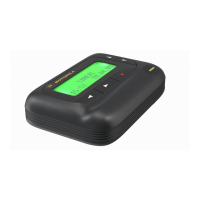
The Motorola SCRIPTOR LX4/FLX4 is a message receiver designed for efficient and reliable communication. This device incorporates advanced electronic, communications, and wireless technologies, offering a four-line display and expanded functionality suitable for both business and personal use.
Function Description:
The SCRIPTOR LX4/FLX4 serves as a personal message receiver, capable of receiving and displaying text messages. It features a comprehensive function menu that allows users to customize various settings and manage messages effectively. Key functions include setting alerts, managing time and date, controlling power, and organizing received messages.
Important Technical Specifications:
- Display: Four-line display for clear message viewing.
- Battery: Operates on a single AA-size alkaline battery. Carbon zinc batteries are not recommended.
- Memory: Capable of storing up to 10 locked messages, preventing them from being replaced when memory is full. It also includes two notebook areas: a personal notebook for personal messages and a maildrop notebook for information services messages.
- Alert Modes: Supports both audible and silent alert modes. When in silent mode, if equipped with a vibrator, the device vibrates.
- Alert Patterns: Offers a standard alert (1), seven pleasing alerts (2 through 8), a chirping alert, and a "no alert" option.
- Time and Date: Allows users to set and display the current time and date in either 12-hour (AM/PM) or 24-hour format.
- Alarm: Features a daily alarm and a message alarm that can be set for specific times and dates, or to alert daily. Up to five personal messages can have an alarm set.
- Auto On/Off: Enables users to program specific times for the device to automatically turn on and off.
- Battery Gauge: A five-indicator battery gauge on the status screen shows the battery energy level (full, 3/4, 1/2, 1/4, and low).
- Key Click: Provides an audible "click" when buttons are pressed in audible mode.
- Maildrop History: Stores four history files per maildrop slot, pushing existing messages into history and deleting the oldest file when a fifth is received.
- Out of Range Indicator: Displays a symbol when the device is out of range of the paging transmitter.
- Errored Data Indicator: Shows a symbol when potentially corrupt data is received, alternating with the corrupted character.
- Missing Fragment Indicators: (Applicable to SCRIPTOR FLX4 only) Displays symbols if part of a message (alphanumeric or long numeric) has not been received.
Usage Features:
- Turning On/Off: The device is turned on by pressing the "Read/Escape/Power On" button. To turn off, access the function menu, navigate to the "Turn Message Receiver Off" symbol, and press the "Function/Select Button" twice.
- Receiving and Reading Messages: Upon receiving a message, the device alerts and displays a flashing symbol. Any button press stops the alert. Pressing the "Read/Escape/Power On" button displays the message. Messages are automatically stored with their time and date. A flashing arrow indicates messages extending beyond the four-line display. Users can advance through screens by pressing the "Read/Escape/Power On" button or read line by line using the "Up/Down Directional Buttons." Holding the "Read/Escape/Power On" button scrolls rapidly. If multiple messages exist, "Left/Right Directional Buttons" allow selection, and a symbol indicates message location. A flashing symbol indicates unread messages, with alerts at predetermined intervals.
- Function Menu: Accessed by pressing the "Function/Select Button," the menu uses symbols and prompts for navigation. The cursor flashes, indicating its position, and can be moved using the "Left/Right Directional Buttons." To exit any menu without changes, press the "Read/Escape/Power On" button.
- Backlighting: The backlight illuminates in low-light conditions when any button is pressed. It can be manually activated/deactivated by pressing and holding the "Function/Select Button" for two seconds. It automatically turns off when the device returns to standby mode if no other buttons are pressed.
- Locking/Unlocking Messages: Up to 10 messages can be locked to prevent deletion. To lock/unlock, select the message, access the function menu, navigate to the lock/unlock symbol, and press the "Function/Select Button." Symbols indicate the message's status.
- Setting Time and Date: Access the function menu, navigate to the "Set Time and Alarm" symbol, and press the "Function/Select Button." Use directional buttons to adjust hour, minute, AM/PM, and date (month/day/year). Press the "Function/Select Button" to activate changes.
- Setting Alarm: Access the function menu, navigate to the "Set Time and Alarm" symbol, and press the "Function/Select Button." Use directional buttons to enable/disable the alarm and set the time and date. For a daily alarm, set the date entries to blank (--/--/--). The device emits a 12-second audible alert at the set time, even in silent mode. A flashing symbol indicates an unacknowledged alarm.
- Setting Message Alarm: This feature allows setting a one-time or daily alarm for up to five personal messages. Select the message, access the function menu, navigate to the "Set Message Alarm" symbol, and follow the alarm setting steps. The device vibrates or emits a 12-second alert based on the alert mode. A flashing symbol indicates an unacknowledged message alarm.
- Setting Alert Mode: Access the function menu, navigate to the audible or silent alert symbol, and press the "Function/Select Button." The device chirps for audible mode or vibrates for silent mode (if equipped).
- Setting Alert Pattern: (Requires audible mode) Access the function menu, navigate to the "Choose Alert" symbol, and press the "Function/Select Button." Use directional buttons to scroll through and sample different alert patterns.
- Turning Maildrop Alert On/Off: Access the function menu, navigate to the maildrop alert on/off symbol, and press the "Function/Select Button" to select the desired mode.
- Deleting Messages: Unlocked and un-alarmed messages can be deleted while viewing or through the function menu. To delete, select the message, access the function menu, navigate to the "Delete Message" symbol, confirm, and press the "Function/Select Button." To delete all unlocked, un-alarmed, and read messages, navigate to the "Delete All Messages" symbol and press the "Function/Select Button" twice. (Note: Notebooks are not affected).
- Moving Messages to Notebooks: Select the message, access the function menu, navigate to the "Add to Notebook" symbol, and press the "Function/Select Button" to move it to either the personal or maildrop notebook. Symbols indicate the message's location in the respective notebook.
- Deleting Messages from Notebooks: Access the function menu, navigate to the "Add to Notebook" symbol, display the list of notebook messages, scroll to the desired message, access the function menu, navigate to the "Delete Message" symbol, confirm, and press the "Function/Select Button."
- Setting Auto On/Off: Access the function menu, navigate to the "Set Auto On/Off" symbol, and press the "Function/Select Button." Use directional buttons to enable/disable the feature and set the auto on and auto off times. The symbol indicates if the function is enabled.
Maintenance Features:
- Battery Replacement: The battery compartment is located on the rear. To replace, slide the door latch away, slide the battery door in the direction of the arrow, and lift it off. Note the positive (+) and negative (-) markings on the battery and housing. Insert a new AA-size alkaline battery, ensuring correct polarity, and reattach the door. CAUTION: Inserting the battery backward will erase stored or locked messages.
- Care of Message Receiver: To maintain display quality, avoid exposing the device to extreme temperatures and moisture.
- Cleaning: For smudges and grime, use a soft, nonabrasive cloth moistened with a mild soap and water solution. Rinse with a second cloth moistened in clean water. Do not immerse the device in water or use other solutions.
- Repair and Maintenance: The device is designed for long-term, trouble-free service. For repairs, contact Motorola's Service Organization or a Motorola sales office.
- Patent Information: The product is manufactured under one or more Motorola U.S. Patents, listed inside the battery door. Other U.S. Patents are pending.

 Need help?




 To Next Page
 General