Page 7
M-550 Digital Game Camera
SETUP AND PROGRAMMING (cont)
IV
Setting General Features
When you press the Right button from the General Settings screen, the LCD Display will automatically
start showing the dierent features within General Settings. Using the navigation process, set the
features you desire.
Setting Date and Time
Press the OK button. Use the Left/Right buttons to move from one value to the next and the
Up/Down buttons to adjust each value. Press the OK
button to lock in selections. When all your
selections
have been made, and the date and time has been set, press the Right button to move to
the next option.
DATE & TIME
11/11/11 11:11pm
Setting Photo Quality
Press the OK button. Use the Up/Down buttons to choose between 4 image resolution settings.
1. Enhanced: 3048 x 2286
2. High: 2304 x 1728
3. Medium: 1600 x 1200
4. Low: 640 x 480
Press the OK button to conrm the selection. Press the Right button to move to the next option.
PHOTO QUALITY
HIGH (4MP)
VIDEO LENGTH
10 SECONDS
Setting Video Length
Press the OK button. Use the Up/Down buttons to choose between 5 video length settings
(5, 10, 30, 60 or 90 seconds). Press the OK button to conrm the selection. Press the Right button to
move to the next option.
MOTION FREEZE
ON (FAST FLASH)
Setting Motion Freeze
This feature maximizes the image clarity during night photos. When this feature is on the camera
will adjust the exposure time to reduce blur associated with motion. Other adjustments are made to
increase the brightness and clarity of the photo. When this feature is turned o the camera will use a
maximum exposure time that will not reduce blur, but will increase the eective ash range and image
brightness of night photos.
Press the OK button to conrm the selection. Press the Right button to
move to the next option.
GENERAL
< SETTINGS >
Page 14
M-550 Digital Game Camera
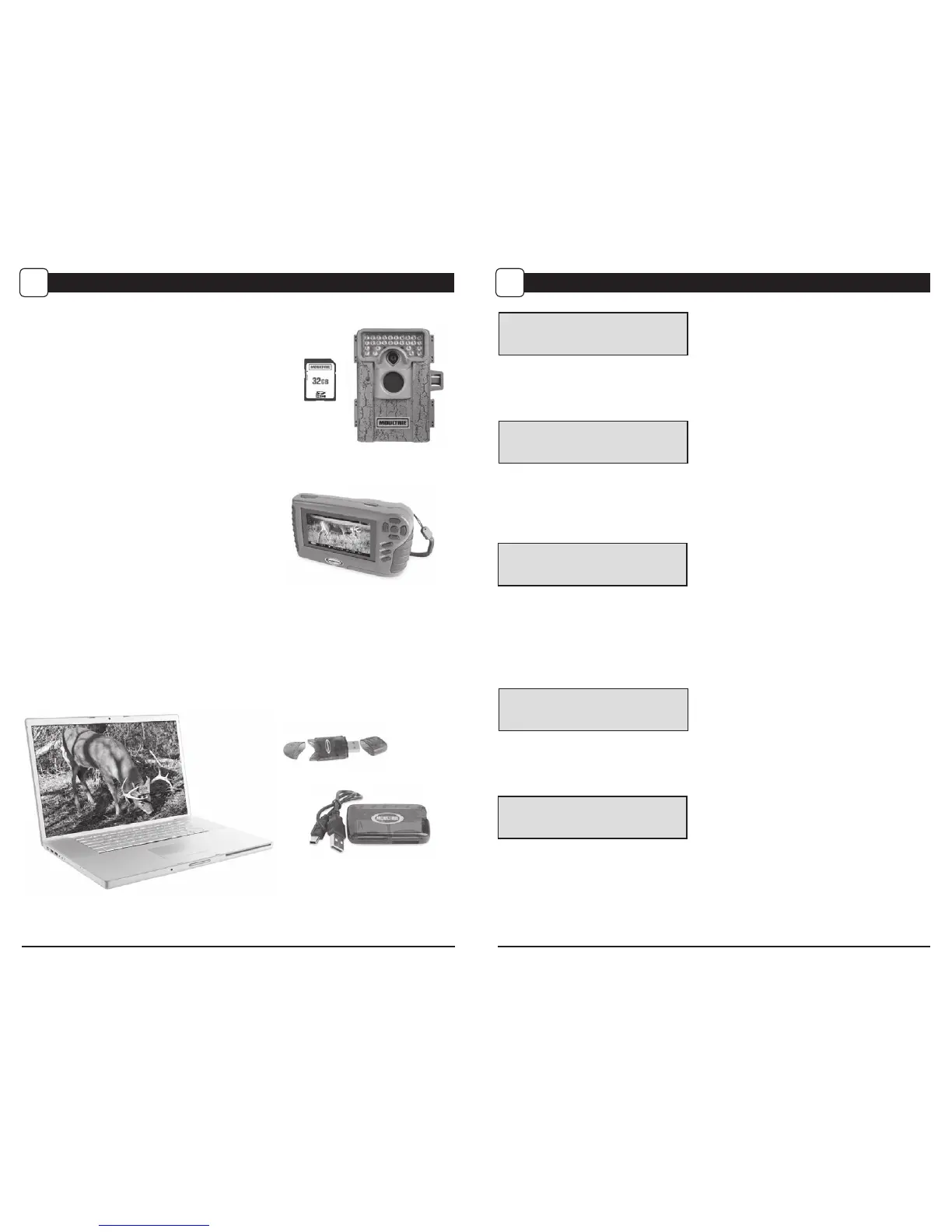
There are a number of ways for you download and view
the pictures, videos in the eld or at another location.
Removing the SD Card
To remove the SD Memory Card, open the camera cover
and push gently on the SD card and it will pop out slightly
allowing you to remove it. Load the SD card into the
player or card reader to view or move stored images to
another location.
Important
Make sure that the camera is in the OFF position before
removing SD card.
ln the Field
You can download the pictures, videos, and time lapse
pictures with the aid of external devices. To download,
use an external player or card reader that is
supported by 12V DC or Mini USB Jack.
At Home
Remove the entire camera and transport to another location to download images. To connect the
camera to a PC computer, turn the camera ON, press the MENU button once to change to SETUP
Mode. Connect the USB cord (not included) between the USB out port and the PC computer. The
computer will recognize the camera as a removable drive. The unit works with Windows XP/Vista/7 or
Mac OS X 10.1 or higher. Copy the images and videos from the camera onto your PC for further
editing or printing. When the USB cable is disconnected, the camera will go back to SETUP mode.
VIEWING YOUR IMAGES
VI
See the full line of Moultrie camera accessories at www.moultriefeeders.com




 To Next Page