Page 8
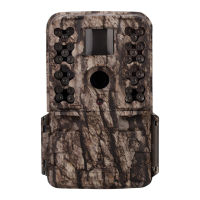
M-550 Digital Game Camera
Page 13
M-550 Digital Game Camera
CAMERA NAME
MOULTRIECAM
Setting Camera Name
Press the
OK button. Use theUp/Down and Left/Right buttons to select an identity for your
camera. For example, you can use a name or a location; the identity you wish to use is up to you.
Press the OK button to conrm the selection. Press the Right button to move to the next option.
Imprint Info?
Use the Up/Down buttons to choose between:
YES - Camera Name, Time, etc, information will be imprinted at the bottom of the image/video
as an infromation bar
Note: Remember to input the camera name in the setup and set the clock accordingly.
NO - No information bar will be imprinted.
Press the OK button to conrm the selection. Press the Right button to move to the next option.
IMPRINT INFO?
YES
TEMPERATURE
FAHRENHEIT
Temperature
The temperature is imprinted on each photo and can be in degrees Fahrenheit or Celsius.
To change the temperature units, press the Up/Down buttons to highlight the desired setting.
Press the OK button to conrm the selection. Press the Right button to move to the next option.
WI-FI SD CARD?
NO
Wi-Fi SD Card
Select option when using a Wi-Fi enabled SD card. Turning this feature on will keep the SD port
powered for a set amount of time to allow the les to transfer o the card to the Wi- network set up.
Press the OK button to conrm the selection. Press the Right button to move to the next option.
NOTE: Moultrie does not oer technical support for Wi-Fi SD cards. Please contact your Wi-Fi card’s
manufacturer for support. Before use, you must setup your Wi-Fi SD card on your wireless network.
NOTE: Use of a Wi-Fi SD Card will decrease the battery life of the camera.
AC CONNECTED?
NO
AC Connected
Press the OK button. When the camera is connected to an AC power supply and this option is
selected, the camera will remain on instead of going to a sleep state between detection and capture
sequences. This will greatly improve camera speed and performance and can be used in conjunction
with most external supplies, but is only recommended when connected to an AC power supply.
In the event this option is selected but no external supply is detected, it will default to the NO state.
Press the OK button to conrm the selection. Press the Right button to move to the next option.
Memory & Storage
Your camera supports external SD memory cards ONLY and will accept up to a 32GB card. Using large
memory cards can slow the camera response. The camera cannot capture any photo or video without
external memory. Please insert an SD memory card to operate camera. Estimates are based on the
most common types of memory cards that can be purchased at electronic stores, office supply stores,
or online. Estimates may vary based on camera settings or environmental conditions.
Important
Always turn the unit o when inserting or removing an SD memory card to avoid damage and ensure
that the camera properly updates the memory information.
Actual capacity will vary based on image properties.
CAMERA SPECIFICATIONS
V
Specications
Operational Mode Motion Detect / Time Lapse / Motion + Time Lapse
Resolution 7.0 MP
Still Resolutions JPEG
Low 640 x 480, Med 1600 x 1200,
High 2304 x 1728, Enhanced 3048 x 2286
Video Resolutions VGA- 640 x 480
SD Memory Card Up to 32 GB SD card (not included)
Format JPEG - Still pictures, AVI - Video clips
Power Supply 8 AA Alkaline or Lithium batteries (not included)
Photo Mode
SD Card Size: 2 GB 16 GB
ENHANCED 3048 x 2286 840 6720
HIGH 2304 x 1728 1400 11200
MED 1600 x 1200 3000 24000
LOW 640 x 480 17950 143600
Video Mode
SD Card Size: 2 GB 16 GB
VGA 640 x 480 (based on 10 sec video) 90 720




 To Next Page