- 6 -
Play recordings
(1) Select “Explorer” on the main menu to enter the folder navigate mode.
(2) Open the “VOICE” folder, and select the recording file that you want to play.
File Explorer
To browse all files stored in the player,
(1) Press and hold the MENU button to display the main menu.
(2) Select “Explorer”,and press the MENU button to enter the browser mode.
(3) Press PREVIOUS/NEXT button to select a file or folder that you want to view, and press the
MENU button to confirm or press the PLAY/PAUSE button to return to the higher hierarchy of
directory.
Delete File
(1) Select “Explorer” on the main menu to enter the file explorer mode.
(2) Select the file that you want to delete.
(3) Press and hold the VOL- button to delete the selected file.
(4) Press the PREVIOUS/NEXT button to select “YES” and press the MENU button to confirm.
System Setting
(1) On the main menu, select the “Settings” item and press the MENU button to enter the system
settings mode.
(2) Press the PREVIOUS/NEXT button to select setting item and press the MENU button to
confirm or press the PLAY/PAUSE button to cancel/return.
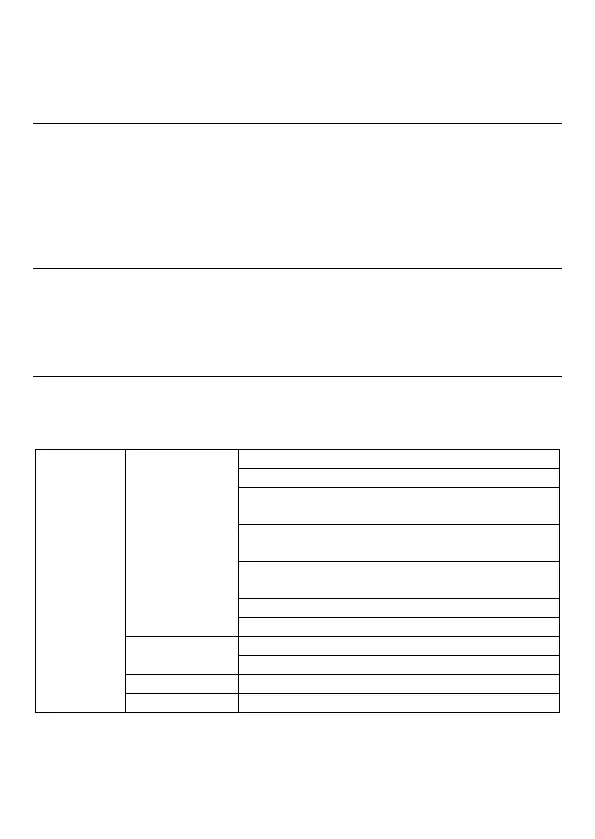
Once - Play current track once and then stop
Repeat One - Repeat current track
Folder Once - Play all audio files in the current folder
and stop after playing
Folder Repeat - Repeat all audio files in the current
folder
Normal - Play all audio files stored in the player and stop
after playing all
Repeat All - Repeat all audio files stored in the player
Intro - Play the first 10 seconds of every audio file
Order - Play audio files in order
Shuffle - Play audio files randomly
User-defined equalizer setting


 To Next Page