3-13
Wind Box Series
6. Followingly, choose [Manually connect to a wireless network] and click [Next]
to continue.
7. Enter information for the wireless network you intend to add and click [Next]
to proceed.
8. A new WLAN connection has been made. Click [Close] to exit or select
[Change connection settings] to modify the WLAN settings.
Power Management
Power management of personal computers (PCs) and monitors has the potential to
save signicant amounts of electricity as well as deliver environmental benets.
To be energy ecient, turn o your display or set your PC to sleep mode after a
period of user inactivity.
Power Management in Windows OS
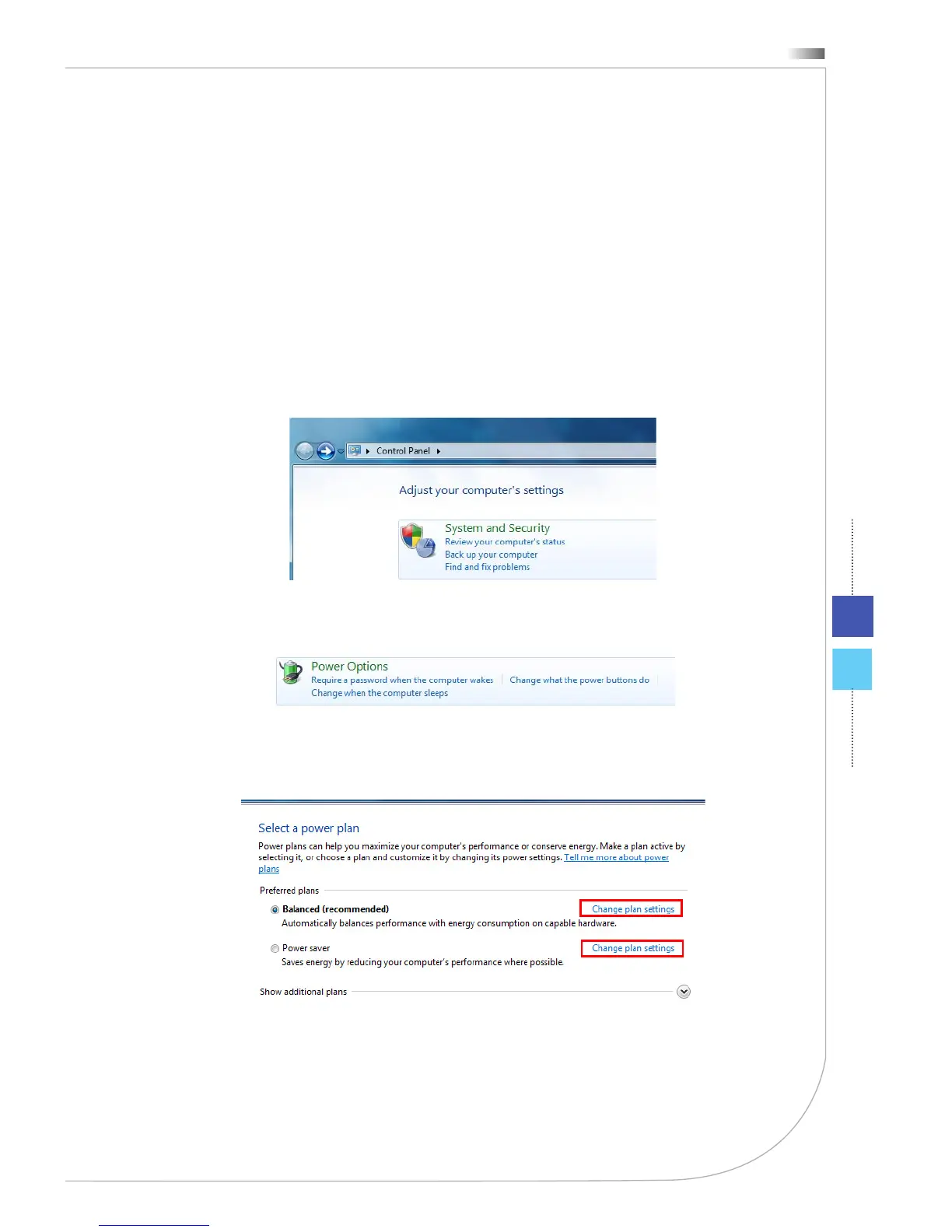
[Power Options] in Windows OS allow you to control the power manage-
ment features of your display, hard drive, and battery. Go to [Start] > [Con-
trol Panel] > [System and Security].
Then click on the [Power Options] link.
Select a power plan that suits your personal needs. You may also ne-
tune the settings by clicking [Change plan settings].
■



 To Next Page