Multiple Shade V01.3 04 2019
5.6. Remote Handset and support
We supply a wall support for your Remote Handset. It is recommended to fix that support at the
desired position inside your house, mark the location of the hole, and screw it in place.
CAUTION: Avoid exposing your Remote Handset to water and rain or snow since this will
damage it. Always keep the remote handset inside the house.
5.7. Channels of your remote handset
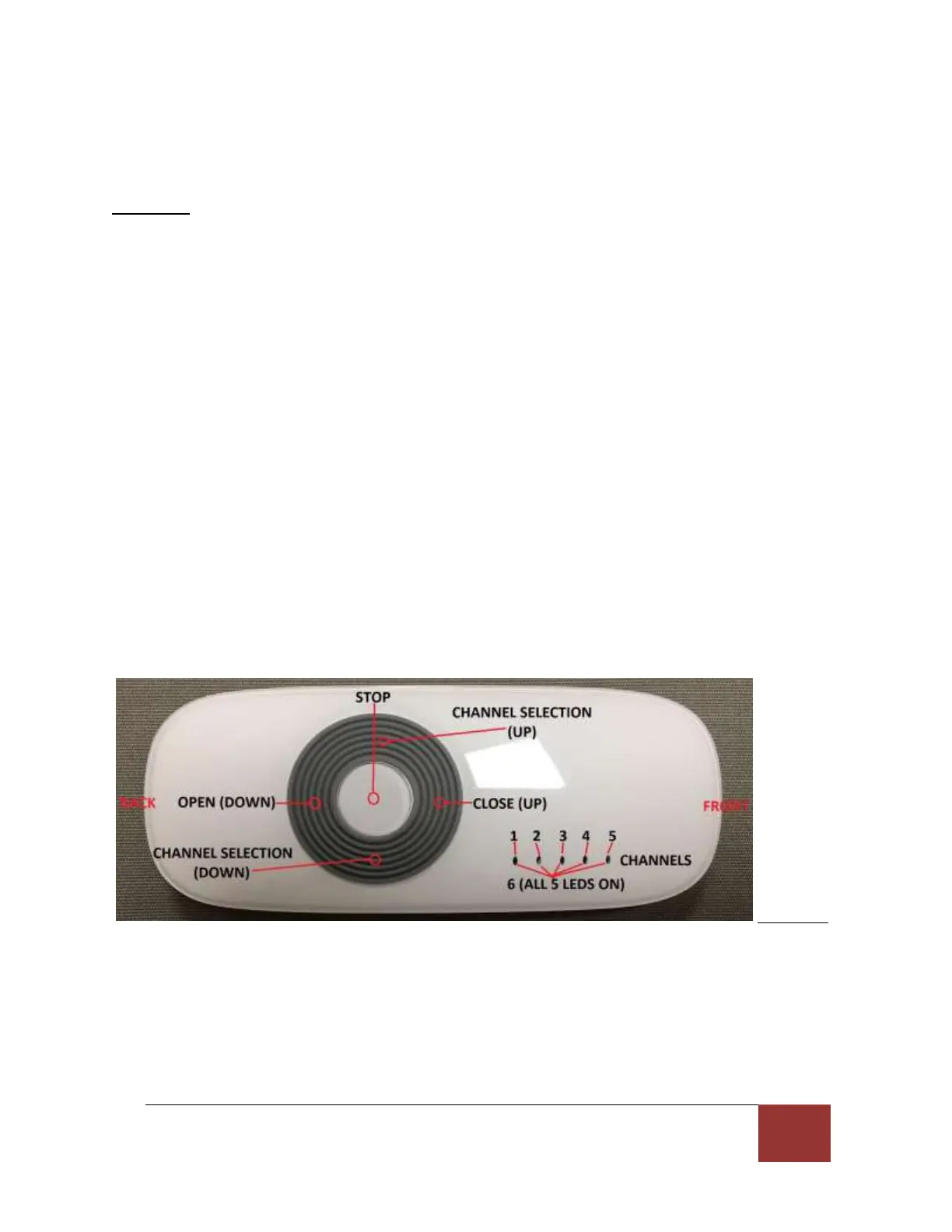
When using your remote handset, do make certain that you have previously selected the proper
functional channel. When your solar shade left our factory, channel #1 was the one that was
programmed. Therefore this is the one that you need to select to operate your solar shade.
This leaves you with 5 additional channels with which you can program/operate other Multiple
Shades or Awning equipped with a Dooya Motor. Channel #6 is functional when all 5 LEDs are
‘on’.
5.8. Adjustment and finishing touch
Test your Multiple Shade by pressing the open (down) and close (up) buttons on your remote
(see figure 11).
The opening and closing limits of your motor have been programmed and tested in our factory.
Out of the factory, the shade opens to 5’. If you need to change the open limit, follow and
perform completely the instructions in section 9. (6.3 for a Solar Powered MutlpleShade)
Programming the close (up) limit and the open (down) limit. Both limits need to be
reprogrammed with the AC powered MultipleShade.
Figure 11



 To Next Page