13
Chapter 2 - Quick Start
Step 3: Connect the Modem to Your System
Placing the modem in a convenient location, connect it to your computer’s USB port, to
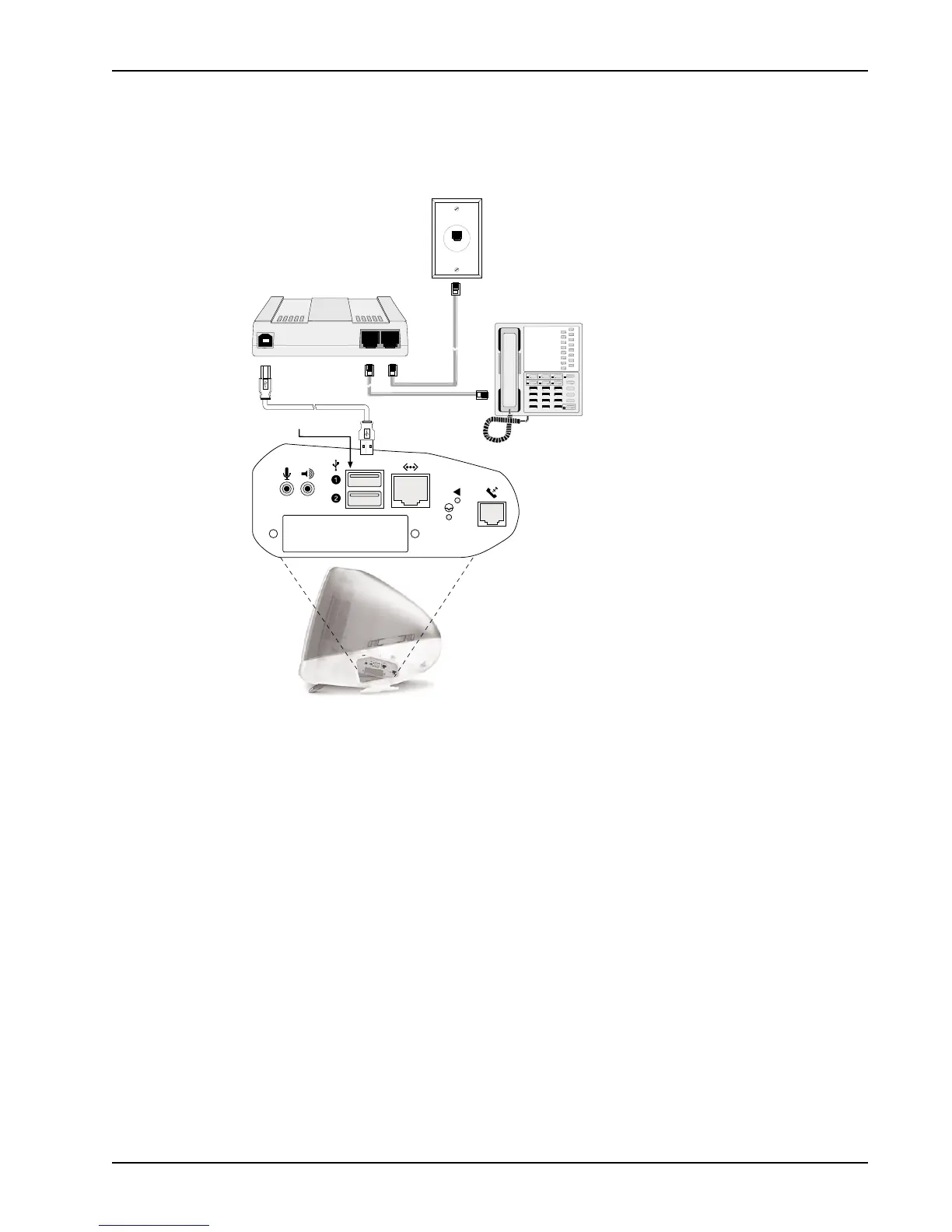
the telephone line, and, optionally, to your telephone. Figure 2-2 shows the connections.
USB Ports
PHONE LINE
USB
Figure 2-2. MultiModemUSB Cabling (iMac
TM
)
Line Connection
Plug one end of the line cable into the modem’s LINE jack*, and the other end into a
phone line wall jack.
Phone Connection
For voice-only calls (optional), you can plug a telephone into the modem’s PHONE jack*.
* Note: The LINE jack is not interchangeable with the PHONE jack. Do not plug the
phone into the LINE jack or the line cable into the PHONE jack.
USB Connection
Plug the Type B (D-shaped) end of the USB cable into the USB connector on the
modem, and the Type A (flat) end into a USB port connector on your computer*. See
Figure 2-2.
* Note: Do not plug the modem into the USB port on you keyboard—this port is for low
power devices such as a mouse.
Once the USB cable is connected, the TR (Terminal Ready) indicator lights, indicating
the modem has been recognized by the computer.






 To Next Page