
 Need help?
Do you have a question about the Multitech MultiModem ZPX and is the answer not in the manual?
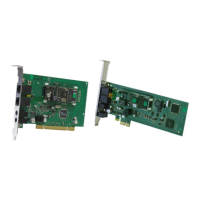
The MultiModem® ZPX V.92 internal modem is designed to provide reliable data and fax communication capabilities for small to medium-sized businesses. This internal ISA data/fax modem is an ideal choice for organizations seeking a remote device management solution, offering enhanced speeds and reduced transfer times. Its integrated processor is engineered to boost performance and data throughput, making it a versatile option for various applications. The modem is approved for use in numerous countries globally, which simplifies deployment as a single model can be shipped virtually anywhere.
While the modem is capable of achieving 56K bps download performance, it is important to note that actual connection speeds may be affected by factors such as line impairments, the public telephone infrastructure, and other external technological constraints. Users should be aware that these external factors might prevent the modem from reaching its maximum theoretical speed.
The MultiModem ZPX package includes the MT5634ZPX-V92 data/fax internal modem itself, an RJ-11 telephone cable for connectivity, this Quick Start Guide, and a brochure that contains warranty information. Users are advised to check the package contents upon receipt and contact Multi-Tech Systems or their dealer/distributor if any items are missing.
Before proceeding with the installation, users need to ensure they have the necessary components and a suitable computing environment. This includes the complete MultiModem package contents, a personal computer with a 100-MHz or faster Pentium processor, and an available ISA expansion slot. The computer should have one of the following operating systems installed: Windows 98, NT, 2000, ME, XP, or Linux (kernel 2.2.x or later). For applications requiring video conferencing, a 166-MHz or faster computer is recommended to ensure optimal performance. Additionally, users will need tools to open their computer case and access the internal components, as well as a nearby telephone line jack for connection.
Safety is a critical aspect of installation and usage. Several warnings are provided to ensure user safety and prevent damage to the device or computer. Users should never install telephone wiring during a lightning storm to avoid electrical hazards. The product is designed for use only with UL- and CUL-listed computers. To minimize the risk of fire, only 26 AWG or larger telecommunications lines should be used. It is also crucial to avoid installing a telephone jack in wet locations unless the jack is specifically designed for such environments. Uninsulated telephone wires or terminals should never be touched unless the telephone line is disconnected at the network interface. Caution should always be exercised when installing or modifying telephone lines. During an electrical storm, using a telephone should be avoided due to the remote risk of electrical shock from lightning. Furthermore, telephones should not be used near a gas leak, even to report the leak. Before accessing the inside of the equipment, the telephone cord must be disconnected.
Maintenance features primarily involve the initial setup and configuration, as the device is an internal component. Users are guided through a process to determine available system resources before physical installation. This involves running the WINMSD Utility to check which Interrupt Request (IRQ) lines and Input/Output (I/O) addresses are in use and which are available. The MultiModem ZPX specifically uses IRQs 3, 4, and 5, with a default to IRQ 5. Users must identify an available IRQ and record it. Similarly, the modem uses specific I/O addresses for COM1 (3F8-3FF), COM2 (2F8-2FF), COM3 (3E8-3EF), and COM4 (2E8-2EF), defaulting to COM 4. An available I/O address must also be identified and recorded.
The next step involves configuring the jumpers on the MT5634ZPX board. There are seven jumpers for setting the IRQ number and COM port assignment. Jumpers 1, 2, and 3 control the IRQ number, while jumpers 4 through 7 manage the COM port assignment. The default settings are IRQ5 and COM4. Before handling the modem, users must discharge any static electricity from their body by touching a metal part of the computer chassis. The MultiModem should be carefully removed from its antistatic bag, handled only by the mounting bracket and edges, and the gold-plated connectors along the bottom edge should not be touched. If the default IRQ or COM port settings conflict with existing system resources, users must move the corresponding jumpers to positions that support their chosen IRQ and COM port assignments.
Physical installation involves opening the computer case, selecting an empty ISA expansion slot, and gently but firmly inserting the MultiModem ZPX into the connector until its retaining bracket is flush with the computer chassis. The bracket is then secured with a screw, and the computer cover is replaced. It is crucial to turn off and unplug the computer before installation to prevent damage.
After physical installation, the Add Hardware Wizard is run to install the modem drivers. Users navigate through the wizard, manually selecting "Add a new hardware device" and specifying "Ports [COM & LPT]". They then select "Communications Port" under Model and configure the resources manually. If conflicts arise, users can change the I/O Range or IRQ settings to match the available resources identified earlier. Once configured, the system is restarted.
To complete the driver installation, users download the MT5634ZPX-V92 driver zip file from the Multi-Tech Systems website, extract the zpxisa.inf file, and then use the "Phone and Modem Options" in the Control Panel to add the modem. They select "Don't detect my modem; I will select it from a list," use "Have Disk" to point to the extracted zpxisa.inf file, and then select "MT5634ZPX-V92" from the models list. The correct COM port, previously determined, is selected for installation.
Finally, the modem is queried to verify system access. This is done through the "Diagnostics" tab in the modem's properties, where clicking "Query Modem" prompts the system to send AT commands and display the modem's response.
The modem is then connected to the telephone line using the provided RJ-11 cable, plugging one end into the modem's LINE jack and the other into a working wall jack.
The last step involves configuring the modem for the specific country of use. This can be done using either the Global Wizard utility (recommended for Windows 98 or newer) or AT commands for non-Windows users. The Global Wizard is downloaded from the Multi-Tech Systems website, installed, and then run to automatically detect the modem and allow the user to select their country from a list. For AT commands, users open a communication program's terminal window and use the AT%T19,0,nn command, where nn is the hexadecimal country code, to configure the modem. The ATI9 command can be used to verify the country code in decimal format. A comprehensive list of country codes is available on the Multi-Tech Systems website. This country-specific configuration ensures proper operation and compliance with local telecommunication standards.
 General
| Model | MultiModem ZPX |
|---|---|
| Category | Modem |
| Manufacturer | Multitech |
| Power Supply | External AC adapter |
| Error Correction | V.42, MNP 2-4 |
| Form Factor | External |
| Interface | Serial (RS-232) |
| Data Rates | Up to 56 Kbps (V.90/V.92) |
| Fax Support | Yes |
| Data Compression | V.42bis, MNP 5 |
| Modulation Standards | V.90, V.92, V.34, V.32bis, V.22bis, V.22, V.21 |
| Fax Protocols | V.17, V.29, V.27ter |





 To Next Page