Section 78 00-02-1018
2017-05-23 - 5 -
Configuration Information
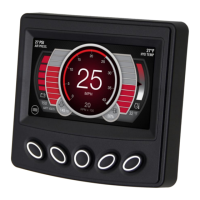
Follow these steps to download a custom configuration to the PV485 display:
Ensure that PowerVision is open on your computer.
Connect the PV485 to the computer with the programming harness.
NOTE: If PowerVision does not detect the display, go to the Adapter
Properties. Select IPV4 properties, then change the IP address to
192.168.0.1 and the Subnet mask to 255.255.255.0.
Create your custom configuration file within PowerVision.
Deploy the configuration file to the PV485.
Follow these steps to download a custom configuration using a USB drive:
Create your custom configuration file within PowerVision.
Save the file to a USB drive.
Connect the USB drive to the USB port on the connector provided with the
programming kit.
Turn off the PV485, and turn it back on while holding down display key 5 (the
button on the far right). Continue to hold the button a few more seconds, then
release. This will put the display into the bootloader.
Use the corresponding keys to the up/down arrows to find the desired file. Use the
corresponding right arrow key to select and continue. The right arrow turns green;
press again to confirm.
When the installation is complete, a check mark is displayed in the middle of the
screen. The PV485 will power cycle and boot to the new configuration.


 To Next Page