EasyManua.ls Logo

MUTOH SC-PRO - User Manual

MUTOH SC-PRO
8 pages
Print Icon
To Next Page IconTo Next Page
Loading...
SC-PRO DRIVER INSTALLATION Page 1 of 8
IMPORTANT INSTALLATION INFORMATION
Mutoh SC-Pro Cutting Plotter
Install cutter driver
Dear Customer,
Please find below the procedure to install the SC-Pro cutting plotter driver.
1. Tools necessary
SC-Pro cutter
Workstation
USB cable
SC-Pro installation CD
2. Installation procedure
Step 1 : Make a connection between the SC-Pro and your computer using a USB cable (standard
in-the-box item).
Step 2 : Power ON the cutter and computer.
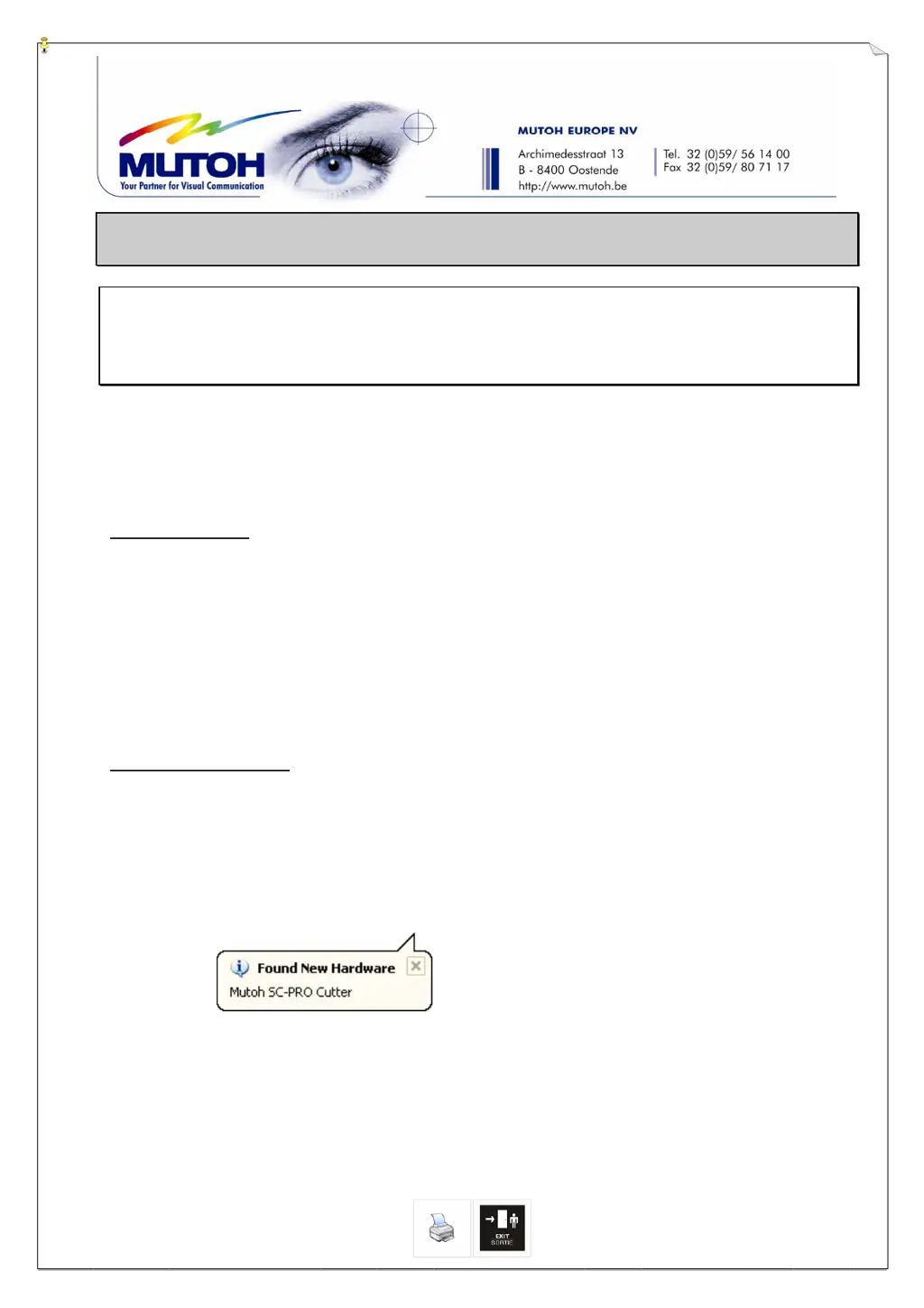
Step 3 : Your computer will automatically detect the cutter.
Step 4 : Be sure that the installation CD is inserted.

Questions and Answers

  • G
    Gregory WeberAug 19, 2025
    What to do if data is being sent from the computer, but the MUTOH SC-PRO Plotter does not react?
    • A
      Ariel CainSep 12, 2025
      If your MUTOH Plotter isn't reacting to data sent from the computer, check the following: * Ensure a proper interface cable is connected. * Verify that the interface conditions on your computer match those set on the plotter. * Confirm that the plotter is not in a pause state. * Check if media is loaded in the plotter.
  • M
    Marissa ParksAug 21, 2025
    What to do if the MUTOH SC-PRO Plotter power switch is ON, but the cutter does not operate?
    • C
      Chad BassAug 21, 2025
      If the power switch is on but the cutter does not operate, ensure that the power cable is properly connected to the cutter.
  • J
    Jared YoungAug 23, 2025
    What to do if data is sent from the computer but errors occur on the MUTOH Plotter’s side?
    • D
      Daniel NashAug 23, 2025
      If errors occur on the plotter's side when sending data from the computer, ensure that: * The output settings are correct on both the host computer and in the cutting software. * The interface conditions on the host computer match those set on the cutter. * The command mode on the host computer matches the command mode on the cutter.
  • J
    Jeff WestAug 26, 2025
    What to do if media is loaded, but the MUTOH SC-PRO Plotter does not operate?
    • J
      jerrymcbrideAug 26, 2025
      If media is loaded but the cutter does not operate, check: if the media hold lever is lowered, if the media is properly loaded, if the paper sensors are clean, if the cutter is in an error state, and if the cutter is protected against direct sunlight.
  • J
    Jennifer WrightAug 27, 2025
    Why does my MUTOH Plotter display 'Not enough pressure rolls detected'?
    • V
      vschmidtAug 27, 2025
      The error 'Not enough pressure rolls detected' on your MUTOH Plotter can occur if a pressure roller is not used or is pushed to the far left. Always use pressure rollers 1 and 4, ensuring you hear a click when positioning them above the loaded media. Pressure rollers 2 and 3 can be used but may also be disabled (in between two clicks).
  • T
    Taylor HallAug 30, 2025
    What causes 'Pressure roll ## malpositioned' on my MUTOH SC-PRO?
    • D
      Denise McintyreAug 30, 2025
      The error 'Pressure roll ## malpositioned' indicates that one of the pressure rollers is not detected by the cutter. If you want to disable a pressure roller, ensure that it is positioned in between two clicks, not at the edge. Only pressure rollers 2 and 3 may be disabled; pressure rollers 1 and 4 should always be used.
  • X
    xshafferSep 1, 2025
    What to do if some parts of the design are not well cut with my MUTOH Plotter?
    • M
      Martha SteeleSep 1, 2025
      If some parts of the design are not well cut, check the knife tip for material residues, examine the knife blade with a magnifier for damage, perform the offset adjustment routine, and perform a test cut to check its quality.
  • D
    Dr. Katherine McfarlandSep 3, 2025
    Why does my MUTOH Plotter display 'EPOS calibration error '?
    • G
      Gregory AdamsSep 3, 2025
      The 'EPOS calibration error ' message appears when the EPOS sensor encounters an error during calibration. Try the calibration process again, or reboot the machine and try again.
  • C
    chambersmoniqueSep 5, 2025
    What causes the 'EPOS problem: Media problem occurred' error on my MUTOH SC-PRO Plotter?
    • J
      Joel RochaSep 5, 2025
      The 'EPOS problem: Media problem occurred' error indicates that the distance between the reference box and the end of the roll is too short. Reprint the job with the correct specifications or stick a piece of white vinyl to the end of the roll.
  • D
    david69Sep 7, 2025
    How to fix much print distortion error on MUTOH SC-PRO Plotter?
    • K
      Kaitlin BirdSep 7, 2025
      The 'Much print distortion' error appears when the cutter detects distortion while measuring the reference box points. This means the box isn't a perfect rectangle due to print deformation or incorrect margins. Reprint the job to resolve this issue.

MUTOH SC-PRO Specifications

General IconGeneral
Ink TypeEco-Solvent
Number of Inks8
Media ThicknessUp to 1.5 mm
TechnologyInkjet
Maximum Print Width64 inches
Print ResolutionUp to 1440 dpi
Ink ColorsCyan, Magenta, Yellow, Black, Light Cyan, Light Magenta
Media Width64 inches
InterfaceEthernet
Operating System CompatibilityWindows

Related product manuals