myPOS Smart Technical Specicaon & Warranty (Updated March 2018) | page 10
myPOS Combo - User Manual | page 10
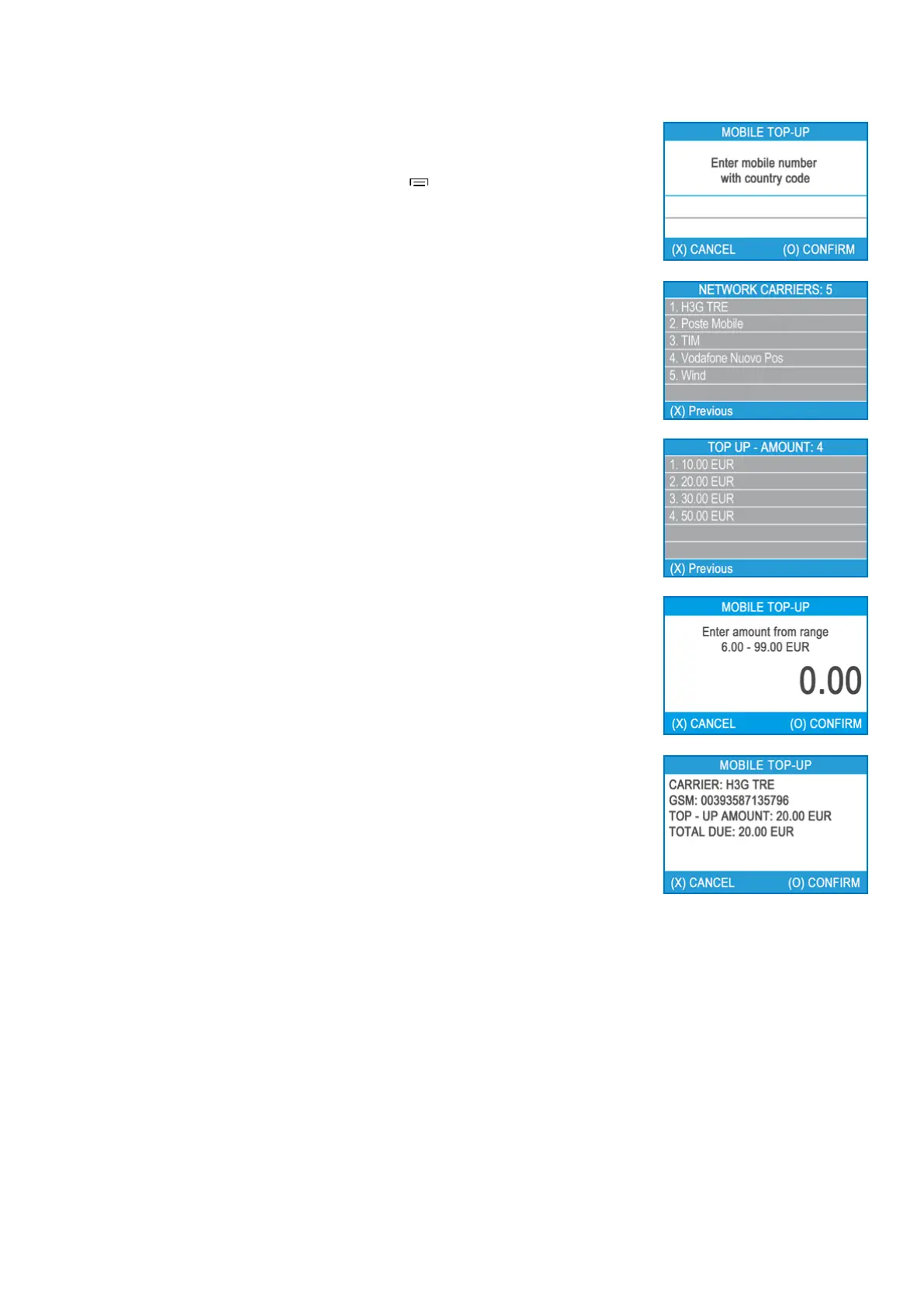
Mobile Top-up
If your customer wants to load an amount within a stored value card, you should
follow these few basic steps:
Step 1: From the home screen, press the menu buon ( ) from the keyboard in
order to enter the Transacon type menu. Select MOBILE TOP-UP by pressing key (2)
and conrm with the green key (O ENTER). The myPOS Combo terminal will display
the MOBILE TOP-UP screen.
Step 2: Enter the mobile number with the country code and conrm with the green
key (O ENTER).
Step 3: Select your customer’s carrier – service provided by 779+ operators
Step 4: Enter an amount to top-up. Depending on the carrier you should select from
a predened list or enter an amount of your client’s choice within a suggested range
Step 5: Review all entered details and conrm the green key (O ENTER).
Step 6: The myPOS Combo device will automacally print the merchant’s copy of
the receipt for the approved PAYMENT transacon. Then the terminal will wait 3
seconds, beep and start prinng the customer’s copy of the receipt.


 To Next Page