myPOS Smart Technical Specicaon & Warranty (Updated March 2018) | page 11
myPOS Combo - User Manual | page 11
Send payment request
If you want to send a payment link to your customer due to his absence infront of
you during the payment, you have the following opon – to send a payment request
through the website, the mobile app or via the terminal. To send a payment request
via the device, you should follow these few basic steps:
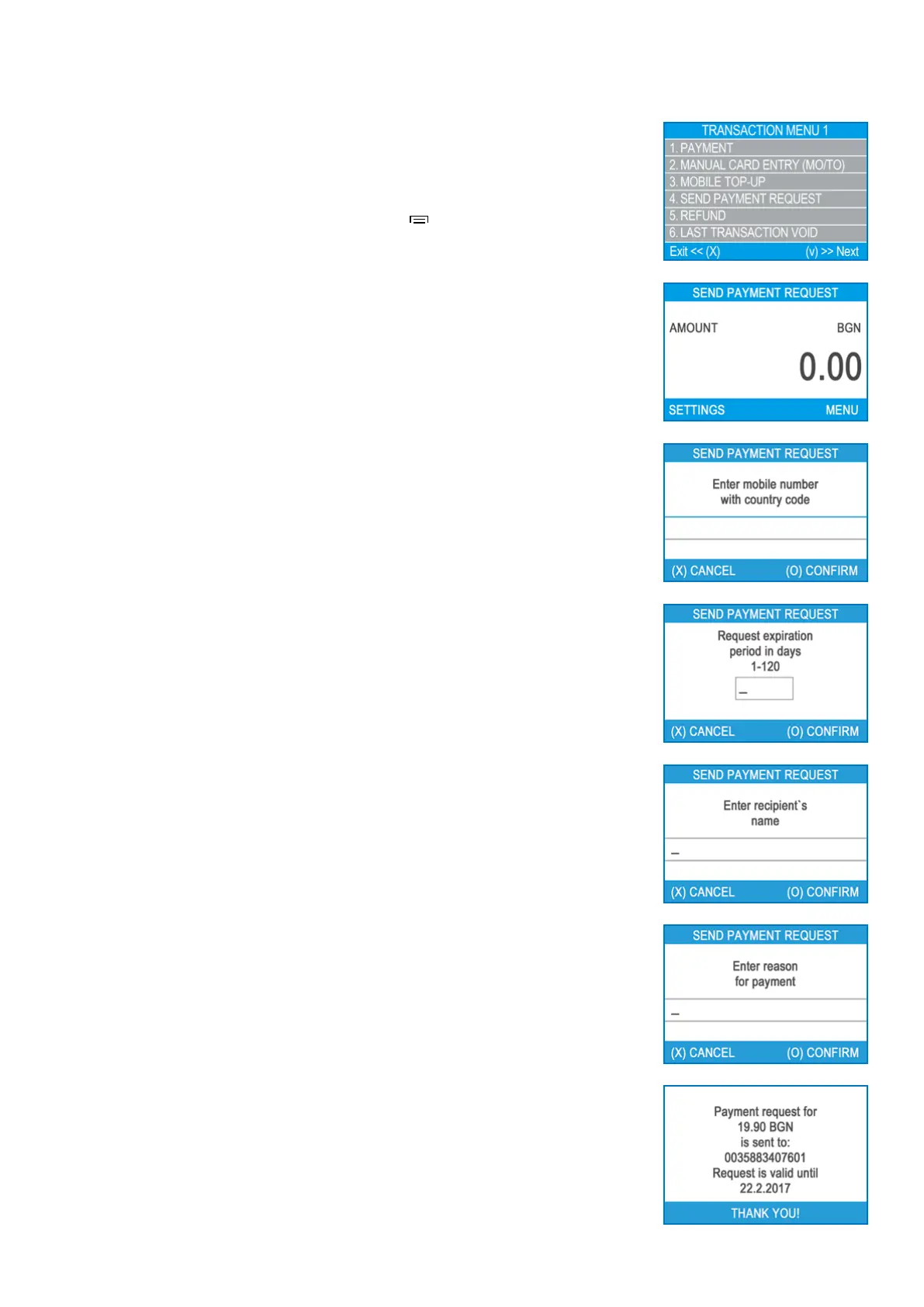
Step 1: From the home screen, press the menu buon ( ) from the keyboard in
order to enter the Transacon type menu. Select SEND PAYMENT REQUEST by
pressing key (4) and conrm with the green key (O ENTER). The myPOS Combo
terminal will display the SEND PAYMENT REQUEST screen.
Step 2: Enter the amount of the request and conrm with the green key (O ENTER).
Step 3: Enter the mobile number with the country code and conrm with the green
key (O ENTER).
Step 4: Enter period in days, aer which the Payment request will expire. The period
should be between 1 - 120 days. Conrm with (O).
Step 5: Enter recipient’s name and conrm with (O).
Step 6: Enter reason for payment and conrm with (O). The payment request is
succesfully sent.
Step 7: Transacon details are displayed.


 To Next Page