myPOS Smart Technical Specicaon & Warranty (Updated March 2018) | page 5
myPOS Combo - User Manual | page 5
How to connect your myPOS Combo
with Wi-Fi
Make sure the myPOS Combo is in the range of your Wi-Fi network. Switch ON your
myPOS Combo and wait for a few seconds unl it completes the inializaon. If you
see the screen CONNECTION TYPE, please proceed to Step 1 below. If you are in the
Bluetooth Menu please press (< CLEAR) to return to CONNECTION TYPE screen and
proceed to Step 1 below. Otherwise please press (X CANCEL) to exit from the current
operaon, then press the FUNC buon from the keyboard to enter SETTINGS MENU
1 and choose Change Connecon type (3).
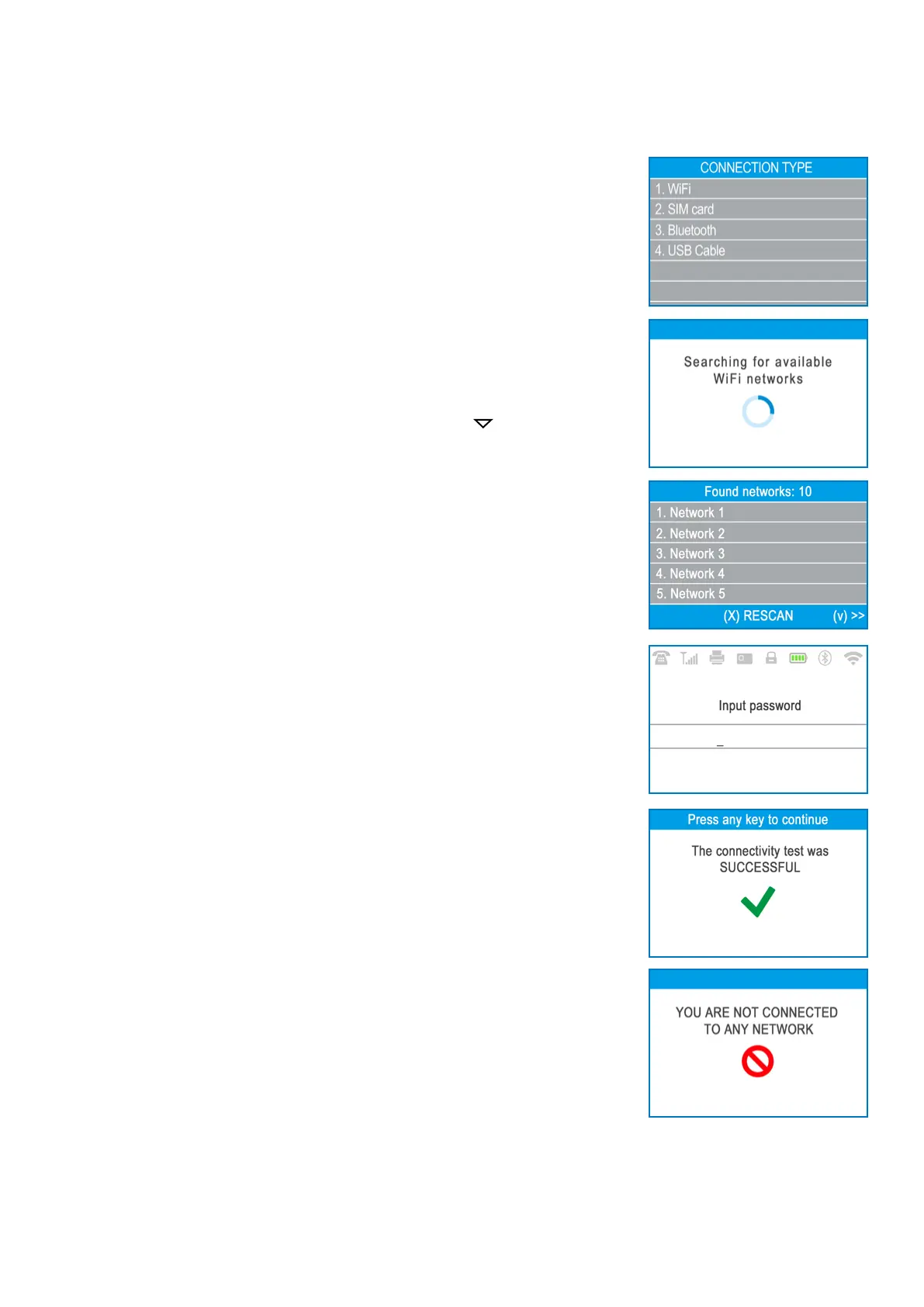
Step 1: Select “Wi-Fi” from the CONNECTION TYPE menu by pressing (1) on the
keyboard. The myPOS Combo will scan for available Wi-Fi networks within its range
and will display a list of their names on the screen.
Step 2: Find the Wi-Fi network you would like to use and select it by pressing its
number (from 1 to 6) on the keyboard. If there are more than 6 available networks
on the list, you can switch to the next page of the list by pressing ( ). If you cannot
nd your Wi-Fi network on the list, press (CANCEL X) and myPOS Combo will rescan
(search again) for available Wi-Fi networks. Make sure your myPOS Combo is in the
range of your network.
Step 3: If your Wi-Fi network requires a password, myPOS Combo will display the
Wi-Fi Password screen, where you can enter the network password. In case your
password contains digits, press the relevant number key. In case your password
contains leers, press the relevant number key and then switch to leers by pressing
ALPHA buon from the keyboard several mes in order to select the required
character. If you make a mistake, press the yellow key (< CLEAR) to delete the last
entry. When you have entered the password, press the green key (O ENTER) in order
to complete the operaon.
Once it has connected to your Wi-Fi network, myPOS Combo will perform a test
of the connecon to myPOS system. If the test is successful, the following myPOS
Combo screen will appear: If the connecon test is unsuccessful, the myPOS Combo
screen will display an error message.


 To Next Page