myPOS Smart Technical Specicaon & Warranty (Updated March 2018) | page 6
myPOS Combo - User Manual | page 6
Useful ps
• When myPOS Combo connects to a Wi-Fi network, the informaon is saved so
that the next me you are within the range of the same network, the terminal
will connect to it automacally.
• If the password of your Wi-Fi network has been changed, the Wi-Fi signal icon
( ) on the screen will become grey.
• If you try to make a payment transacon, the terminal will display an error
message – “You are not connected to any network” - and will search for
available networks.
• If a previously used network is found, the myPOS Combo device will connect
to it automacally and will process the transacon.
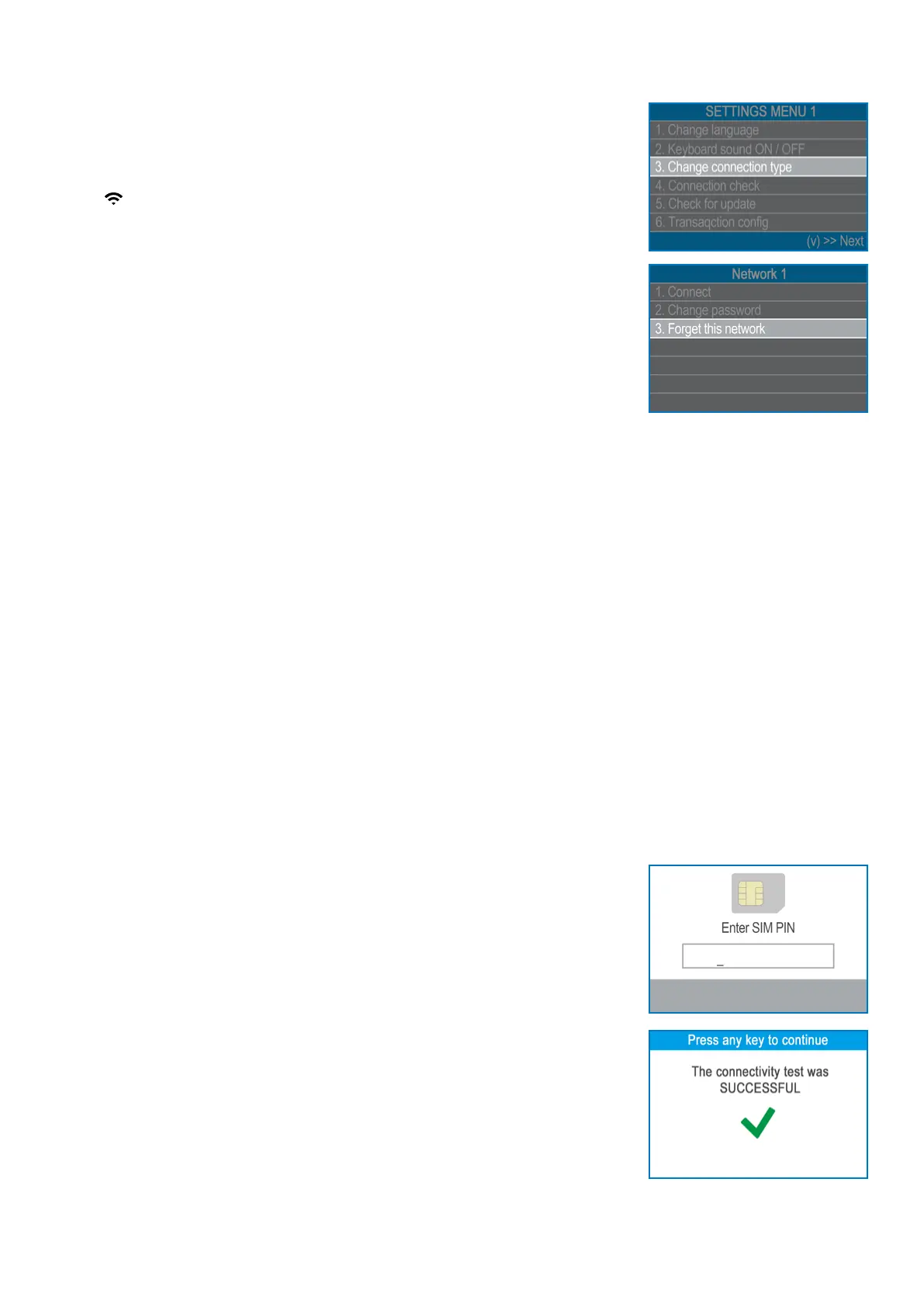
• In order to change the saved password, choose the “Change connecon
type” opon from the SETTINGS MENU 1 and enter the new password when
prompted.
• If you are within a previously used network range and do not want your
myPOS Combo device to connect to it automacally, you can delete the saved
data by choosing opon 3: “Forget this network”.
How to connect myPOS Combo
using SIM card
Step 1: Remove the back cover of the device by unscrewing the bolt and remove the
baery. You will see the SIM and SAM compartments.
Step 2: Insert you SIM card in the SIM card slot 1 (on the right side) with the gold
coloured contact surface facing down.
• Make sure that the SIM card is inserted in SIM slot 1 (on the right side)
• Your myPOS Combo device is working with standard SIM card size. If you
have micro or nano SIM card, please use a SIM adapter.
Put the baery back into the myPOS Combo device, close the cover and switch ON
the device.
Step 3: Enter your SIM PIN.
Your device supports more than one connecon type, so please choose SIM Card on
the Connecon type screen.
If the mobile network was not recognized, the myPOS Combo device will display an
error message and two opons: to try again (X CANCEL) or to manually enter the
APN sengs (O ENTER) of your mobile network.
Once it has connected to your mobile network, the myPOS Combo will perform a
test of the connecon to the myPOS system.
If the test is successful, the following myPOS Combo screen will appear:
If the connecon test is unsuccessful, the myPOS Combo screen will display an error
message.


 To Next Page