42 EN
hyperion - OPERATING INSTRUCTION
4 INTRODUCTION TO THE SYSTEM
4.1 General guidelines
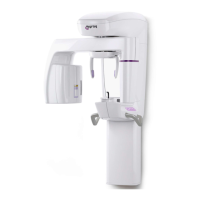
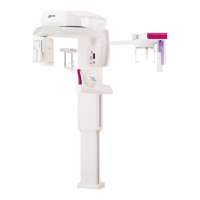
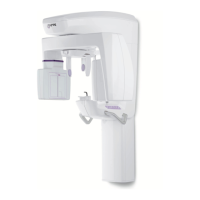
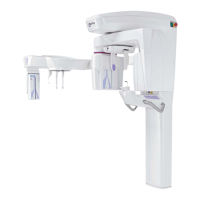
hyperion allows images to be captured in real time. In order to view, assess and save the images, hyperion has to be
connected to a Personal Computer that has the minimum requirements stated below and a program to view x-ray im-
ages has to be installed.
The PC is not included with the device. Use exclusively certied PCs according to the safety regulations in force.
Images can be saved without using the PC if a memory card is available (the same as the one used in most digital
cameras) and inserted in the port found on the bottom right-hand side of the control panel.
In order to assure a correct startup, Hyperion MRT must be turned on without any memory card inserted. In case
that error code “E005” is reported by the consolle, please remove SD card and restart Hyperion.
Carefully read the manual that deals with the x-ray image software manual to correctly use the program.
Installation should be done by a qualied technician to congure data sharing in a local PC network.
4.2 Personal computer
The computer which hyperion is connected to should satisfy the following minimum requirements:
Component Requirement
Requirement for 3DTS
Processor Processor 1 GHz or higher
Intel Pentium IV /AMD @ 2.4 GHz,
SSE 2
Operating System Windows XP - Windows Vista - Windows 7
Space on hard disk
1 Gb minimum
10 Gb
RAM memory 512Mb minimum 1Gb recommended
2 Gb Windows XP/ 3 Gb Vista-
Windows 7
Video board
Video card minimum resolution 1024 x 768 with 16
million colors
min 1280 X 1024 16 million colors
Other peripherals CD-ROM
Network
Network card compatible with Microsoft Windows XP / Vista / Windows 7
Local network at 100 Mbit 10 Tbase with HUB-switching recommended
5 PREPARING THE UNIT
5.1 Turning on the system
Press the power button on the back of hyperion at the base of the column to turn it on.
The power button is labelled in the following manner:
POWER
I ON
O OFF
5.2 Selecting the exam
This button is used to scroll the main groups of procedures available.
The selected group is indicated by an arrow on the left side of the screen.
These buttons are used to scroll the projections available within the selected group.



 To Next Page