En /
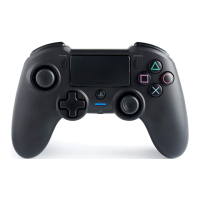
3/ Mode 2: PS4™ Advanced Mode
(via PC / Mac companion app)
In this mode, in addition to supporting all the PS4™ Pro Control Mode features you can also personalise your settings.
To do so you will need to download, and install, the PC / Mac companion app, which is compatible with Windows® 7/8/10
& Mac OS X 10.11 (El Capitan) / 10.12 (Sierra) operating systems. It can be downloaded at the following link:
www.nacongaming.com
Once you have downloaded the companion app and launched it, follow the on screen instructions for the
installation (registration required to download the software).
After installing the PC / Mac companion app you will be able to do the following:
• Adjust the settings of the left and right sticks
• Re-map all buttons (excluding PS button)
• Map buttons to the 4x shortcut buttons
• Create and load up to 4x custom profiles onto your controller, then switch between them during game play
• Adjust the dead-band on the L2 and R2 triggers
• Independently adjust the vibration intensity on the left and right hand grips
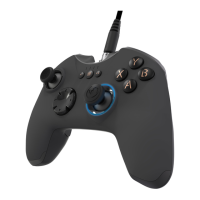
• Adjust the backlight around the right stick
In this mode the controller supports
the following features:
• Motion sensors
• Touch pad
• Dual vibrations
• 3.5mm headset jack
• PS, SHARE and OPTIONS buttons
• L1 and R1 shoulder buttons
• L2 and R2 analogue triggers
• Left stick with L3 button
• Right stick with R3 button
• 8-way directional pad
• Action buttons
2/ Mode 1: PS4™ Pro Control Mode
“Shortcuts”
• Press and hold the Profile button for 3 seconds.
The blue halo around the right stick will pulse.
• Press on the shortcut button you want to assign.
The corresponding LED will turn ON. LED1 for M1 /
LED2 for M2 / LED3 for M3 / LED4 for M4.
• Press now on the desired button you want. The
LED will flash 3 times to confirm the mapping is
successful.
• Press and hold the Profile button for 3 seconds to
confirm and quit the remapping function.
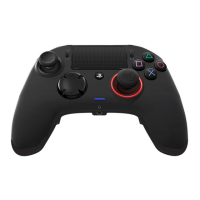
Note: The REVOLUTION Pro Controller 2 does not feature a built-in speaker or light bar.



 To Next Page