EasyManua.ls Logo

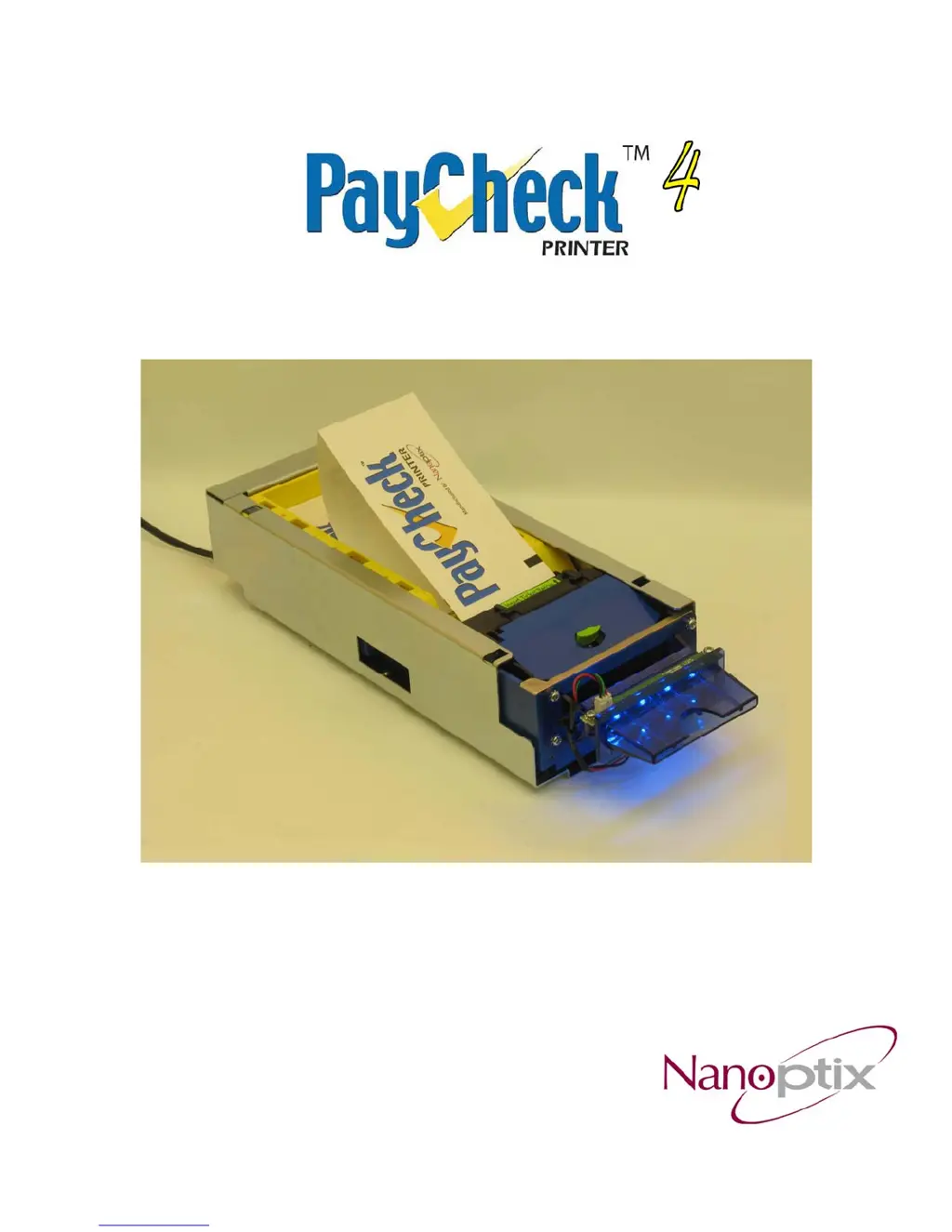
Nanoptix PayCheck 4 - User Manual

Nanoptix PayCheck 4
26 pages
Print Icon
To Next Page IconTo Next Page
Loading...
Owner’s Manual
First Edition: December 2002
Last Revision: November 27, 2009
Document #720005-0000

Other manuals for Nanoptix PayCheck 4

Questions and Answers

  • G
    gonzalezlanceAug 17, 2025
    How to fix paper jam in Nanoptix Printer?
    • L
      lstephensAug 17, 2025
      If your Nanoptix Printer is experiencing paper jams, here are a few things to check: * Ensure the paper width meets the printer's specifications. * Inspect the paper path for any debris or partial tickets. Open the paper guide, detach the roller, and remove any obstructions. * Verify that the paper's perforation burst strength is within the required specifications.
  • J
    Joseph MillerAug 20, 2025
    What to do if Nanoptix Printer does not function when turned on?
    • K
      Kristine WeaverAug 20, 2025
      If your Nanoptix Printer isn't working when you turn it on, try these steps: * Make sure the printer cables are properly connected at both ends. * Confirm that both the host and power supply are receiving power. * Ensure the tray is fully closed. * Check that the flat cable is correctly and fully inserted into the receptacle at both ends.
  • K
    Katherine BrownAug 22, 2025
    Why is the print light or spotty on my Nanoptix Printer?
    • M
      maria86Aug 22, 2025
      If the print quality on your Nanoptix Printer is light or spotty, the issue might be: * A dirty thermal print head. Clean it following the recommended procedure. * Inconsistent thermal coating on the paper. Try changing the paper stack to rule out this possibility.
  • E
    Erika MorrisAug 26, 2025
    Why is there a line or section missing lengthwise on the entire ticket from my Nanoptix PayCheck 4?
    • K
      kaylasantiagoAug 26, 2025
      If you're seeing a missing line or section lengthwise on every ticket printed by your Nanoptix Printer, it could be due to inconsistent thermal coating on the paper. Try changing the paper stack to see if that resolves the issue. If the problem persists, the thermal printing mechanism may be damaged.
  • Z
    Zachary StanleyAug 28, 2025
    Why is the feeder motor noisy on my Nanoptix PayCheck 4?
    • D
      danielmillerAug 28, 2025
      The feeder motor in your Nanoptix Printer might be noisy if it's operated without paper engaged in the printing mechanism. This can cause the gears to grind and slip. Always operate the printer with paper engaged. Never lubricate the gears or any other part of the printer.
  • P
    pboyleAug 31, 2025
    Why Nanoptix Printer Does Not Function When Turned On?
    • T
      Tiffany PachecoAug 31, 2025
      There are several reasons why your Nanoptix printer might not be functioning when turned on. First, ensure the printer cable is properly connected at both ends and that the host or power supply is receiving power. Also, check that the tray is fully closed. Finally, if the power supply voltage exceeds 26.8V, adjust it to 24V +/- 5%.
  • J
    jeffrey60Sep 2, 2025
    What to do if print is light or spotty on Nanoptix Printer?
    • S
      Stephen AdkinsSep 2, 2025
      If the print on your Nanoptix printer is light or spotty, it could be due to several reasons. First, check that the paper tickets are loaded correctly. Using the recommended thermal receipt paper can also help. Finally, clean the printhead at recommended intervals.
  • V
    vyangSep 5, 2025
    How to fix Nanoptix Printer that starts to print, but stops while printing receipt?
    • M
      Michael GraySep 5, 2025
      If your Nanoptix printer starts printing but stops mid-receipt, the paper may be jammed. Open the tray and clear any jammed paper.
  • R
    robert39Sep 8, 2025
    What to do if receipt does not come out all the way from Nanoptix Printer?
    • L
      Lisa RamosSep 8, 2025
      If the receipt does not come out completely from your Nanoptix printer, it's likely due to a paper jam. Open the tray and remove any jammed paper.
  • T
    Tanya BallSep 12, 2025
    What to do if one side of ticket has not been printed by Nanoptix printer?
    • T
      Todd DaySep 12, 2025
      If one side or a portion of the ticket hasn't been printed by your Nanoptix printer, it could be due to the thermal coating on the paper stack. Change the paper stack to make sure the thermal coating is not the source. If the problem persists, contact a service representative.

Summary

Legal Notices

Federal Communications Commission (FCC) Radio Frequency Interference Statement

FCC statement regarding Class B digital device compliance and potential interference.

Industry Canada (IC) Radio Frequency Interference Statement

IC statement on Class B digital apparatus meeting Canadian interference regulations.

Information to the User

Power Supply Requirements

Specifies CSA/UL listed power supply parameters for compliance with safety and marking requirements.

1.2 General Specifications

1.3 Printer Controls

1.4 Mounting Instructions

1.5 Changing Paper

1.6 Printer Test Procedure

1.7 Troubleshooting the Printer

Troubleshooting with LED Indicators

Details LED error codes and their corresponding conditions for troubleshooting printer problems.

Common Printing Problems

Covers common printing issues like light print, missing columns, or partial printing, with causes and solutions.

Printer Does Not Function

Communication Cables Pin-Out

Nanoptix PayCheck 4 Specifications

General IconGeneral
Print MethodDirect Thermal
Print Resolution203 dpi
ConnectivityUSB, Serial, Ethernet
Storage Temperature-4°F to 140°F (-20°C to 60°C)
Print SpeedUp to 8 inches per second (203 mm/s)
Power Supply24 VDC
Operating Temperature0°C to 40°C
Humidity10% to 90% RH, non-condensing

Related product manuals