35Chapter 7 .
Calendar
Calendar
Use Google Calendar to capture your precious moments.
• Use the calendar
• Calendar settings
7. 1 Use the calendar
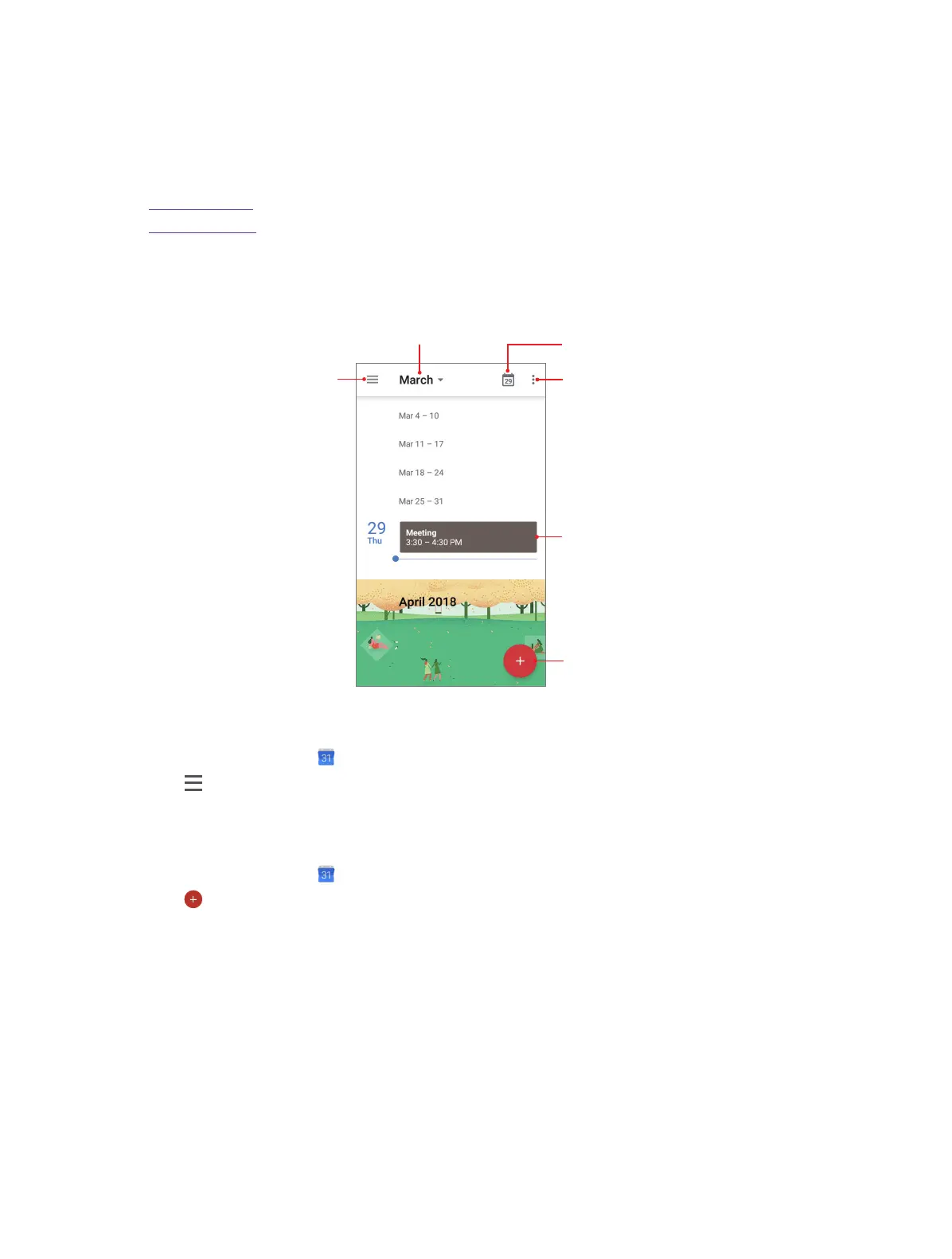
Refresh
Show events f
current day
collapse the month
Add event
Go to today
View the calendar
1. On the Home screen, tap Calendar.
2. Tap to select Schedule/Day/3 Day/Week/Month to zoom in or out your calendar.
Create an event
Add events and set reminders to help you plan ahead.
1. On the Home screen, tap Calendar.
2. Tap to create an event.
• Title: Enter the event title.
• Time: Set the start and end time.
• Location: Add a location.
• Add a notificaton: You can tap to customize your notification time and way.
• Invite people: Enter the people that you want to invite.
• Add note: Enter the note you want to add.
• Calendar default: Set your event’s visibility as Public or Calendar default or Private.
• Busy: Set your event show as Busy or Available.
3. Tap SAVE.
7



 To Next Page