11Chapter 2 .
Basics
Notification management
Go to Settings -> Notification manager, select the desired application. You can:
• Allow notifications: Turn the switch Allow notifications off to disable notifications for the application so as
to prevent unnecessary disturbances. Turn the switch on to enable notifications for the application.
• Treat as priority: Let this application’s notifications to be heard when Do not disturb is set to Priority only.
• Show silently: Don’t make sound, vibrate, or peek these notifications into view on the current screen.
2. 6 Type text
Enter text
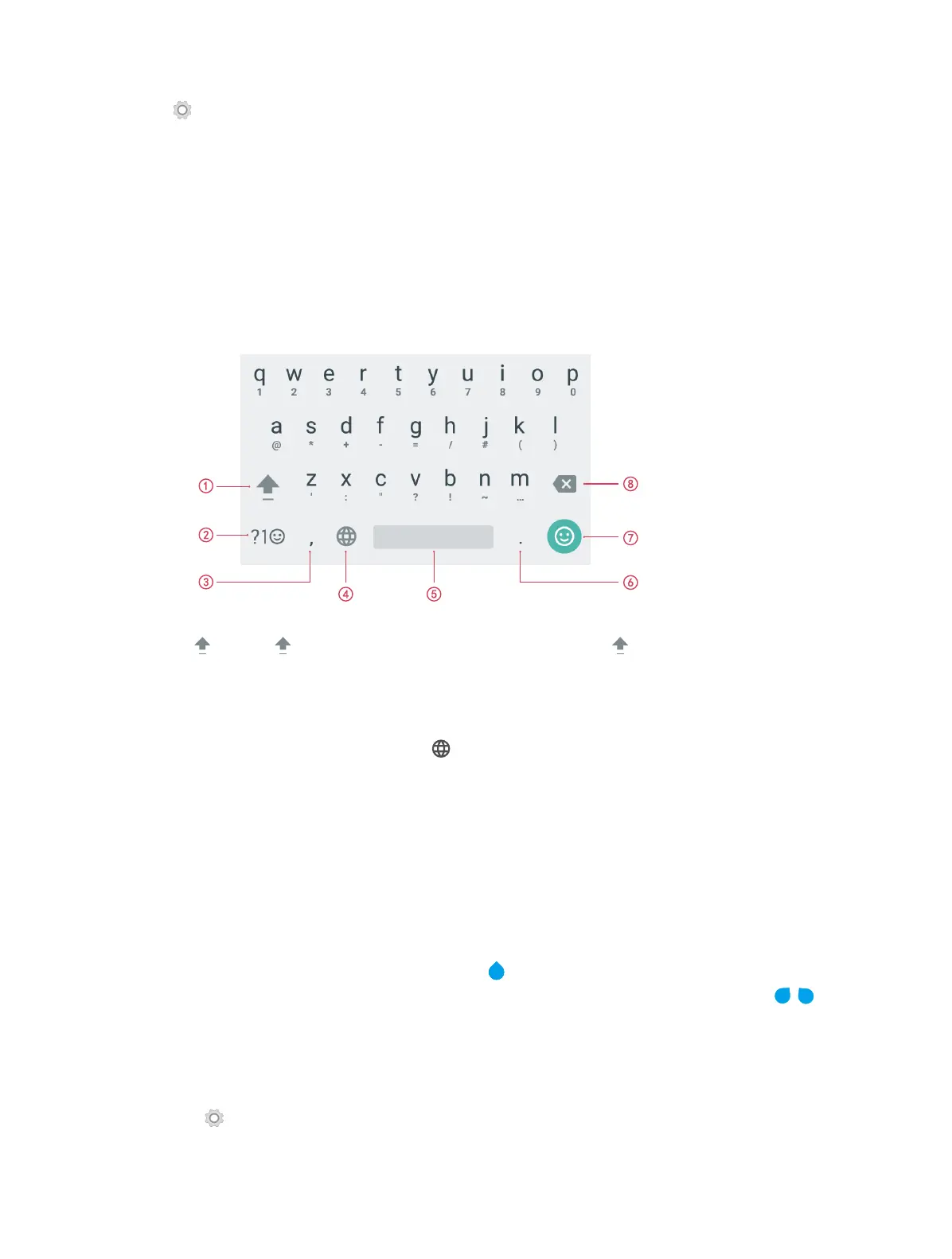
Use Android input method to enter text.
1. Tap , or touch and slide to a letter to type uppercase. Double-tap for caps lock.
2. Enter numbers, punctuations and symbols.
3. Enter a comma.
Tap and hold to open the input options menu.
4. If you have several keyboards, you can tap to switch to the last one you used. You can also touch and
hold it to choose the keyboard you need.
5. Enter a space, or double-tap the space bar quickly to end a sentence with a period.
6. Enter a period.
Tap and hold to enter a symbol.
7. Enter emoticon.
8. Delete the characters to the left of the cursor.
Edit text
• Revise text: Tap the text to position the insertion point and start revising.
• Select text: Tap and hold the text field to display the selection options(cut/copy/share/select all). Drag
to select more or less text.
Spell checker
You can turn on the Spell checker feature to help you enter correct words.
1. Go to Settings -> Language & input -> Spell checker.
2. Turn the switch on.



 To Next Page