3Chapter 1 .
Get started
1. 4 Initial setup
Press and hold the Power button to turn on your phone, and then follow the onscreen instructions to complete
the initial setup. It is recommended to insert your SIM card before you start the initial setup.
1. Select your language, and then tap .
2. Proceed to Set up SIM cards screen. Follow the onscreen instruction to select a SIM for cellular data, calls
and text messages and then tap NEXT.
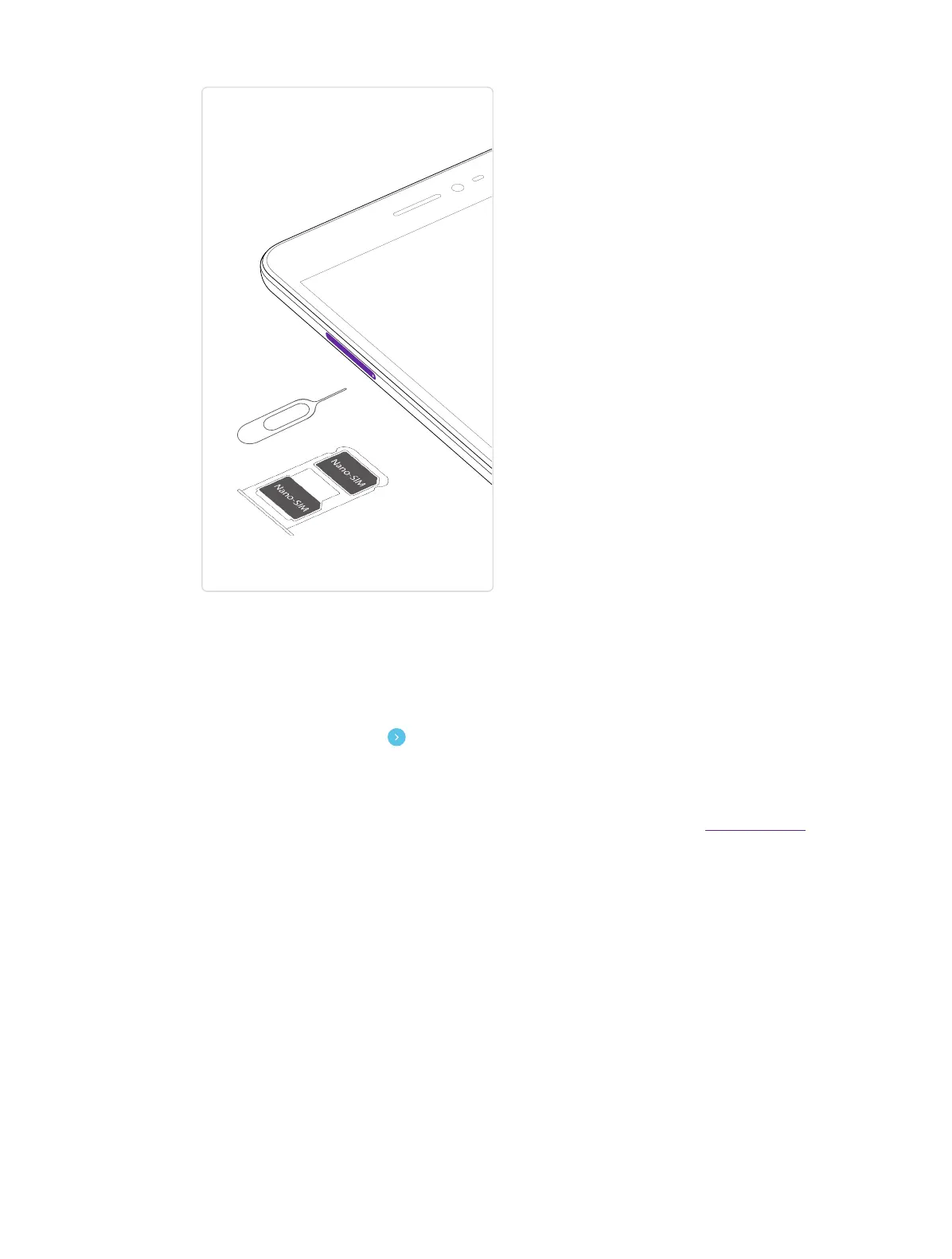
• If you have not inserted your SIM card before the initial setup, your phone will proceed to Insert SIM
cards in this step. Then you can insert your SIM card first. For more information, see Put in the cards. If
you do not want to insert your SIM card now, tap SKIP to move to the next step.
3. Proceed to Set up your Neffos X1 Lite screen. You can choose restore a backup or copy from a devide
or just tap Set up as new. Then your phone will automatically list available WLAN networks. Select the
network you want to connect to, and then enter the password to access the Internet. (This can take up
to 2 minutes.) Or you can tap Don’t use any network for setup -> CONTINUE and move to next step.
4. Proceed to Google services screen. The services are turned on by default. Tap NEXT.
5. Proceed to Date & time screen. Set the time according to your location and then tap NEXT.
6. Proceed to Name screen. Add your name to allow your phone to personalize some apps. Then tap NEXT.
7. Pcoceed to Protect your phone screen. Select a device protection feature and then follow the onscreen
instructions to complete. If you don’t want to set now, tap No, thanks and tap SKIP -> SKIP ANYWAY.
8. Pcoceed to Anything else screen. You can set up a few more things there, or you can just skip by tapping
Set up later.
9. Proceed to Terms And Conditions screen. Carefully read the terms and conditions and then tap AGREE.
10. Setup completed. Tap START USING YOUR PHONE.



 To Next Page