10Chapter 2 .
Basics
3. Wi-Fi: Tap to enable WLAN.
4. Do not disturb: Tap to silence your phone.
5. Bluetooth: Tap to enable Bluetooth.
6. Battery usage: Tap to check battery usage.
7. Signal: Tap to check data usage.
8. Portrait: Tap to enable auto-rotate.
9. Flashlight: Tap to enable flashlight.
10. Location: Tap to enable location services.
11. Airplane mode: Tap to enable airplane mode.
12. Screen indicator: Slide to change to next screen to view other options.
13. Edit: Tap to enter the edit page. You can drag the shortcut switches on the edit page to/from Quick
Settings Panel.
14. Hotspot: Tap to enable hotspot.
15. Nearby: Tap to scan for links from things nearby (need to open Bluetooth and Location).
16. Invert clolors: Tap to enable invert clolors.
17. Data saver: Turn on data saver to reduce data usage.
2. 5 Notification Panel
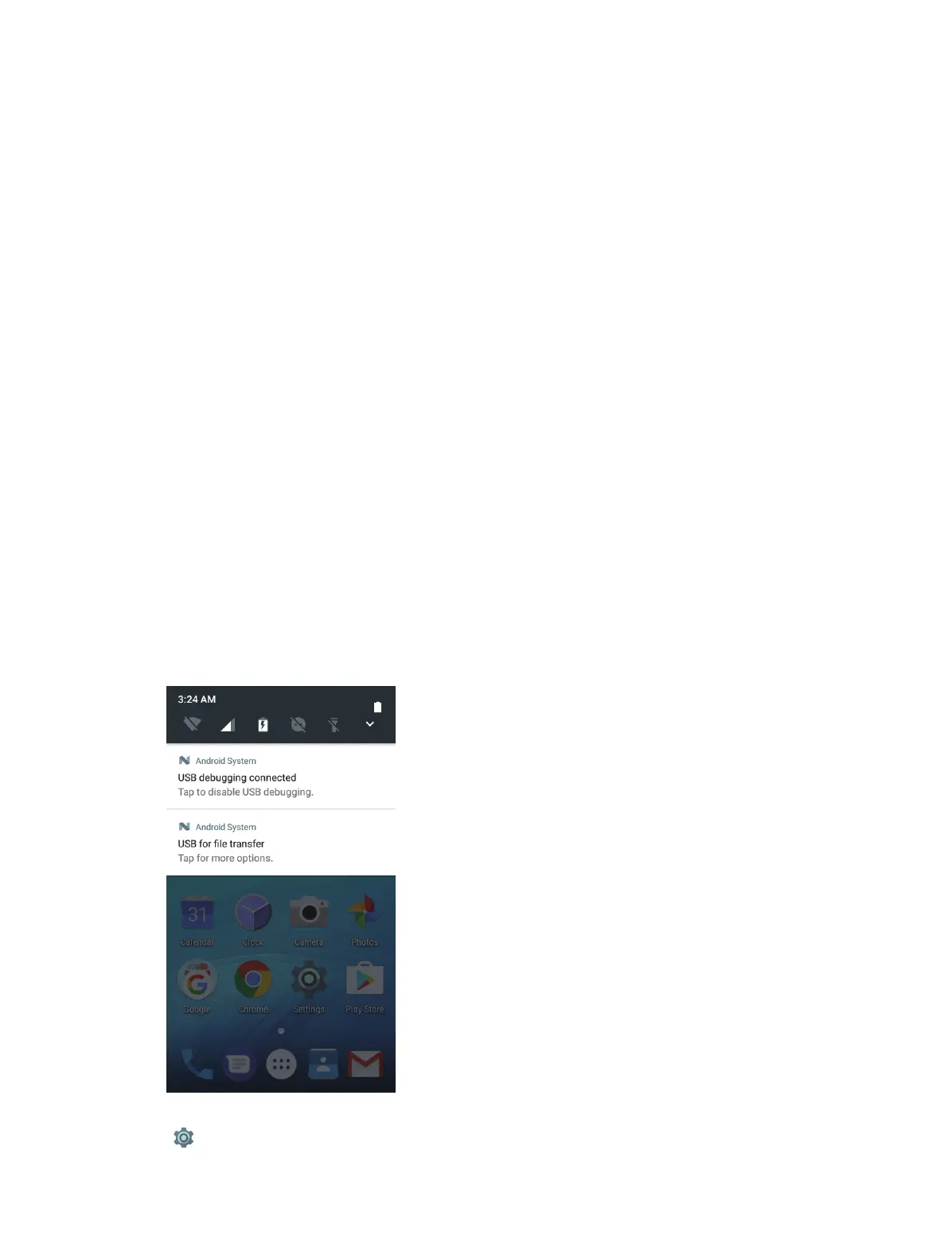
Notification Panel collects all the notifications and alerts so that you can review them whenever you like.
• Open Notification Panel: Swipe down from the top edge of the screen to open the Notification Panel.
• View a notification: Tap an item to view the details. Or swipe the notification left or right to remove it from
the list. ( New notifications, such as missed calls and messages are displayed on the Lock screen. Double-tap
it to view the details.)
• Close Notification Panel: Swipe up, or press the Home button.
Notification management
Go to Settings -> Notifications, select the desired application. You can:



 To Next Page