16 Nektar Impact iX49 & iX61 User Guide www.nektartech.com
Reason and Impact iX49 Working Together
With installation complete, it’s time to take a look at how the Impact iX49 integrates with Reason.
Launch Reason.
Create a few instrument tracks.
Move the fader all the way up and down. The Impact iX49 fader now controls the volume of the device associated with
the currently selected track. To avoid parameter jumping we also implemented soft-takeover. Read the section at the
bottom of this page for more information about how that works. Note: The fader does not control volume on audio
tracks.
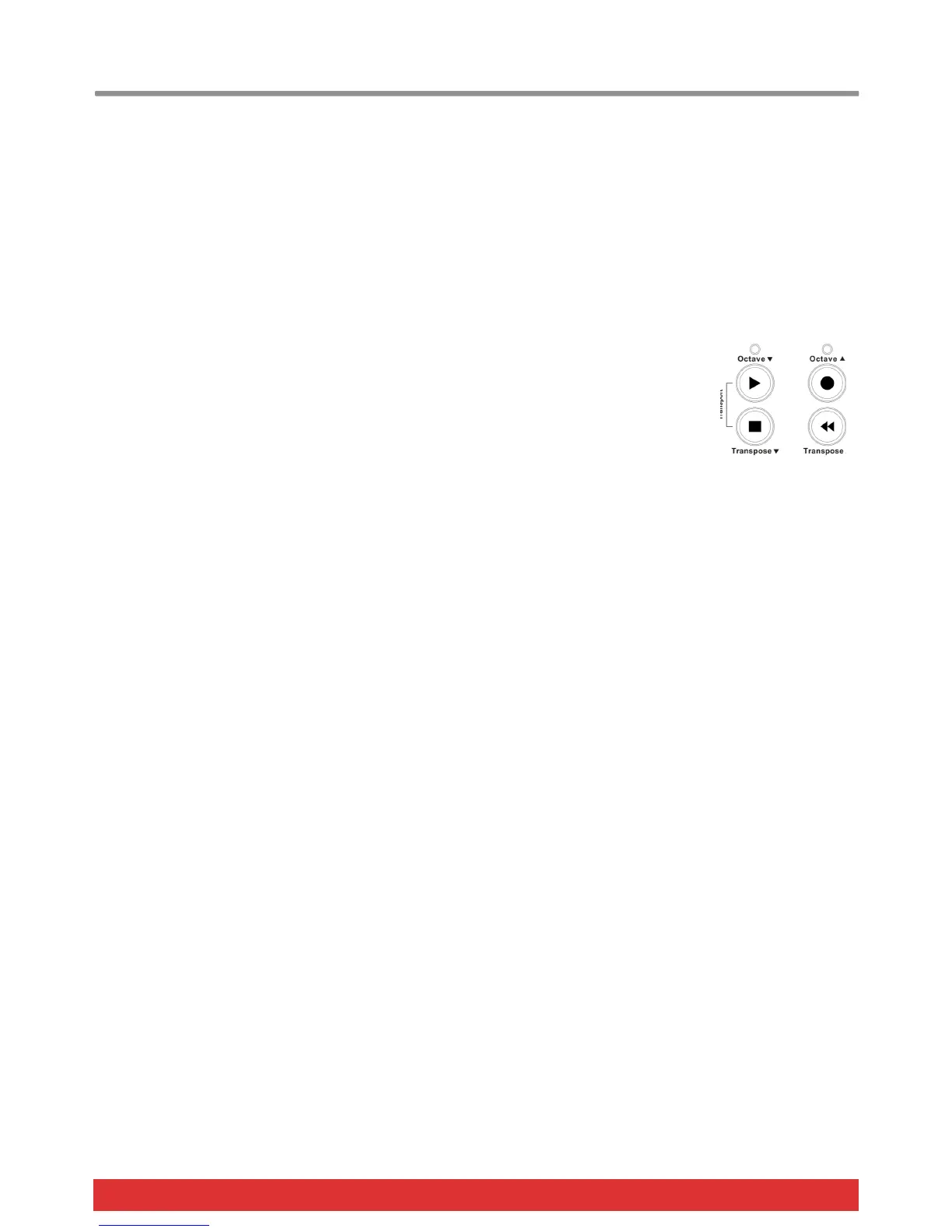
Next, press the [Octave Down] + [Transpose Down] buttons at the same time. This assigns the 4 round buttons to
control transport functions in Reason.
Now press the [Octave Down] button. It activates Play. [Octave Up] activates Record and press
[play] again to stop. The two Transpose buttons are assigned to Rewind and Forward.
Press the [Octave Down] + [Transpose Down] buttons at the same time to return to controlling
Octave and transpose with the buttons.
You can also assign the Transpose buttons to control track or patch change in your DAW.
Let’s assign the two buttons to change the track in Reason:
Press the [Setup] button. The LED above the button will blink and the color is orange to indicate setup is active.
Press the key D#2 (labeled “Track”) on your iX keyboard to assign the Track Select function.
Press Enter (C5). This will accept the change and exit Setup.
Pressing the Transpose up/down buttons will now allow you to step through tracks in your DAW.
The process for assigning the buttons to change the patch in your virtual instrument is the same, only press E2 instead of
D#2.
If you are not getting the results described, please check your installation one more time as well as the Nektar support tab on
our website www.nektartech.com
Soft Take-Over
When changing tracks and adjusting device volume with a control, you would normally experience parameter jumping.
This happens when a control’s physical position is not the same as the position of the parameter you are controlling. When
you move the control, the parameter therefore jumps to the value the control is sending out.
To avoid parameter jumping when using the fader, your Impact iX is equipped with Soft Take-Over. This means that if the
fader is not in sync with current device volume, moving the fader will not cause a change, until it’s position matches the value
of the parameter.
Try changing instrument tracks in Reason and move the iX49 fader on each track to get a feel for how this works.
Notice that the setup button’s LED is used to indicate whether you should move the fader up or down to pick up the value of
the device volume. Orange means up and red means down. If the LED is green, it means the fader is in sync with the Reason
device volume.





 To Next Page