c. Click the drive to display its context menu, and then select View settings.
d. Confirm that the replacement drive has a capacity equal to or greater than the drive you are replacing
and that it has the features you expect.
For example, do not attempt to replace a hard disk drive (HDD) with a solid-state drive (SSD). Similarly,
if you are replacing a secure-capable drive, make sure the replacement drive is also secure-capable.
3. If needed, use SANtricity System Manager to locate the drive within your storage array: From the drive’s
context menu, select Turn on locator light.
The drive’s Attention LED (amber) blinks so you can identify which drive to replace.
If you are replacing a drive in a shelf that has a bezel, you must remove the bezel to see the
drive LEDs.
Step 2: Remove failed drive (24-drive)
Remove a failed drive to replace it with a new one.
Steps
1. Unpack the replacement drive, and set it on a flat, static-free surface near the shelf.
Save all packing materials.
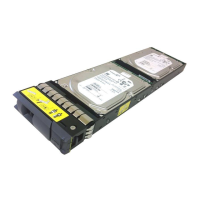
2. Press the release button on the failed drive.
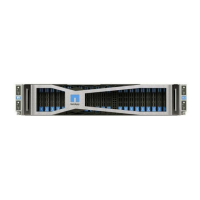
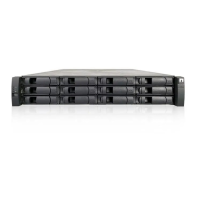
◦ For drives in E5724 controller shelves or DE224C drive shelves, the release button is located at the top
of the drive. The cam handle on the drive springs open partially, and the drive releases from the
midplane.
3. Open the cam handle, and slide out the drive slightly.
4. Wait 30 seconds.
5. Using both hands, remove the drive from the shelf.
6. Place the drive on an antistatic, cushioned surface away from magnetic fields.
7. Wait 30 seconds for the software to recognize that the drive has been removed.
If you accidentally remove an active drive, wait at least 30 seconds, and then reinstall it. For
the recovery procedure, refer to the storage management software.
Step 3: Install new drive (24-drive)
You install a new drive to replace the failed one. Install the replacement drive as soon as possible after
50



 To Next Page