◦ Always wear an ESD wrist strap grounded to an unpainted surface on your storage enclosure chassis.
If a wrist strap is unavailable, touch an unpainted surface on your storage enclosure chassis before
handling the drive.
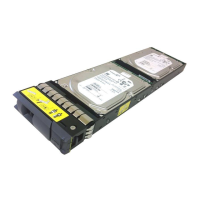
• Handle drives carefully:
◦ Always use two hands when removing, installing, or carrying a drive.
◦ Never force a drive into a shelf, and use gentle, firm pressure to completely engage the drive latch.
◦ Place drives on cushioned surfaces, and never stack drives on top of each other.
◦ Do not bump drives against other surfaces.
◦ Before removing a drive from a shelf, unlatch the handle and wait 30 seconds for the drive to spin
down.
◦ Always use approved packaging when shipping drives.
• Avoid magnetic fields:
◦ Keep drives away from magnetic devices.
Magnetic fields can destroy all data on the drive and cause irreparable damage to the drive circuitry.
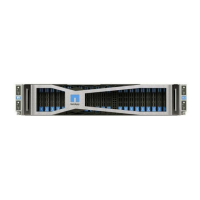
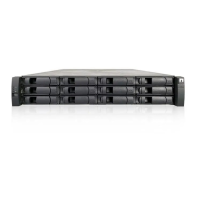
Replace drive in E5700 (24-drive shelf)
You can replace a drive in a 24-drive shelf.
About this task
The Recovery Guru in SANtricity System Manager monitors the drives in the storage array and can notify you
of an impending drive failure or an actual drive failure. When a drive has failed, its amber Attention LED is on.
You can hot-swap a failed drive while the storage array is receiving I/O.
Before you begin
• Review drive handling requirements in
Requirements for E5700 drive replacement.
What you’ll need
• A replacement drive that is supported by NetApp for your controller shelf or drive shelf.
• An ESD wristband, or you have taken other antistatic precautions.
• A management station with a browser that can access SANtricity System Manager for the controller. (To
open the System Manager interface, point the browser to the controller’s domain name or IP address.)
Step 1: Prepare to replace drive (24-drive)
Prepare to replace a drive by checking the Recovery Guru in SANtricity System Manager and completing any
prerequisite steps. Then, you can locate the failed component.
Steps
1. If the Recovery Guru in SANtricity System Manager has notified you of an impending drive failure, but the
drive has not yet failed, follow the instructions in the Recovery Guru to fail the drive.
2. If needed, use SANtricity System Manager to confirm you have a suitable replacement drive.
a. Select Hardware.
b. Select the failed drive on the shelf graphic.
49



 To Next Page